
M4-S4 — Look and feel, and organization settings
Section titled “M4-S4 — Look and feel, and organization settings”| Module | M4 — Run the tenant |
| After this session you can | Set the look, language, time zone and date formats for the organization, a space or one person, predict which one wins, and know what to ask the operator for. |
| Time | Facilitated: 34 min · On your own: 34 min |
| Before you start | M4-S3. Ziad is signed in in your private window. ACP M3-S1, where you changed your own display settings. |
| Go deeper | Organization settings · Look and feel: themes, fonts and icons |
◆ Orientation (1 min) — Three people, three looks
Section titled “◆ Orientation (1 min) — Three people, three looks”In ACP you changed your own display settings. Now the requests are bigger: Northwind wants its own theme for everyone, the customs space works in Arabic, and one manager who works with the London office wants London time. One kind of record does all three, and one rule says which wins.
▤ Concept (4 min) — Settings records and what wins
Section titled “▤ Concept (4 min) — Settings records and what wins”One record, three scopes
Section titled “One record, three scopes”A settings record bundles what people see: the Available Themes and the Default Theme, the Primary Language, the Time zone, and the Date Time Format, Date format and Time format. Each record applies to one Scope:
| Scope | Applies to |
|---|---|
| Organization | Everyone: your baseline |
| Space | Everyone working in one space |
| User | One person |
The most specific record wins: the person’s own, then their space’s, then the organization’s. One exception sits above all of these for the language: a person who has ever chosen their own language in User Preferences keeps that choice, and it wins over every settings record. Visitors who are not signed in get only the space’s record, or the built-in defaults if it has none. Each space and each person can have only one record. Start with one Organization record and add others only where someone really needs something different.
flowchart LR
  U{"A User record<br/>for this person?"} -->|"yes"| UR["It applies"]
  U -->|"no"| S{"A Space record<br/>for their space?"}
  S -->|"yes"| SR["It applies"]
  S -->|"no"| O["The Organization record,<br/>or the built-in defaults"]
What to notice: you never combine records; the first one found applies. A person who looks different from everyone else almost always has a record of their own.
Fonts, then themes, then settings
Section titled “Fonts, then themes, then settings”All of this lives under Administration › Interfaces (it appears from Developer at the system level; changing entries needs Edit). The order matters:
- Fonts: upload the typeface in all four file formats (WOFF, WOFF2, TTF and OTF).
- Themes: a name, Dark mode or not, the Used font, and optional styling for the web and the mobile app.
- Settings: a theme reaches nobody until a settings record offers it.
Languages and Time Zones have their own screens. A new language needs its Local Name, its two-letter Language Iso Code2, its direction (left to right or right to left), and the translations of the product’s labels; mark exactly one language as Default. Removing or renaming a language leaves the names written in it empty. Your own icons are records of the Icons entity under Data Entities; new ones reach people without a refresh.
What comes from the operator
Section titled “What comes from the operator”The product name, the logo, the favicon, the loading screen and the sign-in page’s look are not set in Administration. They come from the deployment and your organization’s brand. Your themes change the look around them. To change the name or logo, ask the operator.
▶ Guided demo (5 min) — The Interfaces screens
Section titled “▶ Guided demo (5 min) — The Interfaces screens”Follow along; change nothing.
- Open Administration › Interfaces › Settings. Read the list: each row has a Scope. The list opens filtered by Scope (“1 Filters”), showing the Organization record only; a person’s User-scope record is not listed until you change that filter.
- Open Interfaces › Themes and open one theme. Read Dark mode, Used font and the styling fields. Close it.
- Open Interfaces › Fonts: each font holds the four file formats.
- Open Interfaces › Languages and Time Zones. Find which language is Default.
- Open Applications › Data Entities › Icons and look at one icon record.
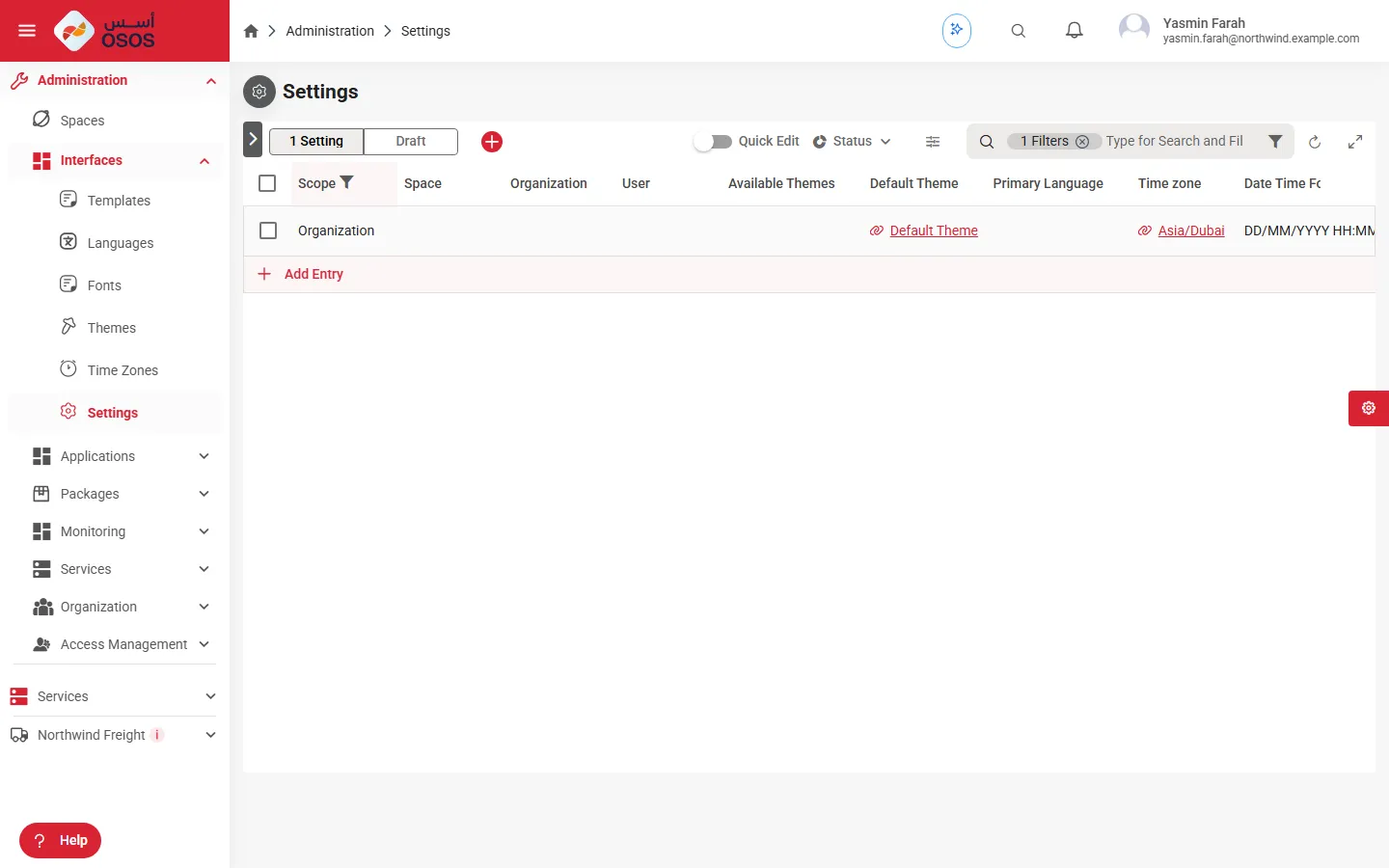 What to notice: the Scope column tells you who each record applies to. The User record wins for its person.
⛏ Lab (8 min) — A look of his own for Ziad
Section titled “⛏ Lab (8 min) — A look of his own for Ziad”Goal. Give Ziad a personal settings record, prove it from his side, then remove it and watch him fall back to the defaults. You work on User scope only: in a shared practice environment, leave the Organization record alone.
- Before you start, look at Ziad’s window: note his theme, his language and how dates are written.
- Open Administration › Interfaces › Settings and select Add Entry.
- Set Scope to User and choose Ziad Mourad.
- In Available Themes, offer Default Theme, and make it the Default Theme (the practice tenant has this one theme, and it is not dark). Set Primary Language to ar (the list offers language codes, ar and en, not names), and choose a different Date format from the one Ziad has now. Select Save.
- In Ziad’s window, reload. His portal is in Arabic, with the new date format. Yours has not changed.
- Predict: if you remove Ziad’s record, what does he see? Write it down.
- Back in your window, open Interfaces › Settings. The list opens filtered by Scope and shows only the Organization record, so Ziad’s User record is hidden. Change the Scope filter to User, open Ziad’s record and archive it. (In the live run the filter’s clear control did not reveal it, and the list’s search box did not find records by name.)
- In Ziad’s window, reload. Compare with your prediction.
Check.
- Ziad’s record has Scope User, Default Theme as Default Theme, Arabic and a new date format.
- After a reload, Ziad’s portal showed all three; yours did not change.
- After the record was archived, Ziad returned to the look he had before.
- Your prediction in step 6 named the record that applies when his own is gone.
Pass condition. You saw Ziad’s look change with his record, and change back without it, while nobody else’s changed.
If something goes wrong
| What you see | What to do |
|---|---|
| “Only one record” or a similar refusal on save | Ziad already has a settings record. Open and edit that one instead. |
| Your Primary Language has no effect on someone | That person has saved a language of their own in User Preferences, which wins over your settings. Nothing on your screen says so. Ask them to reset their preferences to default, and the settings record applies. |
| Ziad’s look did not change | Reload his page; settings apply when the app loads. Then check that the record’s Scope is User and names Ziad. |
| Ziad’s theme did not change | Expected: the practice tenant has one theme. The language and the date format are the proof. |
| Ziad is stuck in Arabic after step 7 | Reload his page again. If it stays, he may have chosen Arabic himself in his own preferences; ask him to switch back. |
Model answer
What happened, and why:
- With his own record, Ziad got its theme, language and date format: the User record is the most specific, so it applied, and only to him.
- Once you archived it, the next record in line applied: the Space record of the Root Space if your tenant has one, otherwise the Organization record, otherwise the built-in defaults. That is what your prediction should have named.
- In a real tenant you would rarely give one person a record. The usual pattern is one Organization record and, where a whole space works differently (such as the Arabic-speaking customs desk), one Space record.
✓ Practice (5 min) — Check your understanding
Section titled “✓ Practice (5 min) — Check your understanding”The organization’s record says English, the customs space’s record says Arabic, and a customs broker has no record of her own. Which language does she get in the customs space?
Check your answer
The correct answer is B. Open the explanation under each option to see why.
You created the theme Northwind Day, but nobody can choose it. What is missing?
Check your answer
The correct answer is B. Open the explanation under each option to see why.
Samir wants the new Northwind logo at the top of the portal and on the sign-in page. What do you do?
Check your answer
The correct answer is C. Open the explanation under each option to see why.
True or false: visitors who open a public form without signing in see the organization’s settings record when their space has none.
Check your answer
The correct answer is B (False). Open the explanation under each option to see why.
↺ Recap (1 min) — After Module 4 you can
Section titled “↺ Recap (1 min) — After Module 4 you can”After this module you can run the tenant day to day: set up working hours and holidays and explain any deadline; provide shared message templates and trace a message that did not arrive; find who changed what in the audit trail; and give the organization, a space or a person their look and formats, knowing which one wins.
Next. Module 5 is the capstone: you extend Northwind for its new customs desk, prove it works, and hand it over with a runbook.