
M4-S3 — Monitoring: logs, automation runs and the audit trail
Section titled “M4-S3 — Monitoring: logs, automation runs and the audit trail”| Module | M4 — Run the tenant |
| After this session you can | Answer “did it go out?”, “did it run?” and “who changed this?” from evidence, on the Monitoring screens. |
| Time | Facilitated: 33 min · On your own: 33 min |
| Before you start | Your work from this course: Hala’s account (M1-S1), the access grants and Ziad’s claim (M2-S2), Hana’s unmask (M2-S3). |
| Go deeper | Monitoring: logs & audit · For operators: Logs, audit & retention reference |
◆ Orientation (1 min) — Evidence, not memory
Section titled “◆ Orientation (1 min) — Evidence, not memory”This week you created accounts, changed access, and watched Hana reveal salaries. Each of those left a trace. When someone says “I never got the email” or “who gave Finance access to invoices?”, you answer from the record, not from memory. Here you learn the four screens that hold the record, by finding your own traces in them.
▤ Concept (4 min) — Two kinds of history, four screens
Section titled “▤ Concept (4 min) — Two kinds of history, four screens”Logs record what the platform did: every email, text message and WhatsApp message it tried to send, every automation run, and every time a space’s end-user interfaces were switched off or on. The audit trail records who changed what. Both are under Administration › Monitoring:
| Screen | Answers |
|---|---|
| Logs | Did a message go out? Tabs Email, Sms and WhatsApp. An email’s Status is Success when the mail server accepted it and Failed when it did not; the details add the server’s Response code. |
| Reaction Logs | Did an automation run, and what did each of its actions do? Filter by Reaction, Event, Action, Status and Period. |
| Audit Logs | Who changed what, and when? Filter by Event Name, User and time; open a record to see the old and new values. |
| System Logs | Who switched a space’s end-user interfaces off or on, and when (M3-S1)? |
Following a message
Section titled “Following a message”flowchart LR A["Something happens<br/>(a claim is approved)"] --> R["Reaction Logs:<br/>did the automation run?"] R -->|"no row"| F["Its conditions did not match:<br/>ask the builder"] R -->|"ran, Send Email succeeded"| L["Logs › Email:<br/>same Reaction Execution ID"] L -->|"Success"| S["It left the platform:<br/>check spam"] L -->|"Failed"| O["Pass the response code<br/>to the operator"]
What to notice: start at the automation, not the mailbox. Only runs that actually executed are listed, so “no row” is itself an answer.
The Reaction Execution ID on a message links it to the run that sent it. Values a builder marked
to hide, protected values, passwords, tokens and keys show as **** in run details, even to you.
What the audit trail holds
Section titled “What the audit trail holds”Event Name uses plain names, such as User Signed In, Password Reset By Admin, Data Entry Updated, Access Right Changed and Space Deactivated. It records sign-ins and account changes; records created, changed, archived and deleted; design changes; every permission change; space changes; tokens and packages. Four events tell you who looked at protected values: Sensitive Data Unmask Enabled and Disabled (a session started or ended), Sensitive Data Unmasked (a value shown), and Decrypted Data (an encrypted value revealed). The values themselves are never written.
It does not record the platform’s own upgrades, changes to notifications and requests, or the values of protected fields. Identity checks before a reveal are kept in the sign-in security records, which the operator holds.
Who can read these screens. Monitoring appears for system Admins. Reaction Logs is for system administrators only, because a run’s details show what each action read and wrote.
Records do not last for ever. Older audit records, message logs and automation runs can be deleted for good. Export what an investigation needs as soon as you know you need it.
⛏ Lab (10 min) — Find your own traces
Section titled “⛏ Lab (10 min) — Find your own traces”Goal. Answer four questions about this week from the Monitoring screens alone.
1. Did the claim automation run when Ziad sent his claim?
- Open Administration › Monitoring › Reaction Logs. Set Period to Last week and Reaction to Tell Finance about a new claim.
- Find the run whose Actor is Ziad and open it. Read its Status and the result of its action.
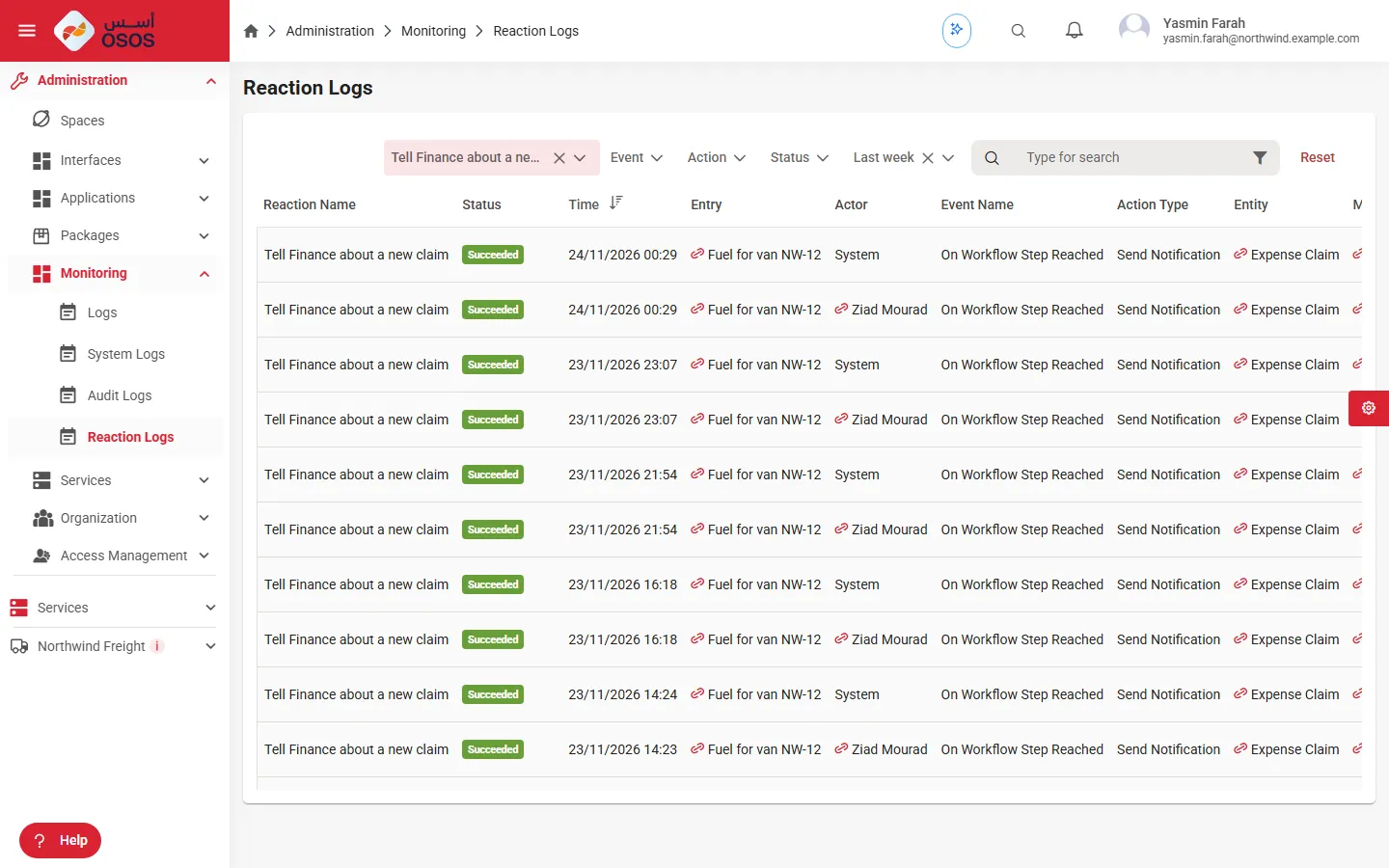 What to notice: one row per run that actually executed. The Status covers all its actions: a single failed action makes the run failed.
2. Did Hala’s set-password email leave the platform?
- Open Monitoring › Logs, tab Email. Sort by Sent at.
- Find the email to
hala.jaber@northwind.example.comfrom M1-S1 and open it. Read its Status and Response code.
3. Who gave Finance access to the invoices, and when?
- Open Monitoring › Audit Logs. Filter Event Name to Access Right Changed.
- Find the change you made in M2-S2 on Invoices for Northwind Finance. Open it and read the Details: who, when, and the levels before and after.
- Find the two later changes from the take-away test (Edit to Restricted, then back to Edit).
4. Who revealed salaries?
- Change Event Name to Sensitive Data Unmask Enabled. Find Hana’s session from M2-S3.
- Change it to Sensitive Data Unmasked and look for the values she was shown: the events name the field and the person, never the value.
And maintenance
- Open Monitoring › System Logs. It is empty, or holds only earlier entries: nobody switched a space’s end-user interfaces this week.
- Write one line per question with the evidence you found.
Check.
- You found Ziad’s run in Reaction Logs and read its Status.
- You found Hala’s set-password email and its Status.
- You found your Access Right Changed events on Invoices, with before and after levels.
- You found Hana’s unmask session, and saw that no salary value is written anywhere.
- Your four lines each name a screen and a piece of evidence.
Pass condition. Each of the four questions is answered with the screen, the record and what it shows.
If something goes wrong
| What you see | What to do |
|---|---|
| No run for Ziad’s claim | The claim was saved but never sent with its first step (M2-S2, step 12), or the Period is too short. |
| Hala’s email is not in the list | Page through, or sort by Sent at the other way. If it is truly missing, the address on her record was already used by another account (M1-S1). |
| An event you expected is missing from Audit Logs | Widen the time filter. In rare cases, such as a brief outage, a single audit record can be lost; the change itself is never undone. |
| Monitoring is missing | You need the system Admin level. |
Model answer
What the evidence typically shows:
- Reaction Logs: one run of Tell Finance about a new claim, Actor Ziad, Status succeeded, its notification action successful. The automation did its job.
- Logs › Email: the email to Hala is listed. In a practice tenant its Status depends on the mail set-up; in a real tenant, Success sends you to her spam folder and Failed sends its response code to the operator. Either way, the row proves the platform tried.
- Audit Logs: three Access Right Changed events on Invoices for Northwind Finance, all by you: none to Edit, Edit to Restricted, Restricted to Edit, with their times.
- Audit Logs: Sensitive Data Unmask Enabled by Hana, then the reveals and the end of her session. No salary appears in any of them, by design.
System Logs had nothing new: you used no maintenance switch this week.
◇ Worked scenario (1 min) — Two investigations
Section titled “◇ Worked scenario (1 min) — Two investigations”1. Dana: “I approved Ziad’s claim yesterday, but he never got the approved email.” Start at the automation: in Reaction Logs, filter on the approval automation and yesterday. No row means its conditions did not match: the builder checks them. A row with a failed Send Email action shows the error in its details. A successful action gives you a Reaction Execution ID: find the email with the same ID under Logs › Email. Success means it left the platform: Ziad checks his spam folder. Failed means the mail server refused it: send the response code to the operator.
2. Samir: “Someone gave the Dispatch team access to the staff records last month. Who?” Open Audit Logs, filter Event Name Access Right Changed and last month, and look for Staff Records or Staff Overview with Northwind Dispatch. The record names who made the change and when. If nothing is found, the event may already have been deleted. Then check User Permissions for a Dispatch member: the access may come another way, for example a direct grant.
✓ Practice (5 min) — Check your understanding
Section titled “✓ Practice (5 min) — Check your understanding”An automation should notify Finance when a claim is sent. A claim was sent, and Reaction Logs shows no run at all for that automation. What does that tell you?
Check your answer
The correct answer is B. Open the explanation under each option to see why.
Finance’s manager asks you to look up last month’s salary of an employee in the audit trail, because the record was changed since. What do you answer?
Check your answer
The correct answer is B. Open the explanation under each option to see why.
On Monday, Northwind’s portal was unusable for an hour although Administration worked. Which screen tells you who caused it?
Check your answer
The correct answer is C. Open the explanation under each option to see why.
An auditor wants to know whether anyone revealed bank account numbers last quarter. Which event do you filter on?
Check your answer
The correct answer is B. Open the explanation under each option to see why.
↺ Recap (1 min) — What you can do now
Section titled “↺ Recap (1 min) — What you can do now”You can choose the right Monitoring screen for a question, follow a missing message from the automation to the mail server’s answer, and find who changed access or revealed protected values, knowing what the record never holds and how long it lasts.
Next. In M4-S4 you give Northwind its look, and learn which settings win when the organization, a space and a person each choose differently.