
M4-S1 — Working hours and holidays
Section titled “M4-S1 — Working hours and holidays”| Module | M4 — Run the tenant |
| After this session you can | Set up the working hours and holidays that time limits count against, and work out and explain any deadline. |
| Time | Facilitated: 29 min · On your own: 29 min |
| Before you start | M3-S3. ACP M5-S1, where a request moved through workflow steps. |
| Go deeper | Working hours & holidays · For builders: Workflows: time limits and escalation |
◆ Orientation (1 min) — “Two days” that are not two days
Section titled “◆ Orientation (1 min) — “Two days” that are not two days”Northwind’s finance team promises to handle every expense claim within two working days. If the clock counted every hour, a claim sent on Thursday afternoon would be late on Saturday, when nobody works. Osos counts only working time, and you tell it what working time is.
▤ Concept (3 min) — Your schedules, the builder’s time limits
Section titled “▤ Concept (3 min) — Your schedules, the builder’s time limits”A builder can give a workflow step a time limit, such as “Finance approves within 16 working hours”. To know what a working hour is, the step points at one of your working-hours schedules. When a request reaches the step, Osos works out its deadline by counting only time inside the schedule, and skipping every holiday. If the step is not done by the deadline, it becomes Overdue, and any escalation the builder set up starts.
| You set up | The builder decides |
|---|---|
| The schedules: which days and hours count | Which steps have a time limit, and how long it is |
| The holidays, and which schedules they apply to | What happens when a deadline is missed |
Both are records under Administration › Applications › Data Entities:
- A schedule (Working Hours entity): a Name, and one row per working day with Day, Starting Time and Ending Time. A day with no row is a day off; each day appears once.
- A holiday (Holidays entity): a Name, a Start and End Date (both days included, whole days only), and Related Working Hours: the schedules it applies to. Leave it empty to apply the holiday to every schedule.
Two rules explain most surprises:
- A deadline is fixed when the request reaches the step. A holiday added today does not move a deadline given yesterday. Changes apply to every step reached from then on.
- A schedule with no working days gives no deadline at all. Before you archive a schedule, ask your builders whether a step still uses it.
A schedule has no time zone of its own. If deadlines come out a few hours off, ask your operator to check the time zone the platform counts in.
⛏ Lab (10 min) — Northwind’s office hours and Founders’ Day
Section titled “⛏ Lab (10 min) — Northwind’s office hours and Founders’ Day”Goal. Create the schedule Northwind’s finance steps will count against, and a two-day holiday that applies to it.
- Open Administration › Applications › Data Entities, open Working Hours, and select Add Working Hours.
- Enter the Name Northwind Office Hours in English and ساعات عمل نورثويند in Arabic.
- Under Working Hours, add a row: Day Sunday, Starting Time 08:00, Ending Time 16:00.
- Add the same row for Monday.
- Add it for Tuesday.
- Add it for Wednesday.
- Add it for Thursday. Leave Friday and Saturday out: they are days off. Select Save.
- Open the Holidays entity and select Add Entry.
- Enter the Name Northwind Founders’ Day. In Start and End Date, choose next month’s second Sunday and the Monday after it.
- In Related Working Hours, choose Northwind Office Hours. Select Save.
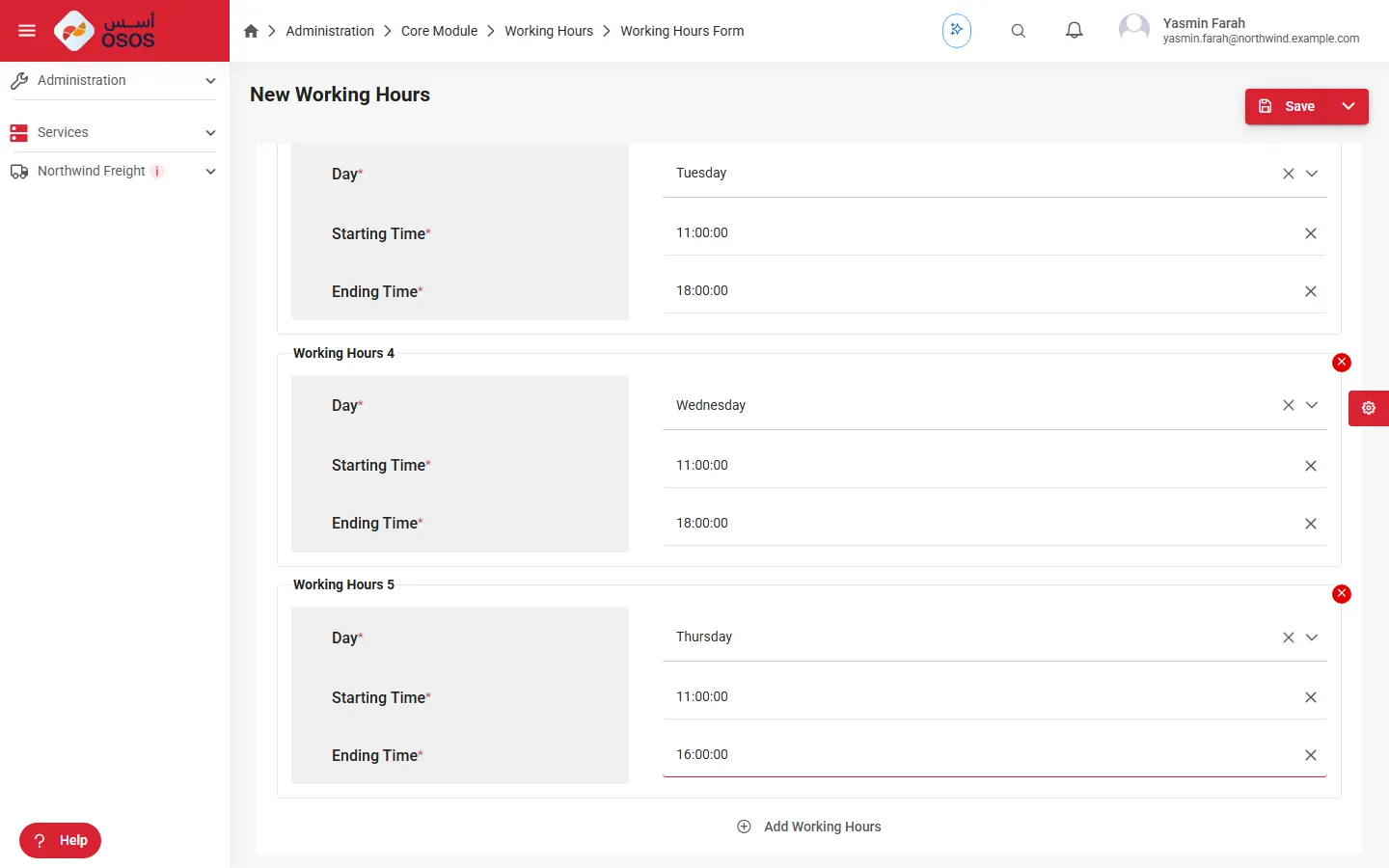 What to notice: one row per working day. Friday and Saturday have no row, so they never count.
Check.
- Northwind Office Hours has exactly five rows, Sunday to Thursday, 08:00 to 16:00.
- Northwind Founders’ Day covers a Sunday and the Monday after it.
- The holiday’s Related Working Hours is Northwind Office Hours, not empty.
- You can say which steps will use the schedule: the ones a builder points at it.
Pass condition. The schedule and the holiday are saved as described.
If something goes wrong
| What you see | What to do |
|---|---|
| “This day is already selected” | Each day can appear once per schedule. Change the row’s Day. |
| You cannot type a date | Dates are picked from the calendar. |
| The holiday should apply to all of Northwind’s schedules | Leave Related Working Hours empty instead. |
Model answer
What you built: five working days of eight hours, so a “16 working hours” limit is two full working days, wherever it starts. Founders’ Day is linked to Northwind Office Hours only, so a future schedule for a 24-hour desk would keep counting through it unless you link it there too, or leave the link empty to make it a holiday for every schedule.
◇ Worked scenario (1 min) — Three deadlines
Section titled “◇ Worked scenario (1 min) — Three deadlines”Use Northwind Office Hours (Sunday to Thursday, 08:00 to 16:00) and Founders’ Day (a Sunday and Monday). Work each one out before you read the answer.
1. An expense claim reaches Finance approval on the Wednesday before Founders’ Day, at 15:00. The builder set a 12-working-hour limit. Wednesday 15:00–16:00 counts 1 hour. Thursday counts 8 (9 so far). Friday and Saturday are not in the schedule. Sunday and Monday are Founders’ Day. On Tuesday the last 3 hours run from 08:00: the deadline is Tuesday at 11:00.
2. Hana says: “We added an extra holiday on Tuesday this morning, but yesterday’s claim still shows Tuesday 11:00 as its deadline.” Correct behaviour: the deadline was fixed when the claim reached the step, yesterday. Claims that reach the step from now on will skip the new holiday.
3. Northwind’s 24-hour dispatch desk works through Founders’ Day, yet its step deadlines skip the holiday. The holiday’s Related Working Hours is empty, so it applies to every schedule. Link it to Northwind Office Hours only.
✓ Practice (5 min) — Check your understanding
Section titled “✓ Practice (5 min) — Check your understanding”Finance asks you to make the Finance approval step “due within two working days”. What is your part?
Check your answer
The correct answer is B. Open the explanation under each option to see why.
With Northwind Office Hours, a claim reaches a step with an 8-working-hour limit on Thursday at 12:00, in a week with no holidays. When is it due?
Check your answer
The correct answer is C. Open the explanation under each option to see why.
A builder says a monitored step never turns Overdue, however late it is. What do you check on your side?
Check your answer
The correct answer is B. Open the explanation under each option to see why.
True or false: adding a holiday moves the deadlines of requests that are already waiting at a monitored step.
Check your answer
The correct answer is B (False). Open the explanation under each option to see why.
↺ Recap (1 min) — What you can do now
Section titled “↺ Recap (1 min) — What you can do now”You can set up working-hours schedules and holidays, work out a deadline from them, and explain why a deadline did or did not move. Builders now have a schedule to point Northwind’s steps at.
Next. When a deadline is missed, or a claim is approved, someone usually gets a message. In M4-S2 you manage the templates those messages use.