
M3-S1 — Spaces, domains and your license
Section titled “M3-S1 — Spaces, domains and your license”| Module | M3 — Spaces, sign-in and the operator hand-offs |
| After this session you can | Plan and set up a new space with its members and address, put a space into maintenance or take it offline, and explain the license to your colleagues. |
| Time | Facilitated: 24 min · On your own: 24 min |
| Before you start | M2-S4. Ziad is signed in in your private window. |
| Go deeper | Spaces & domains · Your license |
◆ Orientation (1 min) — A space of its own
Section titled “◆ Orientation (1 min) — A space of its own”Northwind is opening a customs brokerage desk. Its work is confidential, and the desk manager asks for “a separate Osos that only customs people can see”. That is what a space is for. In ACP you met spaces as the place your data lives. Now you learn to plan one, set it up and look after it, and the one part that always goes to the operator: its web address.
▤ Concept (5 min) — Tenant, spaces and domains
Section titled “▤ Concept (5 min) — Tenant, spaces and domains”How they fit together
Section titled “How they fit together”Your organization is one tenant. Inside it, a space is a separate working area with its own records, applications, views and members, and its own web address. People see only the spaces they are members of, and inside a space only that space’s data. Every tenant starts with one default space: it is served on the main address, holds the organization-wide settings, and cannot be deactivated. Your practice tenant has at least its default space, the Root Space.
A domain is the set of web addresses (its Host list) people use to open Osos, with the sign-in options offered there. A new installation has one, Default Domain, kept as a record of the Domain entity under Administration › Applications › Data Entities.
flowchart LR
  A["A web address<br/>customs.northwind.example.com"] --> D["Domain: which sign-in<br/>page and options"]
  A --> S["Space: whose data<br/>and applications"]
  S --> M["Members of the space"]
What to notice: an address needs both. The domain decides how people sign in there; the space decides what they find once they are in, and only members get in.
So a person reaches a space only when three things hold: the address is set up and covered by a domain, the space is active, and they are on its Users tab. An address that no space uses shows a “not found” error.
Creating a space
Section titled “Creating a space”- Administration › Spaces › New Space.
- Type: Standalone for an independent space, or Sub Space.
- Space Information: the Name in each language, a description, an Icon.
- Domain: the Domain Identifier becomes the first part of the space’s address (lowercase
letters, digits and underscores, such as
customs); the Full URL is worked out from it and your main address. - Optionally a Default Page, then Save. The space appears as a card on Spaces.
Then add its members: on the card’s menu, View Space › Users tab, one row per person, with Admin turned on for people who administer the space. Membership changes apply at once.
The address is the operator’s part. A space on a new address works only once that address is set up for the platform and covered by a domain. Ask your operator before you announce the space.
Maintenance or offline?
Section titled “Maintenance or offline?”Each space card’s menu has two independent switches, each with a matching switch to turn it back on:
| Action | What happens | Use it when |
|---|---|---|
| Deactivate End User Interfaces | People can no longer use the space’s applications, pages and services. Administration keeps working. | Maintenance: you are changing an application and do not want it used half-finished |
| Deactivate Space | The whole space goes offline; its address stops working for everyone | The space is no longer needed, or must close at once |
Switching end-user interfaces off or on is recorded under Monitoring › System Logs (M4).
Your license
Section titled “Your license”Three facts are all a tenant administrator needs about the license:
- What needs a license. Osos needs a valid license from the Osos vendor before anyone can use it. To use Administration, the license must also include administration.
- Where to see it. Osos has no screen that shows your license. Your vendor holds its details. Ask your vendor, or whoever runs your deployment.
- Without a license. With no valid license, Osos does not open: instead of the sign-in page, people see an error page with a Retry button. With a license that does not include administration, the Administration menu does not appear, an Administration address shows an access-denied page, and configuration changes are refused; records work as usual.
▶ Guided demo (4 min) — The spaces and domain screens
Section titled “▶ Guided demo (4 min) — The spaces and domain screens”Follow along in your own window. Your practice tenant answers on one address only, so you look and close without saving: the steps for a real new space are in the Concept above.
- Open Administration › Spaces. Your tenant’s spaces appear as cards; your practice tenant has at least the Root Space (a shared practice tenant may list other teams’ spaces too; filter the list to Root if you want the same view as the screenshot).
- Open the Root Space card’s menu. Read View Space, Deactivate End User Interfaces and Deactivate Space. Do not select either switch.
- Select View Space and open its Users tab. Search for Ziad: the members are listed here.
- Back on Spaces, select New Space. Read the form: Type, Space Information, the Domain part with Domain Identifier, URL and Full URL, and Default Page. Close the form without saving.
- Open Administration › Applications › Data Entities › Domain, and open Default Domain. (There is no separate domains menu, and the list’s search box does not find the domain by name, so open it from the list.) Read its Host list and its sign-in options. You use them in M3-S2.
- Close the record without editing it.
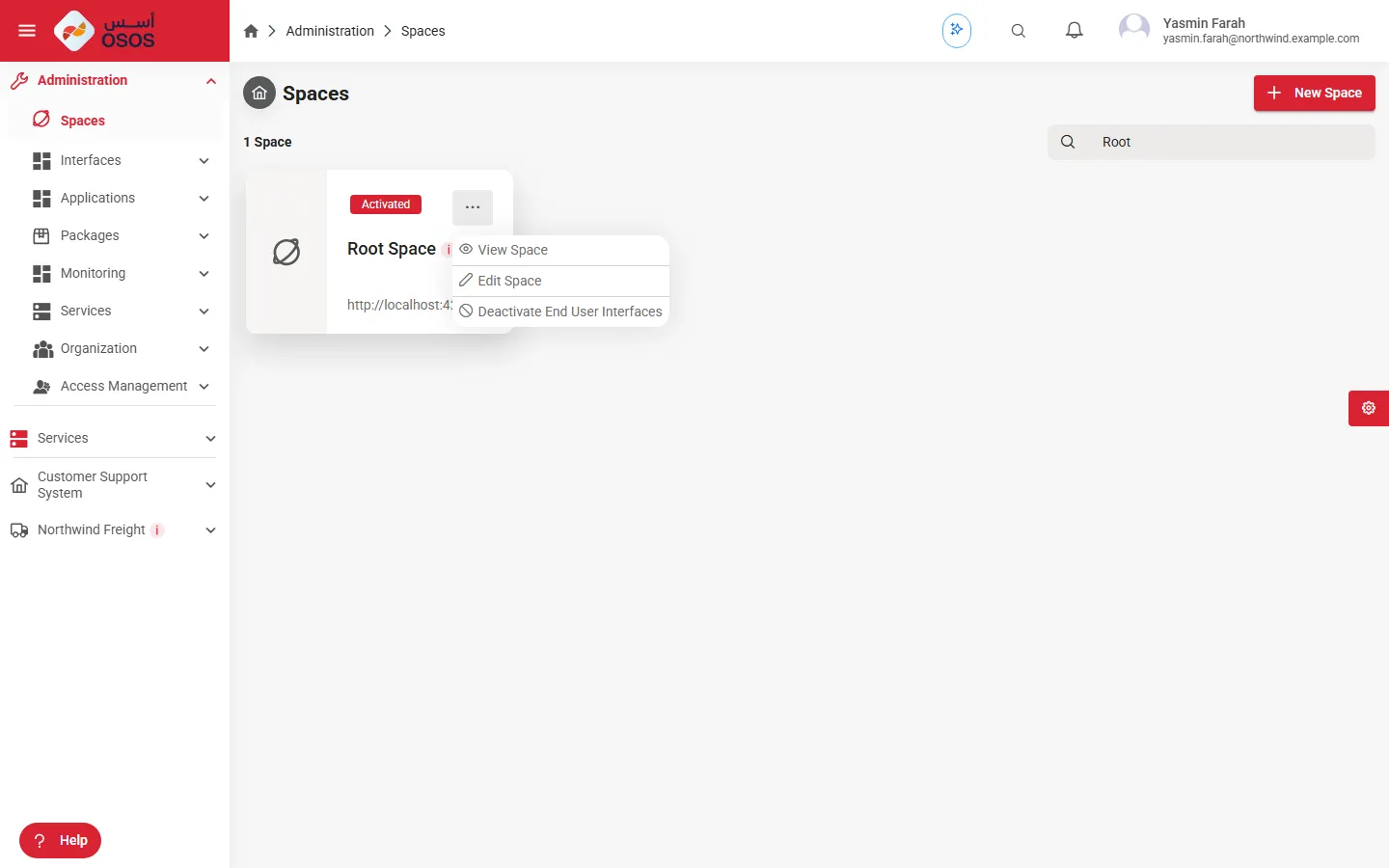 What to notice: the two switches are independent. The first keeps Administration working; the second takes the whole space offline.
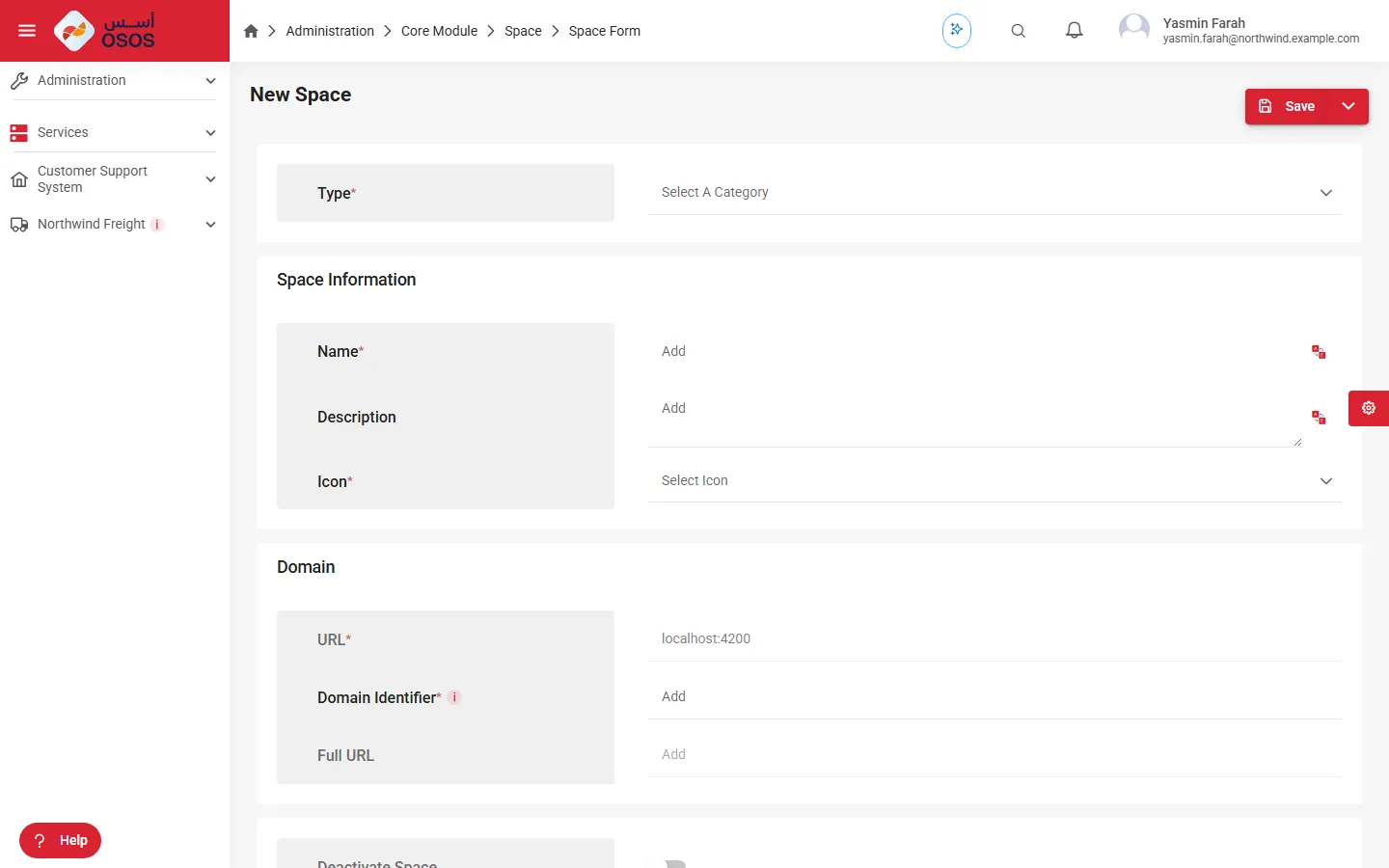 What to notice: you type only the Domain Identifier. The URL is fixed, and the Full URL is worked out from the two.
◇ Worked scenario (2 min) — The customs space, step by step
Section titled “◇ Worked scenario (2 min) — The customs space, step by step”The customs desk manager’s request: “A separate area that only customs people can see, ready on the first of next month.”
Decision 1: a space, or just restricted views? The desk’s records, applications and members must be invisible to everyone else, not just closed: other staff should not even know the applications exist. That is a space. (Restricted views close individual screens, but the applications would still live alongside everyone else’s, in the same space.)
Decision 2: the address. You choose the Domain Identifier customs, so the address will be
customs. followed by your main address. Before anything else, you send the operator the full
address and ask them to set it up and cover it with a domain. You also decide the sign-in options
for it with them (M3-S2).
Decision 3: build, then open. You create the space, and as soon as it exists you switch on Deactivate End User Interfaces, so the builders can prepare the customs applications without anyone using them half-finished. Administration keeps working.
Decision 4: members. You add the customs brokers on the Users tab, and turn on Admin for the desk manager. On the first of the month you select Activate End User Interfaces.
What can still go wrong. If a broker reports “not found” on the new address, the address is not set up yet, or the space is deactivated: check the card first, then ask the operator. If a broker can sign in but does not see the space, check that they are on its Users tab and that its end-user interfaces are active.
✓ Practice (5 min) — Check your understanding
Section titled “✓ Practice (5 min) — Check your understanding”The customs space must be prepared over two weeks without anyone using it, but your builders must keep working in it. What do you do?
Check your answer
The correct answer is A. Open the explanation under each option to see why.
A broker was added to the customs space’s Users tab this morning and can sign in, but the space is not in their list. The space is active. What do you check first?
Check your answer
The correct answer is B. Open the explanation under each option to see why.
Which part of setting up the customs space do you hand to the operator?
Check your answer
The correct answer is C. Open the explanation under each option to see why.
Samir asks you to show him Northwind’s license on screen. What do you tell him?
Check your answer
The correct answer is B. Open the explanation under each option to see why.
↺ Recap (1 min) — What you can do now
Section titled “↺ Recap (1 min) — What you can do now”You can plan a space, set it up with its members, hand its address to the operator, choose between maintenance and offline, and say what the license is for, where to ask about it, and what people see without one.
Next. The domain also decides how people sign in. In M3-S2 you choose Northwind’s sign-in options and learn to support people with their own account security.