
M4-S2 — Notifications and shared templates
Section titled “M4-S2 — Notifications and shared templates”| Module | M4 — Run the tenant |
| After this session you can | Provide the shared templates Northwind’s messages use, and answer who gets a message, through which channel, and who to ask when one does not arrive. |
| Time | Facilitated: 40 min · On your own: 37 min |
| Before you start | M4-S1. ACP M9-S1, where you built an automation that sends a notification. |
| Go deeper | Notifications & email templates · For builders: Reactions & automation |
◆ Orientation (1 min) — One look for every message
Section titled “◆ Orientation (1 min) — One look for every message”Today Northwind’s messages each look different: every builder writes their own. Finance wants every email to carry the same header, and the claim-approved email to read the same whichever automation sends it. In ACP you built one automation that sent a notification. As the administrator, you provide what many automations share.
▤ Concept (5 min) — Channels, templates and recipients
Section titled “▤ Concept (5 min) — Channels, templates and recipients”Who sets up what
Section titled “Who sets up what”Most messages are sent by automations that builders add to applications: they decide when a message goes and to whom. You provide shared templates; the operator connects the services that carry email and text messages.
| Channel | What people get | Who sets it up |
|---|---|---|
| In-app | A notification under the bell, and a push notification on their phone if they use the mobile app | Builders, in automations |
| An email | Builders send it; you provide shared templates; the operator connects the mail server | |
| Text message | A text message | Builders send it; the operator connects a text-message provider; until then nothing is sent |
| A message from an approved WhatsApp template | You connect the organization’s WhatsApp number; the operator switches real sending on |
The platform also sends some messages by itself: the set-password and reset emails, a new API token to the administrator who created it (M1-S1), sign-in codes, and a notice when a background export is ready.
Shared templates
Section titled “Shared templates”Templates are records of the Templates entity under Administration › Applications › Data Entities; you also reach them under Administration › Interfaces › Templates. A Template Type says what each one is:
| Template Type | What it is for |
|---|---|
| A complete email: Subject and Body, optionally a Template Header and Template Footer, and Attachments | |
| Email Part | A reusable header or footer that email templates include |
| Notification | An in-app notification: a title and its content |
Write a placeholder where a value should go, with double curly brackets: {{ requester_name }}.
Names use letters, digits and underscores. The builder who uses the template decides which value
fills each placeholder, so agree the names with them.
A template is written once and used by many automations: changing it changes every message sent from then on. When you save a template already in use, Osos asks you to confirm. Create headers and footers first, so email templates can pick them.
Who receives a message
Section titled “Who receives a message”The builder chooses the recipients in each automation: people, groups, org units, typed-in addresses, or whoever the record points to, such as the requester or the step owner’s manager. Three rules apply whatever they choose:
- People whose accounts are deactivated receive no email.
- Someone who would get the same email twice (as a person and as a group member) gets it once.
- If one recipient cannot be found, the others still get the message.
Delegates get copies. A person with an active delegation that has Forward Notifications or Forward Emails on (M2-S4) has a copy sent to their delegate, for the work the delegation covers. The original recipient still gets theirs.
⛏ Lab (18 min) — Northwind’s header and two templates
Section titled “⛏ Lab (18 min) — Northwind’s header and two templates”Goal. Give Northwind a shared email header, an approved-claim email that uses it, and a notification template, all with placeholders the builder can fill.
- Open Administration › Applications › Data Entities › Templates (or Administration › Interfaces › Templates) and add a record.
- Enter the Template Name Northwind email header and the Template Description Header for every Northwind email. Set Template Type to Email Part. In Body, write the content Northwind Logistics · Finance. Select Save.
- Add a second record: Template Name Northwind claim approved, Template Description Sent to the requester when Finance approves a claim, Template Type Email.
- Under Template Details, enter the Subject and the Body below, and choose Northwind email header as the Template Header. Select Save.
Subject: Your expense claim of {{ claim_amount }} was approved
Dear {{ requester_name }},Your expense claim "{{ claim_purpose }}" was approved by {{ approver_name }}.Northwind Finance- Add a third record: Template Name Northwind claim waiting, Template Type Notification, with the title Expense claim waiting for you and the content below. Save.
{{ requester_name }} sent a claim of {{ claim_amount }}. Please review it.- Back in the Templates list, check the three records and their Template Type.
- Write down, for the builder, the four placeholder names you used, and what each should hold.
- Open Northwind claim approved again. It opens read-only, so select Edit Template (the header button) first. Change one word of its body, and save: read whether Osos asks you to confirm. (It asks only when an automation already uses the template.)
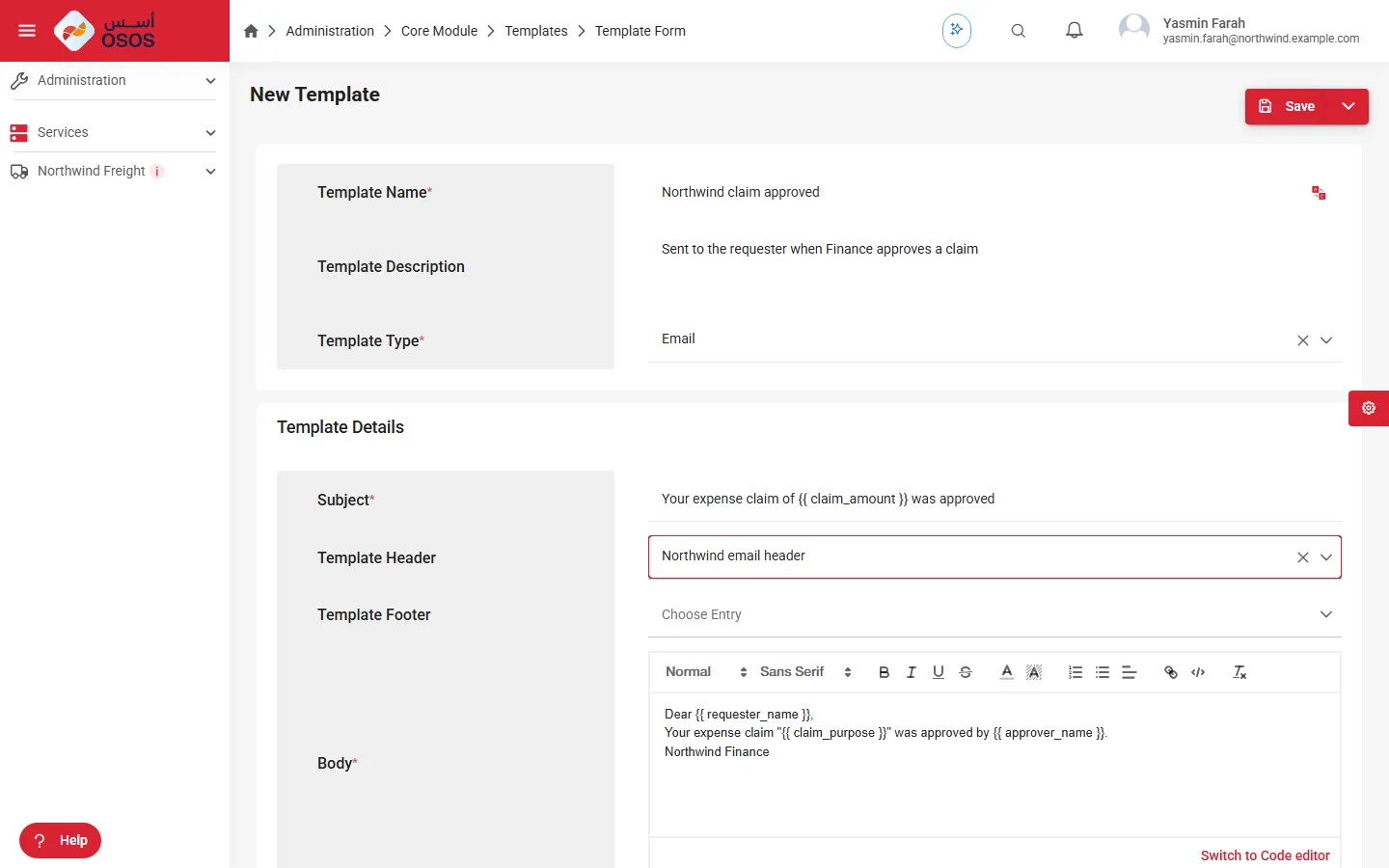 What to notice: the header is a separate template, picked here. Change it once, and every email that includes it changes.
Check.
- Northwind email header exists as an Email Part.
- Northwind claim approved is an Email with three placeholders in its body and the header chosen.
- Northwind claim waiting is a Notification.
- Your note for the builder lists every placeholder with its meaning, and no template holds a secret.
Pass condition. The three templates exist with the right types, the email uses the header, and the builder has your placeholder list.
If something goes wrong
| What you see | What to do |
|---|---|
| The header is not offered in Template Header | It was not saved as Email Part. Edit its Template Type. |
| Saving asks “This template is used inside reactions…” | An automation already uses it. Confirm only if the change should reach every message it sends. |
| You are unsure where a placeholder’s value comes from | Nowhere yet: the builder fills it when they use the template in an automation. Your list tells them what to put there. |
Model answer
Your placeholder list for the builder:
| Placeholder | Should hold |
|---|---|
{{ requester_name }} | The name of the person who sent the claim |
{{ claim_amount }} | The claim’s Amount |
{{ claim_purpose }} | The claim’s Purpose |
{{ approver_name }} | The name of the person who approved it |
Why it is built this way: the header is shared, so a new Finance address or logo text is changed in one place. The two message templates carry no names or amounts of their own; the builder fills them from the claim, which is also why nothing secret ever needs to be in a template. No automation uses your templates yet, so step 8 asked for no confirmation: once the builder connects them, it will.
✳ Discussion (13 min) — “The email never arrived”
Section titled “✳ Discussion (13 min) — “The email never arrived””Three complaints reach you after the builder connects your templates.
- “I approved Dana’s claim, but she never got the approved email.” Dana’s account is active.
- “I’m covering for Hana, but I don’t get her claim notifications.”
- “Nobody at the depot gets the text messages the builder set up.”
With a facilitator. In threes, list for each complaint the first two things you would check and who you would involve (6 min); then compare lists across the room (3 min).
On your own. Write your first two checks for each complaint, then compare with the model answer.
Model answer
- First, whether the automation ran and sent it (M4-S3: Reaction Logs), then whether the email left the platform (M4-S3: Logs › Email). If it left, she checks her spam folder. If the automation never ran, the builder checks its conditions. If the text was old, the automation may write its own text instead of using your template: ask the builder.
- First, whether the delegation is in effect and has Forward Notifications on (M2-S4); then whether its scope covers the claim service. With Deny All, only what is under Exception is forwarded.
- First, whether any text message is sent at all (M4-S3: Logs › Sms); then ask the operator whether a text-message provider is connected. Until it is, nothing is sent.
✓ Practice (4 min) — Check your understanding
Section titled “✓ Practice (4 min) — Check your understanding”Finance’s new address must appear at the top of every Northwind email. What is the least work?
Check your answer
The correct answer is B. Open the explanation under each option to see why.
An automation emails the Northwind Finance group and also Hana by name. Hana is in the group. How many copies does she get?
Check your answer
The correct answer is A. Open the explanation under each option to see why.
A builder wants to put the depot’s door code in a notification template “so drivers have it”. What do you say?
Check your answer
The correct answer is B. Open the explanation under each option to see why.
↺ Recap (1 min) — What you can do now
Section titled “↺ Recap (1 min) — What you can do now”You can provide Northwind’s shared header and message templates with agreed placeholders, say who sets up each channel, predict who receives a message, and know where to start when one does not arrive.
Next. “Where to start” is the next session. In M4-S3 you read the monitoring screens to find out what really happened, using everything you did this week.