
M1-S1 — Users: set up, look after and close accounts
Section titled “M1-S1 — Users: set up, look after and close accounts”| Module | M1 — People and the org chart |
| After this session you can | Add a person and an application user correctly, look after accounts day to day, and choose and carry out deactivation or archiving, proving the effect by signing in as the person. |
| Time | Facilitated: 44 min · On your own: 44 min |
| Before you start | M0-S1: you are signed in as yourself; a private window is open. ACP M8-S1, where you added your first user. |
| Go deeper | Managing users · Create an API token for an integration |
◆ Orientation (1 min) — Three messages on a Monday
Section titled “◆ Orientation (1 min) — Three messages on a Monday”Three messages wait for you this Monday. Dispatch says Hala Jaber starts today. The fleet team says its vehicle-tracking system must start sending shipment updates to Osos. And Dispatch adds that Majd Saber is leaving at the end of the month.
In ACP you added one user. Here you go further: what a user record really gives, the second kind of user, and the life of an account from its first day to its last.
▤ Concept (8 min) — The life of an account
Section titled “▤ Concept (8 min) — The life of an account”What you already know, and what is new
Section titled “What you already know, and what is new”In ACP (M8-S1) you added a user under Administration › Organization › Users, saw that the platform emails them a link to set their own password, and gave them a group and a role. That is still how a person is added. What is new here is everything around it.
A user record is the start, not the end
Section titled “A user record is the start, not the end”Saving a user creates their sign-in account. It does not let them work. A new person can work only after five steps, always in this order:
| Step | What it gives | Where you learn it |
|---|---|---|
| 1. A system level of at least Restricted, usually through a group everyone is in | Without one, the person is refused almost everywhere, even where a group gives them access | M2 |
| 2. Their groups | Their team’s access, work and messages | M1-S3 |
| 3. Their role in the org chart, as their Main assignment | Their home unit and their manager, which approvals use | M1-S2 |
| 4. Their spaces, if your organization has more than one | The separate working areas they may enter | M3 |
| 5. A check in User Permissions, then by signing in as them where you can | Proof | M2 |
Skipping step 1 is the most common reason a new person “can’t see anything”. You saw it in M0: Ziad can sign in, but he has no system level yet.
Two kinds of user
Section titled “Two kinds of user”| User Type | Who it is for | How it signs in |
|---|---|---|
| Normal | A person | With a password, a passkey or single sign-on |
| Application | Another system, such as a payroll tool or Northwind’s fleet tracker, that reads or writes data in Osos | With an API token; it never uses the sign-in page |
An application user is a user like any other: it can do exactly what you give it, and nothing more. Three things are special about it:
- Its token is emailed to you, the administrator who created it. It is never shown on screen, and nobody can read it again later. Pass it to the team that runs the other system through a password manager or another secure channel, then delete the email. If it is lost or may have leaked, choose Regenerate Token on the user’s row: you get a new token, and the old one keeps working only for a short while, so the other system can switch over.
- Its token can expire. Set an Expiry Date, or switch Unexpired on for a token that never expires. A token with an end date is safer: it cannot be forgotten for ever.
- Give each system its own application user, with only the access it needs (usually View if it only reads). Then you can cut off one system without breaking the others.
Delegation, which you meet in M2, is for people. Another system always gets an application user.
Deactivate, or archive?
Section titled “Deactivate, or archive?”An account has a short life cycle:
flowchart LR
  A["Active"] -->|"Deactivate Account"| D["Deactivated<br/>record, history, groups kept"]
  D -->|"Activate Account"| A
  A -->|"Archive"| R["Archived<br/>sign-in account deleted"]
  R -->|"Restore Archived Records"| N["Active again<br/>new password needed"]
What to notice: deactivating is reversible with the person’s existing password. Archiving deletes the sign-in account; restoring creates a new one, and the person must set a new password.
| Deactivate Account | Archive | |
|---|---|---|
| What it does | Signs the person out everywhere at once, on every device, and stops every way of signing in. Keeps their record, history, groups and roles. | Deletes the sign-in account, with the password, passkeys and two-step settings. The record stays in the archive. |
| Undo | Activate Account: they sign in with their old password | Restore Archived Records: a new sign-in account; they set a new password from an email |
| Use it for | A leaver, a long absence, a suspected break-in | An account that should never have existed: a duplicate, a test account |
For people who leave, deactivate. It is instant, reversible, and keeps the account linked to everything the person did. You cannot deactivate your own account.
Looking after accounts day to day
Section titled “Looking after accounts day to day”- Forgotten password. People reset it themselves with Forgot password? on the sign-in page. If they cannot, open the row’s menu and choose Reset Password: they get an email with a link. Only the newest link works. People who sign in through single sign-on, or who were imported from a company directory, have no Osos password to reset (M3).
- Locked account. After 5 wrong passwords in a row, an account is locked for a few minutes, longer if it happens again. There is no unlock button: the lock ends by itself.
- Edits. A changed username or email address applies to the person’s sign-in at once. Editing a user never changes their password.
- What people manage themselves. Their two-step sign-in, passkeys and personal preferences. You support them; you do not set these for them (M3).
⛏ Lab (13 min) — A joiner, a system, and a test of deactivation
Section titled “⛏ Lab (13 min) — A joiner, a system, and a test of deactivation”Goal. Add Hala as a person, add the fleet tracker as an application user, and prove what deactivation does by trying to sign in as Majd. Ziad is still signed in in your private window.
Add Hala Jaber, who joins Dispatch today
- Open Administration › Organization › Users and select Add User. The form New User opens.
- Under Basic Info, enter the First Name Hala and the Last Name Jaber. Leave User Type on Normal.
- Under Account Information, enter the Username hala.jaber and the Email Address hala.jaber@northwind.example.com. Set Organization Account to Yes: she will hold a role in the org chart. Select Save.
Add the fleet tracker as an application user
- Select Add User again and set User Type to Application. Basic Info now shows only Full Name (greyed out), Birthdate, Gender and Profile Picture: the system’s name is entered in step 6.
- Under Account Information, set Organization Account to No: a system holds no position in the org chart. The field has no default, so you must choose it. An application user has no username and no email address.
- Under Application information, enter the Name Northwind Fleet Tracker. Leave the Unexpired switch off, so that the token expires, and set the Expiry Date to 31 December of next year.
- Select Save. The token is emailed to you. In your practice tenant it goes to a practice address that nobody reads, which is fine: nothing in this course uses it.
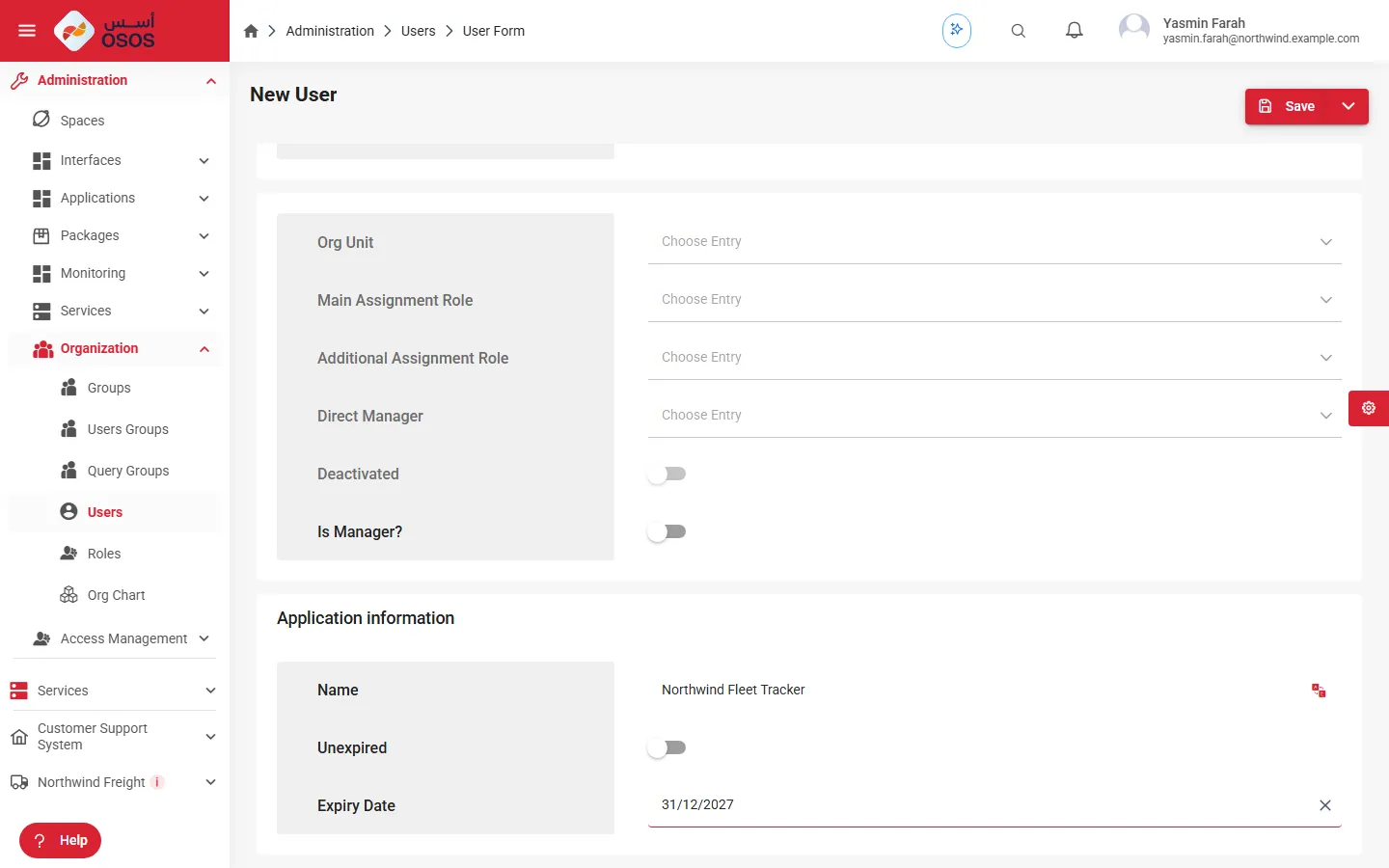 What to notice: there is no token on the screen and no password field. The token is emailed to the administrator who saves the form.
Prove what deactivation does
- In the Users list, find Majd Saber. Select the three dots (…) at the end of his row and choose Deactivate Account. Confirm with Deactivate.
- In your private window, open your profile menu and sign out Ziad. Sign in as Majd Saber
(
majd.saber@northwind.example.com, the practice password). The sign-in is refused with “The account is deactivated, Please contact with your system administrator”. - Back in your own window, open Majd’s row menu again. Deactivate Account has been replaced by Activate Account. Choose it and confirm.
- In the private window, sign in as Majd again. It works, with the same password.
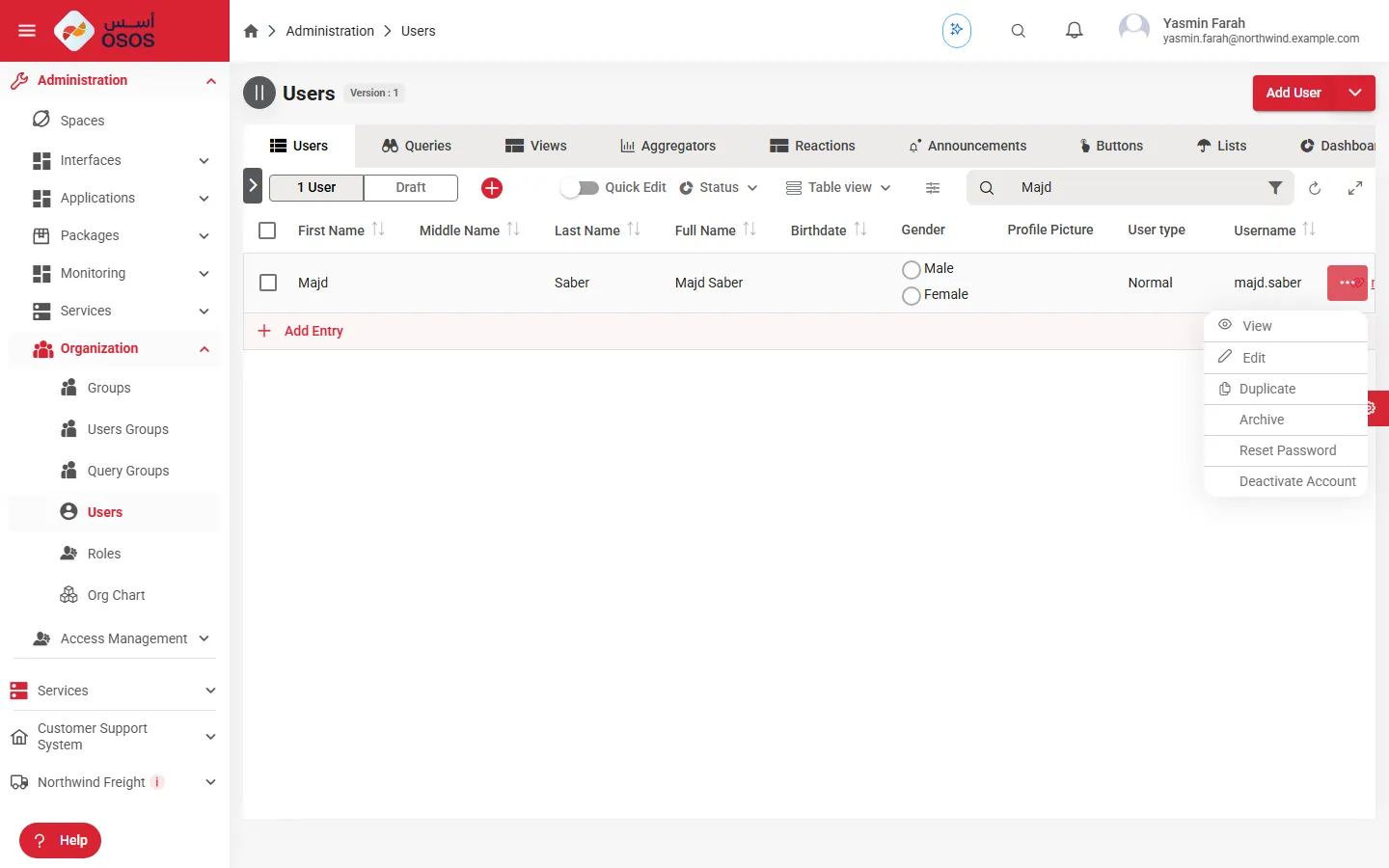 What to notice: every account action is on the row’s three-dot menu. Deactivate Account turns into Activate Account once the account is deactivated.
Look at what Hala has so far
- Open Administration › Access Management › User Permissions. In Select User, choose Hala Jaber. Read the End User Permissions and Admin Permissions tabs.
- Note what is there: nothing. Hala has a record and a sign-in account, but steps 1 to 4 of the set-up are still to come. You complete them in M1-S2, M1-S3 and M2.
- Sign Majd out of the private window, and sign Ziad back in. Every lab from here on starts with Ziad in the private window.
Check.
- Hala Jaber is in the Users list as a Normal user with an organization account.
- Northwind Fleet Tracker is in the list as an Application user with an expiry date.
- While Majd was deactivated, his sign-in was refused with the deactivation message.
- After Activate Account, Majd signed in with his old password.
- User Permissions for Hala shows no permissions yet.
- Ziad is signed in again in the private window.
Pass condition. Both new users exist with the right User Type, and you saw Majd refused while deactivated and let back in after activation, with the same password.
If something goes wrong
| What you see | What to do |
|---|---|
| Saving a user fails with a red message | The username or email address is already used, or a required field is empty. Read the message; check the Users list for an earlier attempt. |
| Deactivate Account is missing from the menu | You opened your own row, or the account is already deactivated (look for Activate Account). |
| Majd’s sign-in is refused even after activation | Check that you confirmed Activate Account, and that you typed the practice password. After five wrong attempts the account locks for a few minutes. |
| The sign-in page shows “Account is locked” | Wait a few minutes. There is no unlock button; the lock ends by itself. |
| You created a duplicate user by mistake | Archive it: it is exactly the account that should never have existed. |
Model answer
What you did, and why:
- Hala has a record and a sign-in account. She cannot do anything yet, and that is expected: the set-up continues in M1-S2 (her role and manager), M1-S3 (her groups) and M2 (her base level and access).
- The fleet tracker is an Application user because it is a system, not a person. Its token went to your email and will stop working at the end of next year unless someone renews it, which is the safe default.
- Majd: deactivating signed him out and refused every sign-in, and activating let him back in with his own password. Archiving would have deleted his sign-in account, so he would have needed a new password, and that is the wrong tool for a leaver. You close his account properly in M2, once you know about delegations and grants.
◇ Worked scenario (2 min) — Four account calls, and how to reason them out
Section titled “◇ Worked scenario (2 min) — Four account calls, and how to reason them out”Each call needs a different action. Decide first, then read the reasoning.
1. “My laptop was stolen at the airport, and my password was saved in it.” (Fadi, a driver) The risk is someone signing in as Fadi now. Deactivate his account at once: it signs him out everywhere, on every device. When Fadi has a new laptop, activate the account and ask him to change his password; if he cannot sign in to do so, use Reset Password. Archiving would also stop the thief, but it would delete Fadi’s sign-in account for no reason.
2. “There are two of me in the user list: Hala Jaber and Hala Jabir.” The second account was created by a typing mistake and has never been used. It should never have existed: archive it. Check first that it really is the unused one, by opening both records.
3. “I’m going on six months’ unpaid leave from next week.” (Nour, Finance) Nobody should use the account while she is away, and she will come back to the same work. Deactivate it on her last day and activate it when she returns; she signs in with her old password, and her groups and roles are still in place.
4. “Hala says she never got the email to set her password.” Check the email address on her record first. If another account already uses that address, no sign-in account is created for her: correct one of the two addresses. Then use Reset Password to send a new link. In M4 you learn to read the email log to see whether the message left the platform.
✓ Practice (5 min) — Check your understanding
Section titled “✓ Practice (5 min) — Check your understanding”A new Dispatch employee, Karam, was added yesterday. He can sign in, but he says he sees “You don’t have access” and nothing else. What is the most likely cause?
Check your answer
The correct answer is B. Open the explanation under each option to see why.
A reporting tool must read approved invoices every night. How do you give it access?
Check your answer
The correct answer is C. Open the explanation under each option to see why.
Majd leaves Northwind on Friday. His records and the requests he approved must stay linked to his name. What do you do with his account?
Check your answer
The correct answer is A. Open the explanation under each option to see why.
An archived user is restored with Restore Archived Records. True or false: they can sign in straight away with the password they used before.
Check your answer
The correct answer is B (False). Open the explanation under each option to see why.
↺ Recap (1 min) — What you can do now
Section titled “↺ Recap (1 min) — What you can do now”You can add a person and an application user correctly, look after accounts day to day, and choose between deactivating and archiving, with proof from the person’s side. Hala exists, but she cannot do anything yet.
Next. In M1-S2 you build the part of Northwind’s org chart that Hala and her colleagues belong to, and give each of them a role and, through it, a manager.