
M2-S1 — How access really works
Section titled “M2-S1 — How access really works”| Module | M2 — Access, at full depth |
| After this session you can | Explain every access level and where it applies, work out what a person can really do from all their grants, and find your way around Access Management. |
| Time | Facilitated: 31 min · On your own: 31 min |
| Before you start | M1-S3: Northwind’s groups exist. Ziad is signed in in your private window. ACP M8-S1, where you met the rules “access adds up” and “there is no deny”. |
| Go deeper | Permissions & access · Manage permissions |
◆ Orientation (1 min) — The most expensive mistakes
Section titled “◆ Orientation (1 min) — The most expensive mistakes”Access mistakes are the most expensive ones an administrator makes. Too little, and people call you all day. Too much, and someone reads salaries or changes an application’s design by accident. In ACP you learned two rules: access adds up, and there is no “deny”. This session gives you the whole model, as the running product applies it, so that in M2-S2 you can design Northwind’s access and prove it.
▤ Concept (11 min) — Who, to what, how much
Section titled “▤ Concept (11 min) — Who, to what, how much”Who and to what
Section titled “Who and to what”Every permission answers three questions: who gets access, to what, and how much.
| You grant to | Use it when |
|---|---|
| A group (any of the four kinds from M1-S3) | A team, a unit, a position or a rule needs the same access. The usual choice. |
| A user | One person needs something nobody else needs. Use sparingly: it is hard to find and review later. |
| Anonymous visitors | People who are not signed in may use a public form or page. Use with great care. |
You can give access to the whole platform (the system level), to a module (and through it every entity inside), to a data entity, to a view, page or report, or to a service.
How much: the levels
Section titled “How much: the levels”| Level | What it lets someone do | Where you can give it |
|---|---|---|
| Restricted | Nothing on its own. It marks the person as a member, so the access given elsewhere takes effect. | System level. On a module or entity, choosing it removes the grant there. |
| View | See the design of a module or entity, and open the views, pages and reports shared with them. Not the records in Administration. | System, module, entity, view, page, report |
| Developer | Build and change the design (fields, views, pages) without seeing the records. | System, module, entity |
| Edit | Everything Developer can do, plus browse, open and change the records in Administration. | System, module, entity |
| Admin | Full control, including managing access. | System level only |
Two facts surprise most new administrators:
- Edit includes Developer. Someone with Edit can do everything a Developer can, and more. There is no reason to give both.
- Seeing records in Administration needs Edit. With View or Developer on an entity, its list of records comes back empty. Most people never need this: they work with records through the views, pages and services you share with them, which have their own access.
What the system level shows
Section titled “What the system level shows”Every person needs a system level. It decides what they can do everywhere, and which menus they see. The running product behaves like this:
| System level | What the person sees |
|---|---|
| None at all | “You don’t have access, Please contact with the administrator.” They are refused almost everywhere, even where a group gives them access. This is Ziad today. |
| Restricted | The views and pages opened to them. No Services menu: they cannot reach the Services Catalog, their Inbox or their Outbox, so they can neither submit nor approve requests. |
| View | The Services menu, and a short Administration menu (Applications only: modules, entities, lists and dashboards, as designs). View is the lowest level that shows Services. |
| Developer and Edit | The design of everything; Edit adds the records of every entity. Interfaces appears from Developer. |
| Admin | Everything, including Organization, Access Management, Spaces and Monitoring. |
So anyone who must submit or approve a request needs at least View at the system level, and with it they see a short Administration menu.
How grants combine
Section titled “How grants combine”flowchart LR
P["Dana"] --> D["her own grants"]
P --> G["Northwind Finance<br/>(org unit group)"]
P --> R["Finance Officer<br/>(role group)"]
P --> Q["Northwind Everyone<br/>(query group)"]
D --> H{"highest level<br/>from every source"}
G --> H
R --> H
Q --> H
What to notice: there is no arrow that takes access away. Dana’s access to anything is the highest level any of her sources gives.
- The highest level wins. View directly and Edit through a group means Edit.
- There is no “deny”. One grant never takes away access another grant gives. Setting Restricted on a module or entity only deletes the grant it is set on; the person keeps whatever they get from their groups, roles and system level. To take access away, find where it comes from and remove that.
- Higher covers lower. Edit or Admin at the system level covers every module and entity. A module grant covers every entity in it, and on an entity you cannot go below what the group has on its module.
- Admin counts only at the system level.
- You cannot grant more than you have. Unless you are a system Admin, you cannot give, change or remove a level above your own.
- Changes apply at once, at the person’s next action. If their menus look the same, they refresh the page.
Services and shared screens
Section titled “Services and shared screens”Who sees a service’s requests is decided on the service, not with levels:
| Who | What they see | Where |
|---|---|---|
| The service’s Audience | The service, so they can submit it | Services Catalog |
| The requester | Their own requests | Outbox |
| Owners of a workflow step | Requests that reach their step | Inbox |
| The service’s Watchers | Every request of the service, read-only | Watching |
People with Edit or Admin at the system level can also read every service’s records in Administration: one more reason to keep departments at Restricted or View.
A published view, page or report is either open to everyone who can reach it, or limited to a list of users and groups. When you add a user or group to its list, it switches to Restricted mode, and only the people on the list can open it.
The Access Management screens
Section titled “The Access Management screens”| Screen | Use it to |
|---|---|
| Admin Permissions | Set each user’s and group’s system level |
| User Permissions | Pick one person: see everything they can reach and where each permission comes from (Assignment Type, Acquired Through) |
| Group Permissions | Pick one group: manage its access to views, pages, reports and services |
| Object Permissions | Pick one view, page, report or service: see who can open it |
| Sensitive Permissions | Protected values such as salaries (M2-S3) |
| Anonymous Permissions | What people who are not signed in may open |
A module or entity grant is set on that module’s or entity’s own Permissions tab, under Administration › Applications.
▶ Guided demo (6 min) — A tour of Access Management
Section titled “▶ Guided demo (6 min) — A tour of Access Management”Follow along in your own window. You change nothing in this tour: close each dialog without saving.
- Open Administration › Access Management › Admin Permissions and select the Groups tab. Each row is a group’s system level. No Northwind group is listed yet: that is why Ziad sees nothing.
- Open Administration › Applications › Data Entities, open Invoices and its Permissions tab, and switch to Groups. Open a Permission Level list: it offers Edit, Developer, View and Restricted, and no Admin. The Northwind groups are not listed, because only groups that already have a system level appear here. Changing a row asks you to confirm (“You are going to change role of … to be …”); nothing changes until you select CONFIRM, and CANCEL leaves it as it was.
- Open Access Management › Group Permissions. In Select Group, choose Northwind Dispatch, then select Add Permission. In Object, open the tree and find the view Shipment Board and the service Expense Claim. Choose the service: the dialog now asks for Audience or Watcher. Close the dialog without saving.
- Open Access Management › User Permissions. In Select User, choose Majd Saber. On End User Permissions, Shipment Board is listed with Assignment Type Direct: someone gave it to Majd as a person. Remember it for M2-S4.
- Open Access Management › Object Permissions and choose Shipment Board. It lists who may open the view: you, and Majd.
- Close everything without saving.
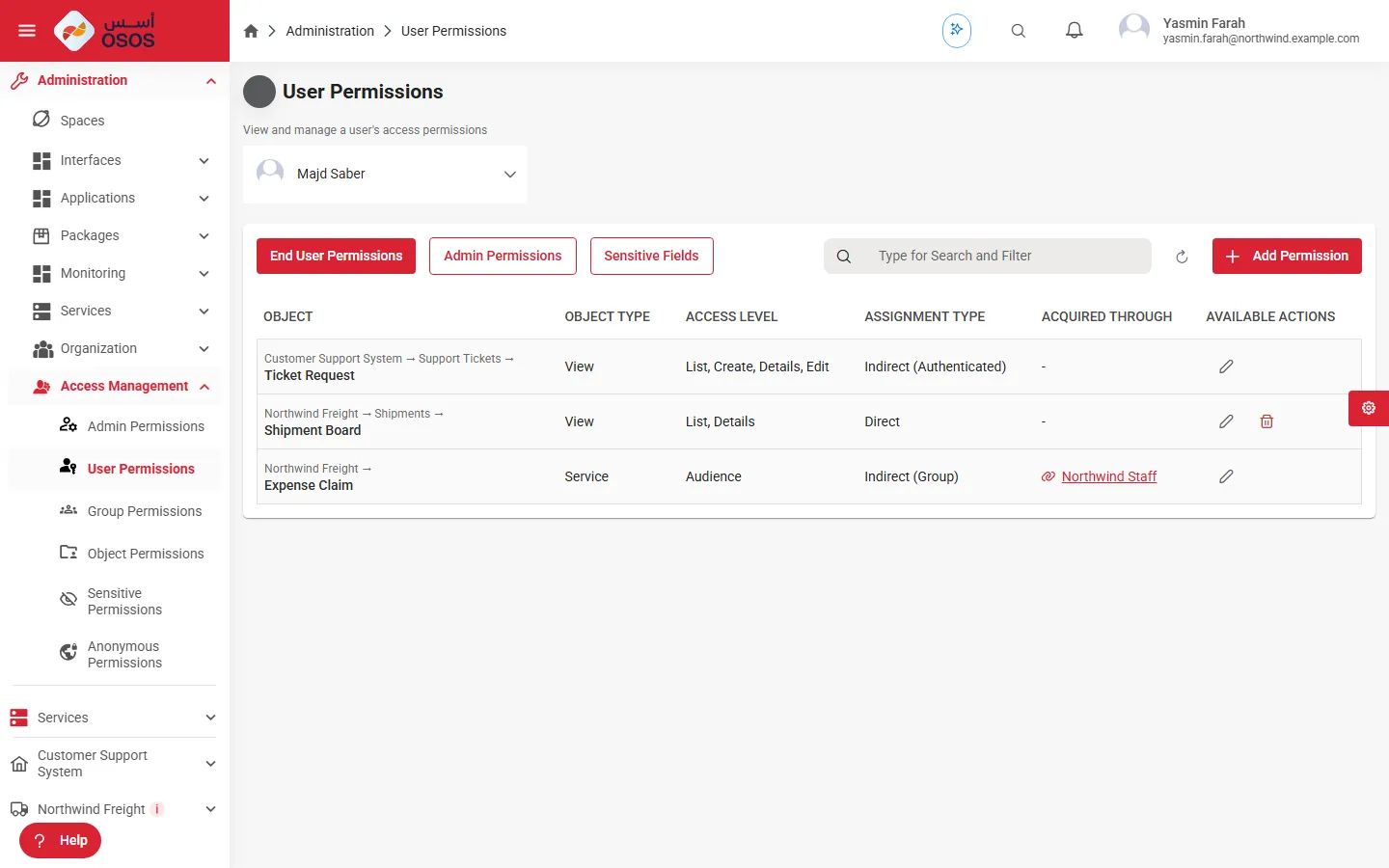 What to notice: Assignment Type and Acquired Through tell you how a permission was given, which is also where you would take it away.
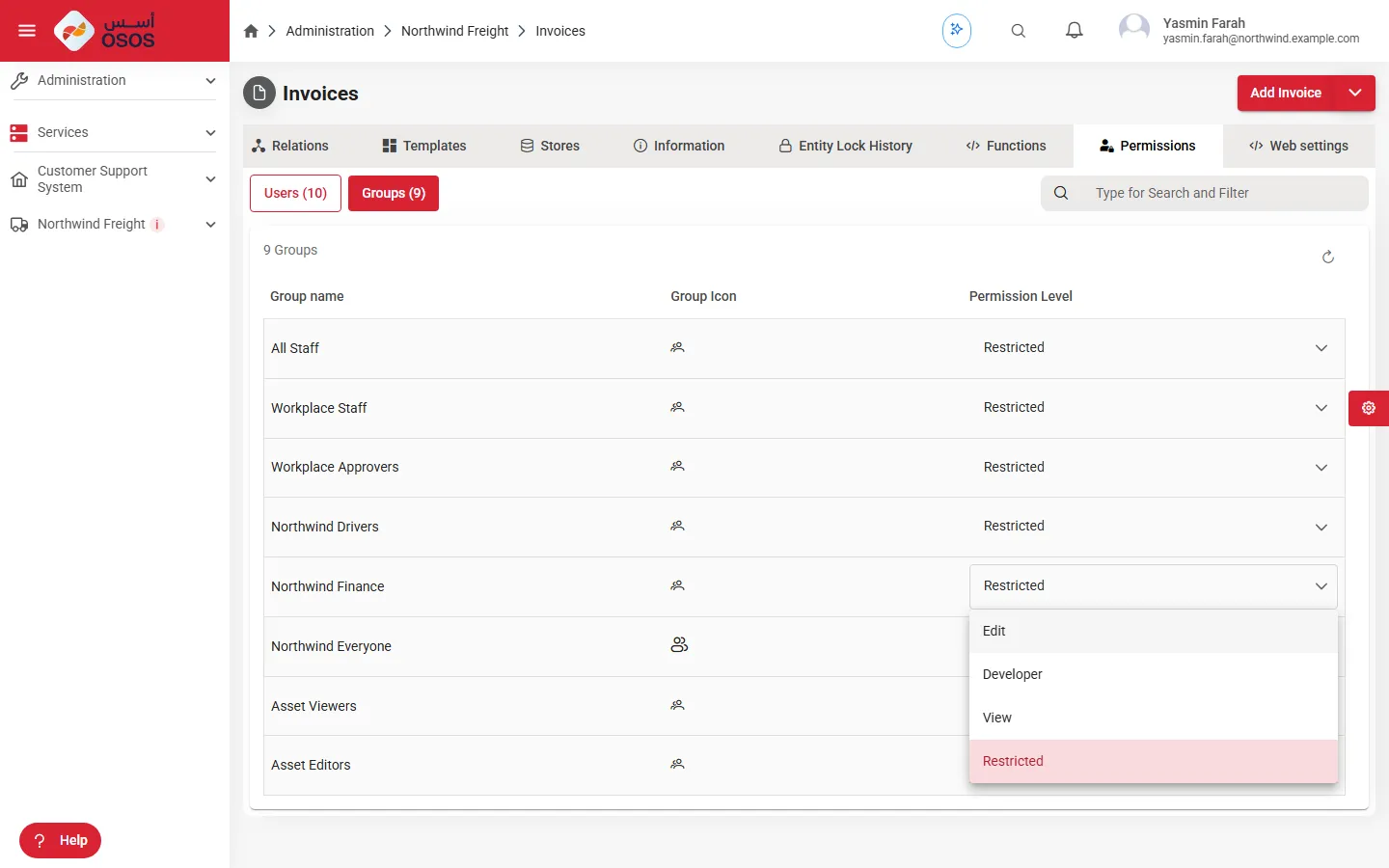 What to notice: there is no Admin and no “none” here. Choosing Restricted removes this grant; it does not block anyone.
◇ Worked scenario (2 min) — Five people, five answers
Section titled “◇ Worked scenario (2 min) — Five people, five answers”Work out each person’s real access before you read the answer. These are “what if” cases: you do not set them up.
1. Dana is in Northwind Finance, which has Edit on the Invoices entity. To stop her changing invoices, someone sets Invoices to Restricted for Dana herself. She keeps Edit. Restricted on an entity deletes the grant it is set on, and Dana had no grant of her own there. Her group’s Edit still applies. To take her off invoices, remove her from the group, or change the group’s grant.
2. Samir has Developer on the whole Northwind Freight module. He says the Invoices list is empty. It is not empty: he cannot see records with Developer. If he needs to see them in Administration, he needs Edit; if he only needs to read them, a shared view is better.
3. Ziad is given Restricted at the system level and is told to submit an expense claim. He cannot: a system-Restricted person has no Services menu. He needs at least View.
4. Hala has View at the system level and Edit on Shipments through Northwind Dispatch. She can open and change shipment records in Administration (Edit on the entity) and see the design of everything else (system View), but no other entity’s records.
5. A builder with Developer at the system level asks you for Admin on the Northwind Freight module “to be safe”. Admin counts only at the system level, so the grant would do nothing. Ask what they need: if it is records, Edit on the module.
✓ Practice (6 min) — Check your understanding
Section titled “✓ Practice (6 min) — Check your understanding”A finance officer needs to open invoice records in Administration and correct them. Which is the lowest level that does it, and where?
Check your answer
The correct answer is C. Open the explanation under each option to see why.
Every Northwind employee must be able to submit an expense claim. What is the lowest system level that allows it?
Check your answer
The correct answer is B. Open the explanation under each option to see why.
Hana asks you to stop Ziad seeing the Shipment Board. In User Permissions, the view shows Indirect (Group), Acquired Through Northwind Dispatch. What do you do?
Check your answer
The correct answer is B. Open the explanation under each option to see why.
Finance must follow every expense claim without approving any. Which setting does it?
Check your answer
The correct answer is B. Open the explanation under each option to see why.
True or false: a person who has Edit on an entity can do everything a person with Developer on that entity can do.
Check your answer
The correct answer is A (True). Open the explanation under each option to see why.
↺ Recap (1 min) — What you can do now
Section titled “↺ Recap (1 min) — What you can do now”You can explain every level and where it applies, say what each system level shows, work out a person’s real access from all their sources, and find every Access Management screen. You also know the rule that saves the most time: to take access away, find where it comes from.
Next. In M2-S2 you design Northwind’s access from a list of needs, grant it, and prove it by signing in as Ziad and Dana.