
M2-S3 — Protected values: sensitive and encrypted fields
Section titled “M2-S3 — Protected values: sensitive and encrypted fields”| Module | M2 — Access, at full depth |
| After this session you can | Decide who may read protected values such as salaries, grant it for the right scope and time, review it, and support the people who hold it. |
| Time | Facilitated: 50 min · On your own: 47 min |
| Before you start | M2-S2: Northwind’s access is granted. Dana is signed in in your private window. |
| Go deeper | Sensitive Permissions · Account security: revealing protected values |
◆ Orientation (1 min) — “Even I see stars”
Section titled “◆ Orientation (1 min) — “Even I see stars””Samir, the general manager, opens a staff record and calls you: “The salary shows four stars. I’m the general manager, and you’re the administrator. Fix it.” Neither his level nor yours will fix it, and that is by design. This session shows you the second dimension of access: who may read a protected value.
▤ Concept (5 min) — A second dimension of access
Section titled “▤ Concept (5 min) — A second dimension of access”Builders protect, you decide who reads
Section titled “Builders protect, you decide who reads”An app builder can mark a field in an entity’s design as Sensitive or as Encrypted. In
Northwind Freight, the Staff Records entity has Monthly Salary (Sensitive) and Bank
Account (Encrypted). From then on its value reads **** for everyone, everywhere: lists, the
record, its history, reports. No level bypasses it, Admin included. The only way to read the
value is a sensitive-field grant, which you hand out in Administration › Access
Management › Sensitive Permissions.
| Sensitive | Encrypted | |
|---|---|---|
| Where the protection sits | The value is stored normally and masked when it is shown | The value is stored scrambled; even a copy of the database does not show it |
| Who may read it | People with a sensitive-field grant | The same grant, on the same screens |
| What the holder does to see it | Starts an Unmask session (2 minutes to 8 hours) and confirms who they are; every value they hold a grant for is shown until it ends | Confirms who they are for each value, every time; the value hides again when they leave it |
A field is one or the other, never both. The entity’s main title cannot be sensitive, because it is shown wherever a record is named.
The three choices in a grant
Section titled “The three choices in a grant”- Scope: how much. In the Choose sensitive field tree, pick a field for one field, an entity for every protected field in it, or a module for every protected field in the module. The Scope Type column of the list shows Field, Entity or Module, so you can see how wide each grant is. Choose the narrowest scope that fits.
- Holder: who. Users and groups, as for any access. A group (often a role group) follows people as they change jobs, and you remove one row instead of many.
- Time: until when. An Expiry window is optional. Leave it empty for standing access that is part of someone’s job; set an end date for anything temporary. When the end date passes, the grant is removed by itself, at once. A window needs both dates or neither.
A grant gives read access to the value and nothing else; it never widens other access. To change a grant’s scope or holder, remove it and add the one you want: only its expiry can be edited. Removing a grant is permanent and takes effect at once.
Who can read this field?
Section titled “Who can read this field?”A field’s own settings list only the people granted that exact field. Anyone who reaches it through an entity-wide or module-wide grant shows up in the Inherited Permissions dialog, next to the Sensitive switch in the field’s settings in the entity designer. Read the two together: only both tell you everyone who can read the value. For one person, User Permissions has a Sensitive Fields tab that lists what they can read, directly or through a group.
What the holder sees
Section titled “What the holder sees”flowchart LR
A["A protected value"] --> G{"Does the reader<br/>hold a grant?"}
G -->|"no"| L["**** and a padlock<br/>nothing to click"]
G -->|"yes"| E["**** and an eye"]
E -->|"Sensitive: Unmask session<br/>+ identity check"| V["Value shown until<br/>the session ends"]
E -->|"Encrypted: identity check<br/>for this one value"| V1["Value shown while<br/>it stays on screen"]
What to notice: a grant alone shows nothing. The eye means “you may”; the person still has to prove who they are.
To prove who they are, the holder uses a code by email or text message, an authenticator app, or a passkey. If they have none and the domain allows it, they confirm with their password (M3). A holder who says “I have access but still see stars” has almost always not started an unmask session. Every unmask session and every reveal is recorded in the audit trail (M4).
⛏ Lab (12 min) — Salaries for the finance manager, a week for Samir
Section titled “⛏ Lab (12 min) — Salaries for the finance manager, a week for Samir”Goal. Let the Northwind Finance Manager read salaries as part of the job, give Samir a one-week review of all staff records, find both grants from the field’s side, and see the difference from the holders’ side.
Grant
- Open Administration › Access Management › Sensitive Permissions and select Add Permission.
- Under Scope, open Choose sensitive field and pick Northwind Freight › Staff Records › Monthly Salary. In Select groups, choose the role group Northwind Finance Manager. Leave Expiry empty. Save.
- Select Add Permission again. Pick the entity Staff Records itself (not a field). In Select Users, choose Samir Aziz. In Expiry, set the window from today to a week from today. Save.
- Read the list. Your two rows show Scope Type Field and Entity, and only Samir’s has an Expiry.
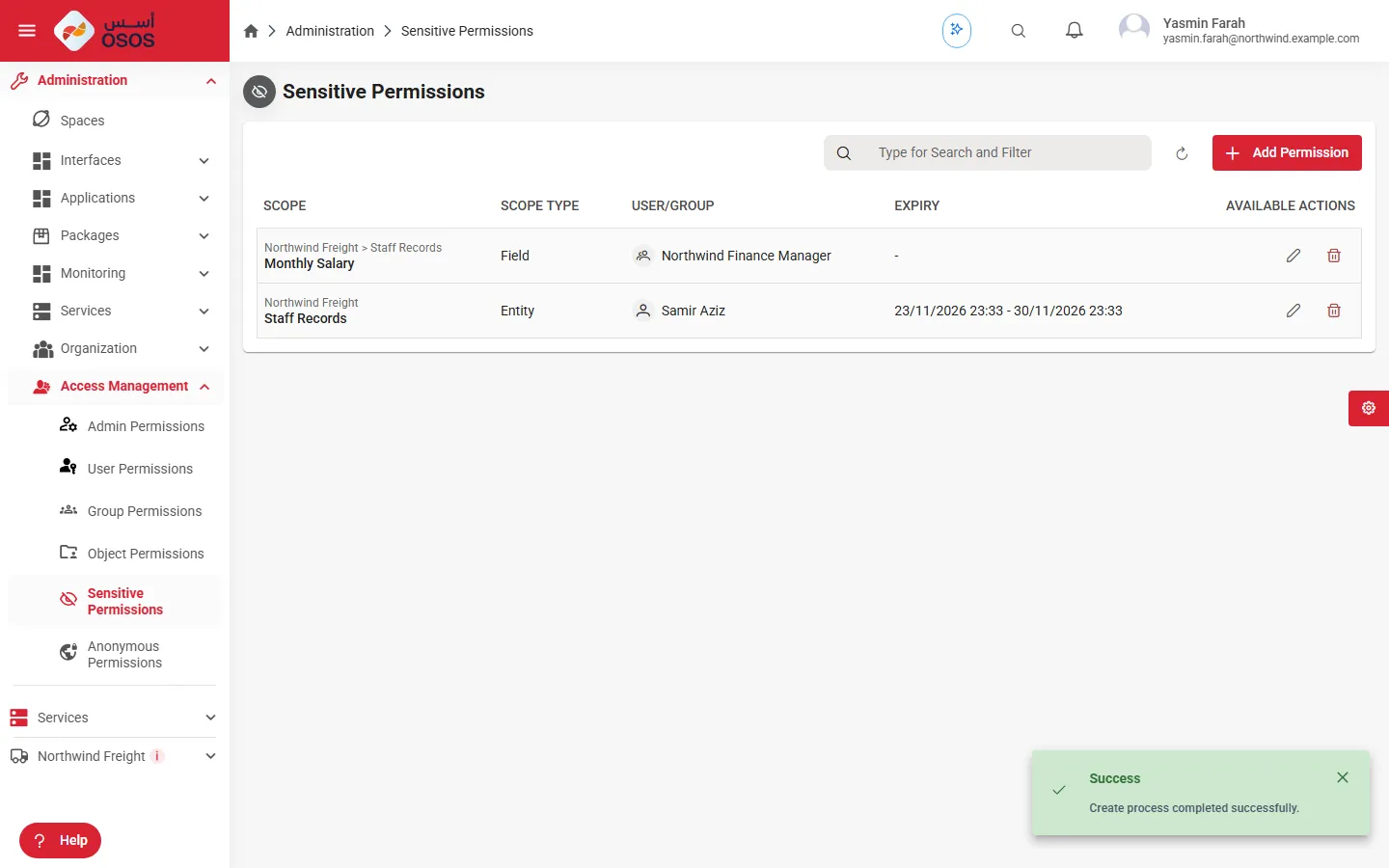 What to notice: Scope Type tells you how wide each grant reaches. Samir’s grant covers every protected field in Staff Records, and ends by itself.
Review from the field’s side
- Open Administration › Applications › Data Entities › Staff Records, and in its designer open the settings of Monthly Salary. Next to Sensitive, open Inherited Permissions. Samir is listed: he reaches the field through his entity-wide grant.
- Close the dialog and leave the designer without saving anything.
See it from the holders’ side
- In the private window, Dana is signed in. Open Northwind Freight › Staff Overview. Monthly
Salary and Bank Account read
****with a padlock: Dana holds no grant. - Sign Dana out and sign in as Hana Saadeh. Open Staff Overview. Monthly Salary reads
****with an eye; Bank Account still has a padlock, because Hana’s grant covers the salary only. - As Hana, select Unmask in the top bar. Under Expiry choose 5 minutes, select Next, and confirm with Hana’s password. The salaries appear. The dialog says that no verification method is available for her, which is why it asks for her account password. This works only while Allow Password Step-Up is on for the tenant’s Default Domain (Administration › Applications › Data Entities › Domain › Default Domain). It is a setting you and the organization’s security owner agree on, not something to flip casually: if the password step does not appear, ask whoever owns it (in your own practice tenant, you do). Turn it back off afterwards if it was off before.
- Select Disable unmask. The salaries read
****again. - In your own window, open Access Management › User Permissions, choose Hana Saadeh, and open the Sensitive Fields tab. Her row is a Group grant, acquired through Northwind Finance Manager.
- Leave Hana signed in for M2-S4.
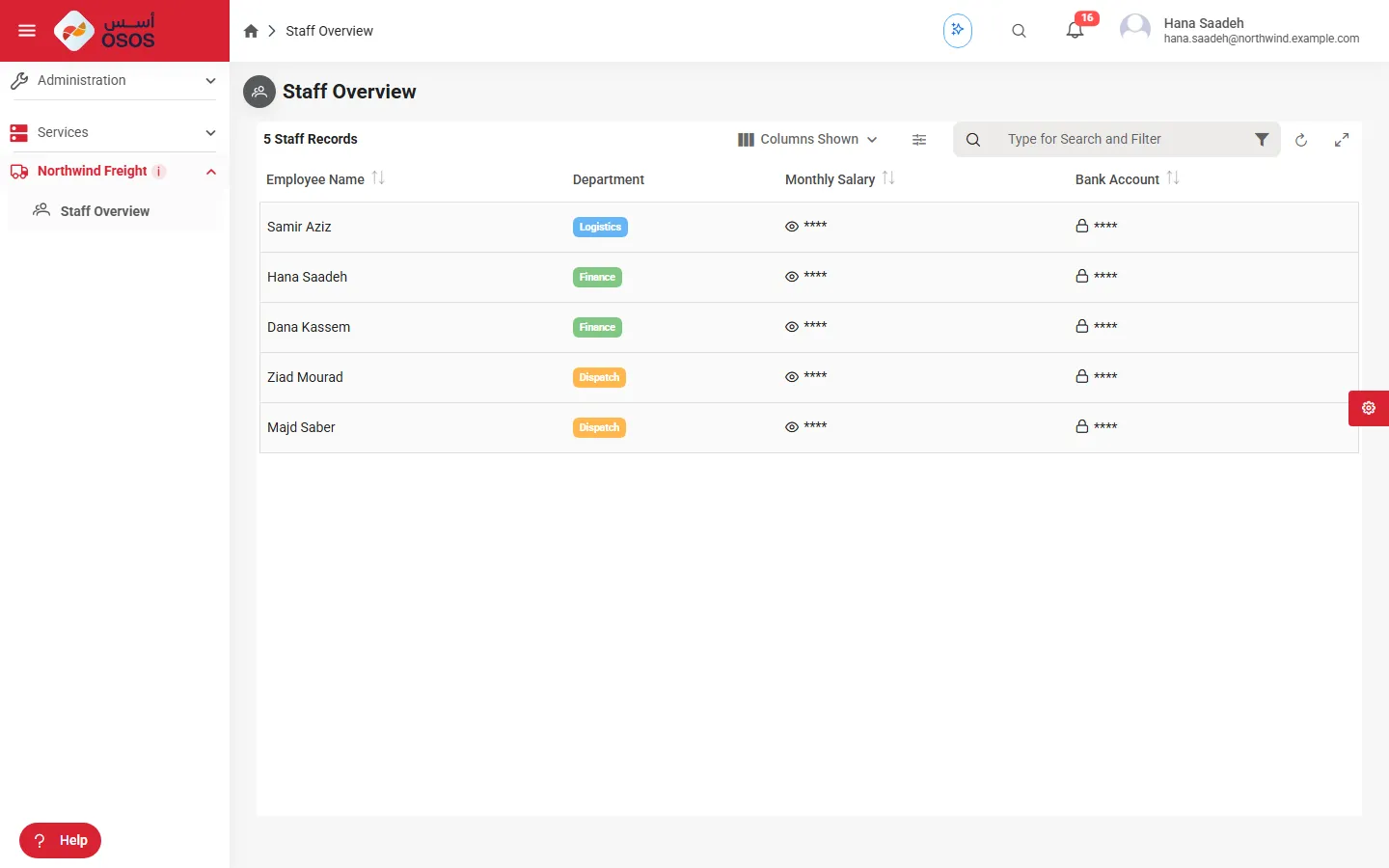 What to notice: the eye means Hana may reveal the value; the padlock means she may not. Both read four stars until she acts.
Check.
- The salary grant belongs to the Northwind Finance Manager role group, with no expiry.
- Samir’s grant covers the whole Staff Records entity and ends in a week.
- Inherited Permissions on Monthly Salary lists Samir.
- Dana saw padlocks on both protected fields.
- Hana saw an eye on the salary and a padlock on the bank account, and read the salaries only after Unmask.
- Hana’s Sensitive Fields tab shows a Group grant.
Pass condition. The two grants exist with the right scope, holder and expiry, and you saw the salaries revealed for Hana only after she unmasked, while Dana saw padlocks throughout.
If something goes wrong
| What you see | What to do |
|---|---|
| The dialog warns that a holder already has a grant for that scope | That holder is skipped; you never get two grants for the same pair. Check the list for an earlier attempt. |
| Save stays greyed out | The Expiry window has one date only, or ends in the past. Set both dates, or neither. |
| Hana sees padlocks, not an eye | Her grant is not active for her: check that she holds the Northwind Finance Manager role, and that you chose Monthly Salary in the tree. |
| Hana is asked for a code she cannot receive | Practice addresses receive no email. Choose the password option; if it is not offered, ask your training contact to check that the practice domain allows password confirmation. |
| Staff Overview is missing for Dana or Hana | The view is shared with Northwind Finance; check that both are placed in that unit (M1-S2). |
Model answer
Why each grant is shaped as it is:
- Hana’s salary grant is a standing part of a position, so it goes to the role group, with the narrowest scope (one field) and no end date. When a new finance manager is appointed, they get it with the role, and Hana loses it with hers.
- Samir’s review is temporary and covers all staff data, so it is an entity grant to him as a person, with an end date. Nobody has to remember to remove it. It also covers Bank Account, an encrypted field: Samir would be asked to confirm who he is for every account he reveals.
- What the holders saw. Dana had padlocks: no grant, nothing to click. Hana had an eye on the one field she holds, and the value appeared only during her unmask session. That session, and each reveal, is in the audit trail for M4.
◇ Worked scenario (1 min) — Four calls about stars
Section titled “◇ Worked scenario (1 min) — Four calls about stars”1. Hana: “I’ve been given salary access, but I still see stars.” Start with the icon. An eye means she holds the grant: she has not started an Unmask session, or it has ended. Show her Unmask in the top bar. A padlock means no grant reaches her: check her Sensitive Fields tab and her role.
2. Samir, ten days later: “The stars are back.” His grant had a one-week end date and removed itself. If the review needs more time, add a new grant with a new end date; an expired grant is not revived.
3. An auditor: “Who looked at salaries last month?” You do not need to guess. Unmask sessions and reveals are events in the audit trail, which you learn to read in M4. Do not export salaries to answer the question.
4. A builder: “Let’s make Employee Name sensitive as well.” It is the entity’s main title, shown wherever a record is named, so it cannot be sensitive. If the name itself must be hidden, the builder needs a different title for the entity.
✳ Discussion (13 min) — Who should read salaries?
Section titled “✳ Discussion (13 min) — Who should read salaries?”Northwind’s finance manager proposes this policy. Decide whether you would grant each request as written, change it, or refuse it.
- “Every member of Northwind Finance should read all salaries, permanently, so nobody waits for me.”
- “The external payroll company needs bank accounts for the monthly payment run.”
- “I’d like you, the administrator, to have access to everything protected, just in case.”
With a facilitator. In threes, decide each request and write the grant you would make, if any: scope, holder and expiry (6 min). Then compare decisions; where groups differ, agree which one leaks less (3 min).
On your own. Write your decision and the grant for each request, then compare with the model answer.
Model answer
- Change it. Reading salaries is the finance manager’s job, not the whole team’s: keep the grant on the Northwind Finance Manager role group. If an officer needs salaries for a task, give them a field-scoped grant with an end date. “Nobody waits” is not a reason to widen a grant that also widens exports.
- Not a grant to a person. A system that reads data gets an application user (M1-S1), with only the access its job needs. Whether it may read bank accounts at all is a decision for Northwind’s management and the builder; if it may, the grant goes to that application user, with the narrowest scope.
- Refuse. Your job is to hand out the right to read, not to hold it. Holding every grant would make you the single biggest risk in the tenant, and every reveal of yours would sit in the audit trail with no business reason. Grant yourself access only for a specific, recorded task, with an end date.
✓ Practice (5 min) — Check your understanding
Section titled “✓ Practice (5 min) — Check your understanding”You are a system Admin with Edit on every entity. Why do you see **** in Monthly Salary?
Check your answer
The correct answer is B. Open the explanation under each option to see why.
An external auditor needs to read every protected field in Staff Records for the next ten days. Which grant fits best?
Check your answer
The correct answer is A. Open the explanation under each option to see why.
The Monthly Salary field’s own list shows only the Northwind Finance Manager group. Can you conclude that nobody else can read salaries?
Check your answer
The correct answer is B. Open the explanation under each option to see why.
Samir holds an entity-wide grant on Staff Records. He reveals one bank account, moves to the next record, and is asked to prove who he is again. What do you tell him?
Check your answer
The correct answer is C. Open the explanation under each option to see why.
↺ Recap (1 min) — What you can do now
Section titled “↺ Recap (1 min) — What you can do now”You can decide who reads protected values, shape a grant by scope, holder and time, find everyone who can read a field, and explain to a holder why they still see stars.
Next. Hana is going on leave. In M2-S4 someone covers her approvals, and Majd leaves Northwind for good.