
M9-S1 — Build III: one automation
Section titled “M9-S1 — Build III: one automation”| Module | M9 — Make it work by itself |
| After this session you can | Make your application notify the right person automatically, and prove that it does. |
| Time | Facilitated: 23 min · On your own: 23 min |
| Before you start | M6-S1: Assigned To is a User field. M8-S1: Omar can open Team Tasks. Yourself and Omar signed in, in two windows. |
| Go deeper | Notify the assignee · Reactions and automation |
◆ Orientation (1 min) — The last of the five questions you build
Section titled “◆ Orientation (1 min) — The last of the five questions you build”You have answered need, data and people in your application. This session answers automation: what should happen by itself? For Team Tasks the answer from the plan is one thing: when a task is created, the person it is assigned to is told at once.
That one notification is what turns a list into a working system: nobody has to remember to tell the assignee, and nobody can forget.
▤ Concept (3 min) — Event, filter, action
Section titled “▤ Concept (3 min) — Event, filter, action”The shape of every reaction
Section titled “The shape of every reaction”A reaction is a rule that runs by itself, built in three parts:
| Part | Question it answers | For Team Tasks |
|---|---|---|
| Event | When does it run? | On Entry Created: whenever a task is saved as a new record |
| Filter (optional) | Only if… | Left empty, so it runs for every new task |
| Action | Do what? | Send Notification, In App, to the person in Assigned To |
The screen calls the middle part Filter; you may also read it called a condition. A reaction does one thing: to send an email as well, you would add a second reaction on the same event.
flowchart LR
  E["Event: On Entry Created"] --> F{"Filter: empty, so always"}
  F --> A["Action: Send Notification, In App"]
  A --> R["Recipient: the user in Assigned To"]
What to notice: the recipient is not a fixed person. It is read from each task’s Assigned To field, which is why that field had to be of the User type.
Placeholders in the message
Section titled “Placeholders in the message”A notification’s Title can carry a placeholder in double braces, such as New task: {{task}}.
As soon as you type it, a row for task appears under Custom Variables, and there you connect
the placeholder to a field: here task is mapped to Title, so Omar reads New task: Prepare the
budget.
Why you test with two accounts
Section titled “Why you test with two accounts”If you assign a test task to yourself and get the notification, you have not proved much: a reaction that always notified you, whoever the assignee was, would pass the same test. Assign the task to Omar and check in Omar’s window: only then do you know the recipient comes from the field. If nothing arrives, the reaction’s list on the Reactions tab shows whether it ran.
▶ Guided demo (3 min) — Watch it done
Section titled “▶ Guided demo (3 min) — Watch it done”With a facilitator. The facilitator plays the video, or builds the reaction live and proves it with a second account, before everyone starts the lab.
On your own. Watch the video once before you start. The lab below gives every step in writing, so you can also go straight to it without the video.
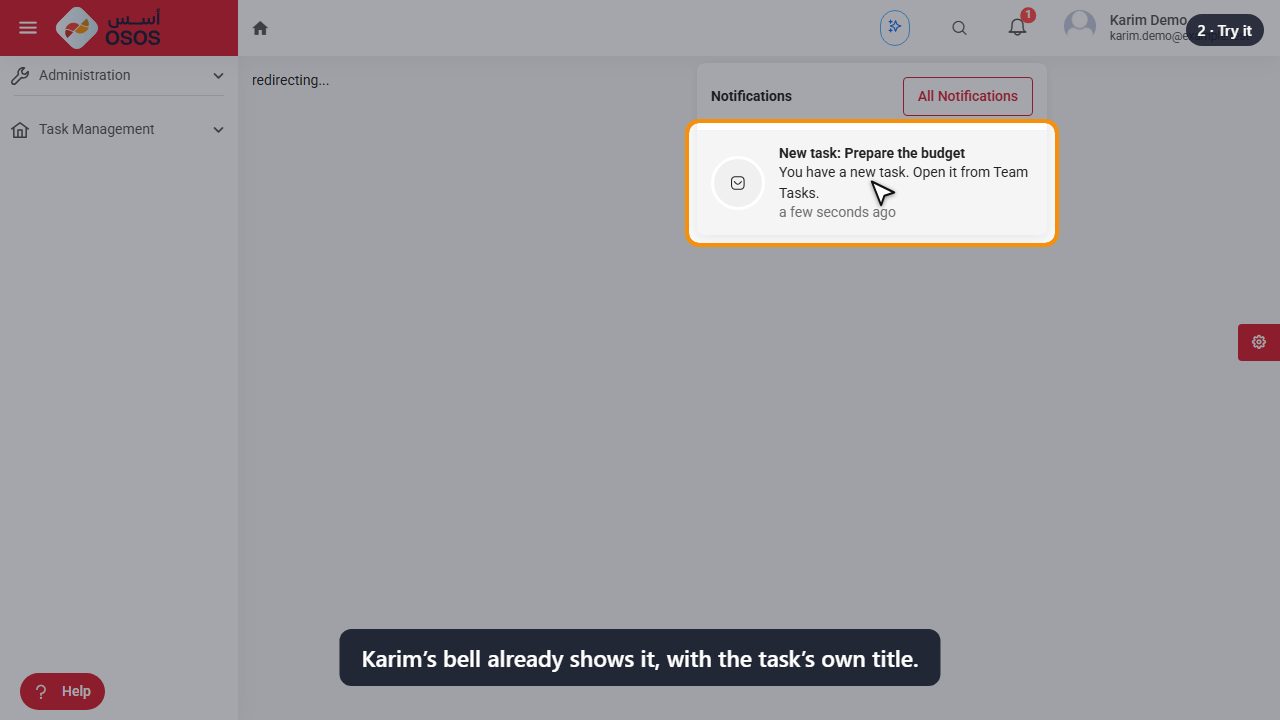
Tutorial · Part 3 of 3 · 2 min
Notify the assignee
What to notice: the three parts of a reaction, in order: the event On Entry Created; the action Send Notification, in the app, whose title holds a placeholder mapped to the Title field under Custom Variables; and Recipients taken from the Assigned To field, not a fixed person. Then the proof: a test task is assigned to someone else, and that person’s own bell shows it. The video’s second person is Karim, where yours is Omar, and it sets Execution Spaces to the root space; in the lab, leave Execution Spaces at its default.
⛏ Lab (11 min) — Notify the assignee
Section titled “⛏ Lab (11 min) — Notify the assignee”Goal. Build the Notify assignee reaction and prove, with Omar’s account, that it notifies the person in Assigned To.
Before you start. Yourself and Omar signed in, in two windows.
Build the reaction
- Open Administration › Applications › Modules › Task Management, open the Tasks entity and select the Reactions tab.
- Select + (or Add Reaction if the list is empty). The New Reaction dialog opens.
- Enter the Name Notify assignee.
- Under Event, choose On Entry Created. Leave the other event settings (Event Source Type, Execution Spaces, Event Executor Type) as they are. Leave Filter empty.
- Under Action, set Action Type to Send Notification. Enter the action’s Name Send notification and set Channel Type to In App.
- Enter the Title
New task: {{task}}and the ContentYou have a new task. Open it from Team Tasks.As you finish typing{{task}}, a row for it appears under Custom Variables. - In that row (columns Variable, Type, Map to and Redact in history), set Type to Field. Map to becomes a tree of fields: open Entry Fields and select Title.
- Under Recipients, set Source to User, Type to Field and Value to Assigned To. Select Save. Notify assignee appears in the list.
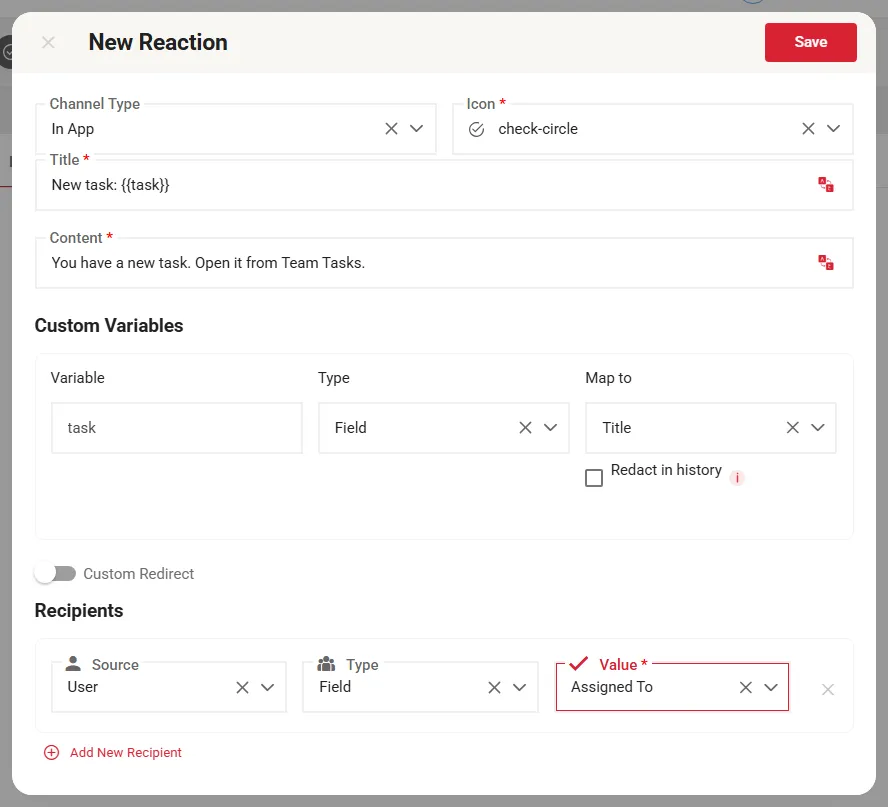 What to notice: Recipients is set to a field, not to a person. Each task’s own Assigned To decides who is told.
Prove it with two accounts
- In your own window, open Team Tasks and select Add Task. Enter the Title Prepare the budget, set Assigned To to Omar Faris, pick a Due Date from the calendar, and select Save.
- In Omar’s window, look at the bell: it shows New task: Prepare the budget. Select it: the task opens.
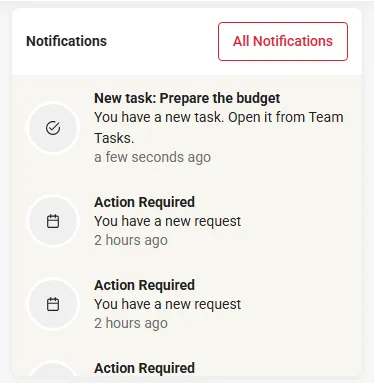 What to notice: the title came from the task itself, through the task placeholder. Omar gets it without reloading.
Check.
- Notify assignee is listed on the Tasks entity’s Reactions tab.
- Its event is On Entry Created, and its recipients come from the Assigned To field.
- Omar received New task: Prepare the budget under his bell.
- Selecting the notification opened the task.
Pass condition. A task you create and assign to Omar produces, in Omar’s window, a notification whose title names that task.
If something goes wrong
| What you see | What to do |
|---|---|
| Nothing under Omar’s bell | Open Notify assignee from the Reactions tab: the list shows whether it ran. Check that Recipients reads User › Field › Assigned To. |
| The notification reads New task: {{task}} | The placeholder is not mapped. Under Custom Variables, map task to the field Title. |
| There is no task row under Custom Variables | The row appears only once {{task}} is typed in Title, with both pairs of braces. Check the spelling. |
| You received the notification instead of Omar | Recipients points at a fixed person. Set Type to Field and Value to Assigned To. |
| The notification arrives, but the task does not open for Omar | Omar cannot open Team Tasks: repeat the last part of M8-S1. |
| You saved the task as a draft | Drafts run no automation (Module 4). Finish the draft and save it as a real task. |
Model answer
The finished reaction, read as a sentence: when a task is created (event), always (no filter), send an in-app notification (action) titled “New task: ” plus the task’s title, to the user in the task’s Assigned To field (recipient). The two-account test passes only if the recipient really comes from the field: assigning to Omar and seeing it in Omar’s window rules out a recipient fixed to you.
✓ Practice (4 min) — Check your understanding
Section titled “✓ Practice (4 min) — Check your understanding”A builder wants a notification only when a new task is created with the Status Completed (tasks logged after the fact). Which part of the reaction changes?
Check your answer
The correct answer is B. Open the explanation under each option to see why.
A learner tests the reaction by assigning a task to themselves and receives the notification. Why is that test not enough?
Check your answer
The correct answer is A. Open the explanation under each option to see why.
One reaction can send both an in-app notification and an email.
Check your answer
The correct answer is B (False). Open the explanation under each option to see why.
↺ Recap (1 min) — What you can do now
Section titled “↺ Recap (1 min) — What you can do now”You built your first automation and proved it the reliable way. You can read any reaction as event, filter, action, and you know why the recipient must come from a field and why the test needs a second person.
Next. Every piece of Team Tasks is in place. In Module 10, the capstone, you run the whole application end to end, with Omar on the phone, and collect the evidence for your certification.