
M10-S1 — Capstone: Team Tasks on the web and on the phone
Section titled “M10-S1 — Capstone: Team Tasks on the web and on the phone”| Module | M10 — Capstone |
| After this session you can | Show that your application works end to end on both channels, with evidence, and fix the usual faults yourself. |
| Time | Facilitated: 42 min · On your own: 39 min |
| Before you start | Modules 6 to 9 done: Task Management, Tasks, Team Tasks, Task Home, Notify assignee; Sara added; Omar in Task Team. Your completed leave request from M5-S1. The app on your phone (M3-S2). The web vs mobile job aid. |
| Go deeper | Try it on mobile · Change your app safely |
◆ Orientation (1 min) — Everything, once, for real
Section titled “◆ Orientation (1 min) — Everything, once, for real”This is where the course comes together. You built Team Tasks in pieces; now you use it the way a team would: you, at your desk, create a task for Omar; Omar, out of the office, is told on his phone, opens it there and starts work; you see the change on the web straight away.
As you go, you collect evidence: one screenshot (or one short written answer) per row of the capstone rubric. The same rubric is used at your certification sign-off, published in full on the assessment page, so nothing about it is a surprise.
★ Capstone (24 min) — Run Team Tasks end to end
Section titled “★ Capstone (24 min) — Run Team Tasks end to end”Goal. One task travels from your web screen to Omar’s phone and back, and every rubric row has its evidence.
Before you start. Your own window on the web. Your phone, with the app. Omar’s sign-in details. Create a folder for your evidence screenshots.
Put Omar on the phone
- In the app, tap More in the bottom bar and select Logout. The app asks Are you sure you want to logout?: select Logout again. On Login, sign in with Omar’s details.
Create a task on the web, receive it on the phone
- On the web, as yourself, open Team Tasks and select Add Task. Enter the Title Book the training room, set Assigned To to Omar Faris and Due Date to this Friday, and select Save.
- On the phone, Omar gets the notification: as a pop-up if the app is closed, and under Notifications in the bottom bar. Tap it: the task opens. Evidence, row 4: a screenshot of the notification on the phone.
Work on the phone, see it on the web
- On the phone, tap Go To in the bottom bar, then Task Management › Team Tasks.
- Switch the list to a board: tap the settings icon at the top right of the list. A bar with Display and Sort opens. Tap Display, choose Kanban and tap Apply. The board shows one column at a time, with the next one peeking in at the edge: Book the training room is under To Do.
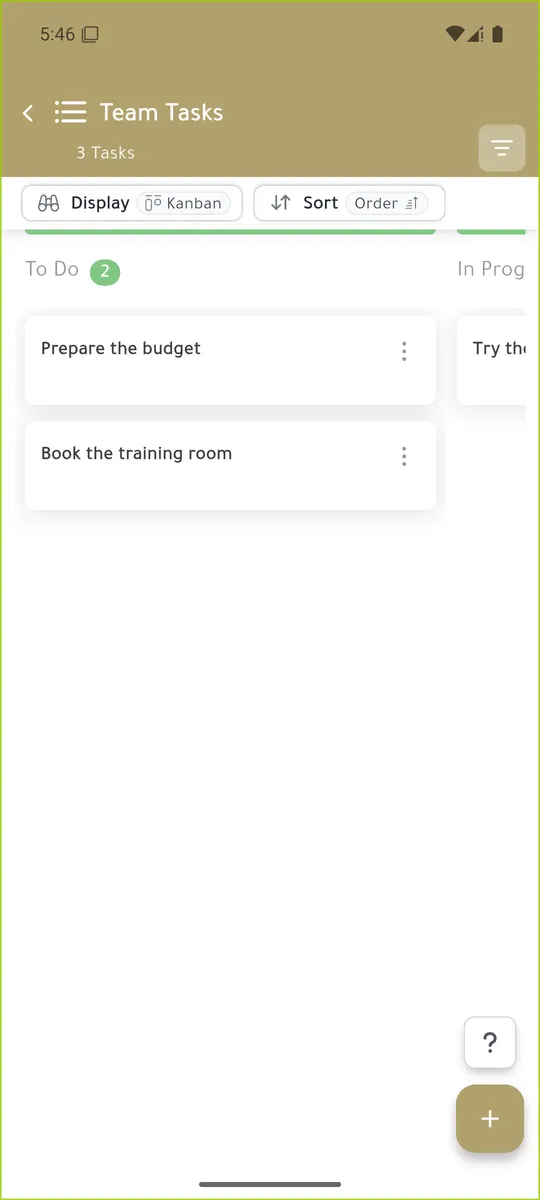 What to notice: the same view you built on the web, with the same status columns, on the phone. Building needed the web; using it does not.
- Press and hold Book the training room, then drag it from To Do onto In Progress. Evidence, row 6 (part 1): a screenshot of the board on the phone, with the task under In Progress.
- On the web, look at Team Tasks: the task shows In Progress (if it does not yet, use Refresh above the list). Evidence, row 6 (part 2): a screenshot of the web list.
Collect the rest of the evidence
- Take the remaining screenshots and write the short answer:
| Row | Evidence to collect |
|---|---|
| 1 | The Tasks entity’s Structure tab, showing the five fields and their types. |
| 2 | Team Tasks in Kanban view on the web, with the three status columns. |
| 3 | Omar’s window (private window on the web) after selecting Task Management › Task Home in the sidebar: the page with its list. |
| 5 | User Permissions for Omar, with Team Tasks acquired through Task Team; and Sara’s record showing her groups and her role. |
| 7 | Your leave request from Module 5, listed in your Outbox › Completed; and the same request in Omar’s Inbox › Completed. |
| 8 | Five lines, one per question from Module 1 (need, data, people, automation, reporting), each naming the Team Tasks piece that answers it. |
Check.
- Row 1: five fields with the right types and required flags.
- Row 2: Team Tasks is published and shows a Kanban board by Status.
- Row 3: Task Home is published, opens from Omar’s sidebar and shows him the tasks.
- Row 4: Omar was notified of Book the training room.
- Row 5: Sara is set up; Omar’s access comes through Task Team.
- Row 6: Omar moved the task on the phone, and the web shows In Progress.
- Row 7: your leave request is in Completed for both of you, because Omar approved it.
- Row 8: your five lines map Team Tasks to the five questions.
Pass condition. Every row of the capstone rubric has its evidence and meets the rubric’s “Pass when” column.
Model answer
A model answer for row 8:
- Need: the team tracks who does what, and each person knows at once when work is assigned to them; answered by the Task Management module as a whole.
- Data: one task, with title, description, status, assignee and due date; answered by the Tasks entity and its five typed fields.
- People: managers create and assign, team members update their status; answered by the group Task Team, which opens Team Tasks, and the User field Assigned To.
- Automation: the assignee is told when a task is created; answered by the reaction Notify assignee.
- Reporting: the team sees every task by status; answered by the Kanban board in Team Tasks and the list on Task Home.
Your wording can differ. It passes if each line names a real piece of your application, and the piece really answers that question.
If something goes wrong
| What you see | What to do |
|---|---|
| No notification on the phone | Check under Notifications in the bottom bar first: pop-ups need the permission you gave in M3-S2. If it is not there either, follow the troubleshooting in M9-S1. |
| Team Tasks is missing from Omar’s Go To on the phone | Omar is not in Task Team: repeat the end of M8-S1. Then pull down to refresh. |
| The due date on a task reads Invalid date | The task was saved without a due date. Open it, pick a Due Date and save. |
| No Kanban choice on the phone | Tap the settings icon at the top right of the list, then Display: the choices are there. Select Apply after choosing. |
| The phone board shows only a Category Not Set column | The view’s Kanban columns are left at All columns: fix it on the web as in the M7-S1 troubleshooting, then pull down to refresh. |
| The card will not move on the phone | Hold your finger on the card a moment longer before you move it. If it still will not move, open the card’s menu (the three dots), select Edit, set Status to In Progress and save: the evidence is the same. |
| The web list did not change | Use Refresh above the list. If the change is still missing, check that you moved the card on Team Tasks, not on another list. |
◇ Worked scenario (2 min) — Three calls from users, and how to reason them out
Section titled “◇ Worked scenario (2 min) — Three calls from users, and how to reason them out”A week after launch, three people contact you. For each, the reasoning matters more than the fix: start from what the person sees, then ask which piece is responsible.
1. “I’m never told about my tasks.” Huda says tasks appear in her list, but she gets no notifications. Her colleague, who built the reaction, gets every one of them. Reasoning: the recipient is not coming from the task. You open Notify assignee: Recipients names one fixed user, the builder, who tested the reaction by assigning tasks to themselves, and the test passed. Fix: set Recipients to User › Field › Assigned To, then test with two accounts, exactly as in Module 9.
2. “I can see the home page, but there are no tasks on it.” Karim is new; where the list should be, his page says he has no access. Reasoning: Task Home is a default page, open to everyone signed in, but its list comes from Team Tasks, which only Task Team may open. Fix: add Karim to Task Team; check User Permissions; sign in as Karim (or ask him to reload). You did exactly this for Omar in Module 8.
3. “The board has a column called Category not set, full of cards.” Reasoning: cards sit in Category not set when their Status is empty, or when their option was removed from the field. Someone renamed the option In Progress to Doing by deleting and re-adding it. Fix: restore the original option, or move the cards to the right column; and remember the Module 6 rule: plan names first.
✳ Discussion (10 min) — What would you digitise next?
Section titled “✳ Discussion (10 min) — What would you digitise next?”With a facilitator. In threes, each person takes the process they mapped in Module 1 and names, for each of the five answers, the platform piece that would hold it (4 min). The group then decides which course each person needs next to build or run it: analysing it in depth (ACA), building it (ACD), or administering the people and access around it (ACSA) (4 min).
On your own. Take the process you mapped in the Module 1 discussion. Next to each of your five answers, write the piece that would hold it: module, entity and fields, users, groups and the workflow, reaction, views and pages. Then write one sentence: which part would you most like to do yourself next (analyse it, build it, or administer it)? That points to your next course. Compare with the model answer.
Model answer
For the IT equipment loan from Module 1:
| Answer | Platform piece |
|---|---|
| Need: staff borrow equipment; IT knows who has what | An Equipment Loans module |
| Data: the loan and the item | Two entities, Loans and Items; the borrower is a User field |
| People: employee asks, technician approves, manager watches | A service Equipment Loan with a two-step workflow; the manager as a watcher |
| Automation: reminder the day before the due date | A reaction |
| Reporting: items out on loan, overdue first | A view with a filter and sorting, on a page |
Next course: someone who enjoyed working out the table above is heading for ACA; someone who wants to build the service and its workflow, for ACD; someone who wants to run the users, groups and access around it, for ACSA. All three build on exactly what this course taught.
✓ Practice (4 min) — Check your understanding
Section titled “✓ Practice (4 min) — Check your understanding”During the capstone, which of these could Omar not have done on his phone?
Check your answer
The correct answer is C. Open the explanation under each option to see why.
Several tasks suddenly sit in a Category not set column on the Team Tasks board. What is the most likely cause?
Check your answer
The correct answer is B. Open the explanation under each option to see why.
Which of these pieces of Team Tasks answer the people question from Module 1? Select all that apply.
Check your answer
The correct answers are A and B. Open the explanation under each option to see why.
↺ Recap (1 min) — What you can do now, and what comes next
Section titled “↺ Recap (1 min) — What you can do now, and what comes next”You have run a complete information system you built yourself: data, screens, access and automation, used by two people on two channels. Looking back over the course, you can now:
- break a process down with the five questions, and name the platform piece behind each answer;
- find your way on the web and on the phone, and choose the right one for a task;
- work with records and take part in a workflow, from either side;
- build a small application with an entity, a view, a page and a reaction;
- add a colleague, open your application to them, and prove it by signing in as them.
Your certification has two parts, taken at an assessment event outside the course hours: the 40-question knowledge test, and the capstone sign-off, where a reviewer checks your evidence against the rubric. The assessment page describes both, with practice questions.
After ACP, your path decides your next course: ACA to analyse and specify systems, ACD to build them, or ACSA to administer a tenant. Each one starts from what you did here and goes deeper.