
M5-S1 — Services, requests and a two-step workflow
Section titled “M5-S1 — Services, requests and a two-step workflow”| Module | M5 — Requests that travel |
| After this session you can | Submit a request, approve it as the next person on its route, and follow it to the end. |
| Time | Facilitated: 29 min · On your own: 29 min |
| Before you start | M3-S1: the Services group. M4-S1: drafts. Yourself and Omar signed in, in two windows. |
| Go deeper | Services and submitting requests · Acting on workflow steps |
◆ Orientation (1 min) — The leave request, for real
Section titled “◆ Orientation (1 min) — The leave request, for real”In Module 1 you broke a leave request down on paper, and in Module 2 you traced it through the platform’s pieces. Now you send one. You will play both people: you ask for leave, and Omar, your manager for this lab, approves it.
The records in Module 4 stayed in one list. A request is different: it travels. It goes from the person who asks to the person who decides, and it shows up in a different place for each of them. After this session you can take part in that journey from either side.
▤ Concept (6 min) — Services, requests, and the route between people
Section titled “▤ Concept (6 min) — Services, requests, and the route between people”Service and request
Section titled “Service and request”A service is a form your organization published, such as Leave Request or IT Support. The Services Catalog lists every service you are allowed to submit, as cards grouped by category. Point at a card and select Apply to open a new request. If a service you expect is missing, it was not published to you (it is limited to other people or groups, or not switched on yet); there is no “request access” button, so ask its owner or your administrator.
A request is one filled-in submission of a service. From the moment it is created, it follows the service’s workflow.
The workflow: steps, owners, actions
Section titled “The workflow: steps, owners, actions”A workflow is the route a request takes. It is made of steps. Each step has an owner, the person or group whose turn it is, and actions the owner can take to move it on, such as Approve, Return or Reject. The service’s designer names these buttons, so they may be called something else in your organization.
The Leave Request service in your practice space has a two-step workflow:
- Request, owned by whoever asks. Its action is Submit.
- Manager approval, owned by Omar. Its actions are Approve, Return (back to the person who asked) and Reject.
sequenceDiagram
  participant L as You (requester)
  participant O as Omar (approver)
  L->>L: Apply, fill in, Save, Save Changes (status Draft)
  L->>O: Submit (step 1 done)
  Note over O: Request appears in Omar's Inbox, and Omar is notified
  O->>L: Approve (step 2 done)
  Note over L: Request moves to Completed in your Outbox
What to notice: saving does not send. The request stays a draft with you until you select the first step’s action, Submit.
Saving is not sending
Section titled “Saving is not sending”This is the most common surprise. When you fill in a request and select Save, then Save Changes, the request is created, but it stays with you, marked Draft. Nobody else sees it yet. It moves only when you select the action button of the first step, here Submit, and confirm. Until then you can still change it with Edit Entry.
Where a request shows up
Section titled “Where a request shows up”| You are | You find the request in | Its two tabs |
|---|---|---|
| The person who asked | Outbox, always, even when it comes back to you | Ongoing and Completed, each with a count, for example Ongoing (1) |
| The owner of the current step | Inbox | Ongoing and Completed |
| A watcher of the service | Watching | Ongoing and Completed |
In the Outbox, the Request Status column tells you where your request stands:
| Status | Meaning |
|---|---|
| Draft | Saved, but not yet sent on from its first step. |
| Pending Your Action | The current step is yours. On a request you already sent, it was returned to you. |
| On Going | The request is with someone else. |
| Completed | The route has ended, whatever the outcome. Open it to see how it ended. |
When you open a request, it shows its fields on Details, and a side panel with up to three tabs: WorkFlow draws the route, marks the step it is waiting at, and shows the finished steps in green; Discussion holds comments, including each approver’s note under the name of the step where it was written; History lists the changes made to the request. The person who designs the service decides whether the route and the approvers’ notes are shown at all: both are switched on for the practice space’s Leave Request. If a request in your own organization shows no WorkFlow tab, follow it by the list it is in and by its Request Status, and ask the service owner about the notes.
▶ Guided demo (1 min) — Watch it done
Section titled “▶ Guided demo (1 min) — Watch it done”With a facilitator. The facilitator plays the video, or sends a request along its route live, playing both people, before everyone starts the lab.
On your own. Watch the video once before you start. The lab below gives every step in writing, so you can also go straight to it without the video.
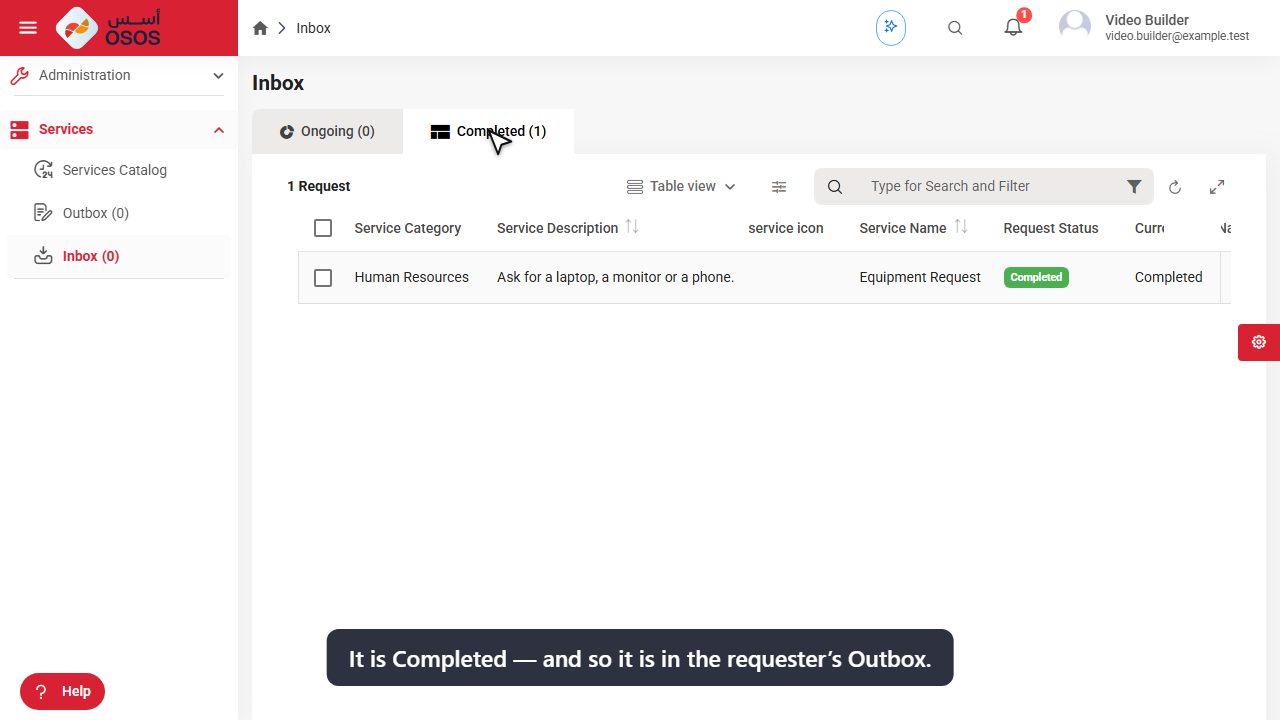
How-to · 47 s
A request, there and back
What to notice: saving is not sending. After Save the request is still a draft that only its owner sees; Submit sends it to the approver’s Inbox, and Approve, confirmed, completes it. The video uses a demo service, Equipment Request, and two demo accounts. It approves without a comment, does not open the WorkFlow tab, and ends in the approver’s Inbox; the lab adds all three: Omar’s comment, the WorkFlow tab, and your own Outbox › Completed.
⛏ Lab (13 min) — A leave request, there and back
Section titled “⛏ Lab (13 min) — A leave request, there and back”Goal. Send a request along its two-step route, playing both people, and see it from each side.
Before you start. Your own window (you, the requester) and Omar’s private window (the approver).
As yourself: ask for leave
- In the sidebar, open Services › Services Catalog. The page Service Catalog opens.
Type
leavein the search box. The Leave Request card appears, with its category, Human Resources. - Point at the Leave Request card and select Apply. The form New Request opens. Fill in: Leave Type Annual; First Day next Monday and Last Day next Wednesday, both picked from the calendar (typing a date is not accepted); Reason Family visit.
- Select Save, then confirm with Save Changes.
- Open Services › Outbox (1). The Ongoing (1) tab lists your request with the Request Status Draft. Nobody else can see it yet.
- Open the request. Select Submit and confirm. Go back to Outbox › Ongoing: the status is now On Going. Open the request again and select the WorkFlow tab in the side panel: the route is drawn, and it is waiting at Manager approval.
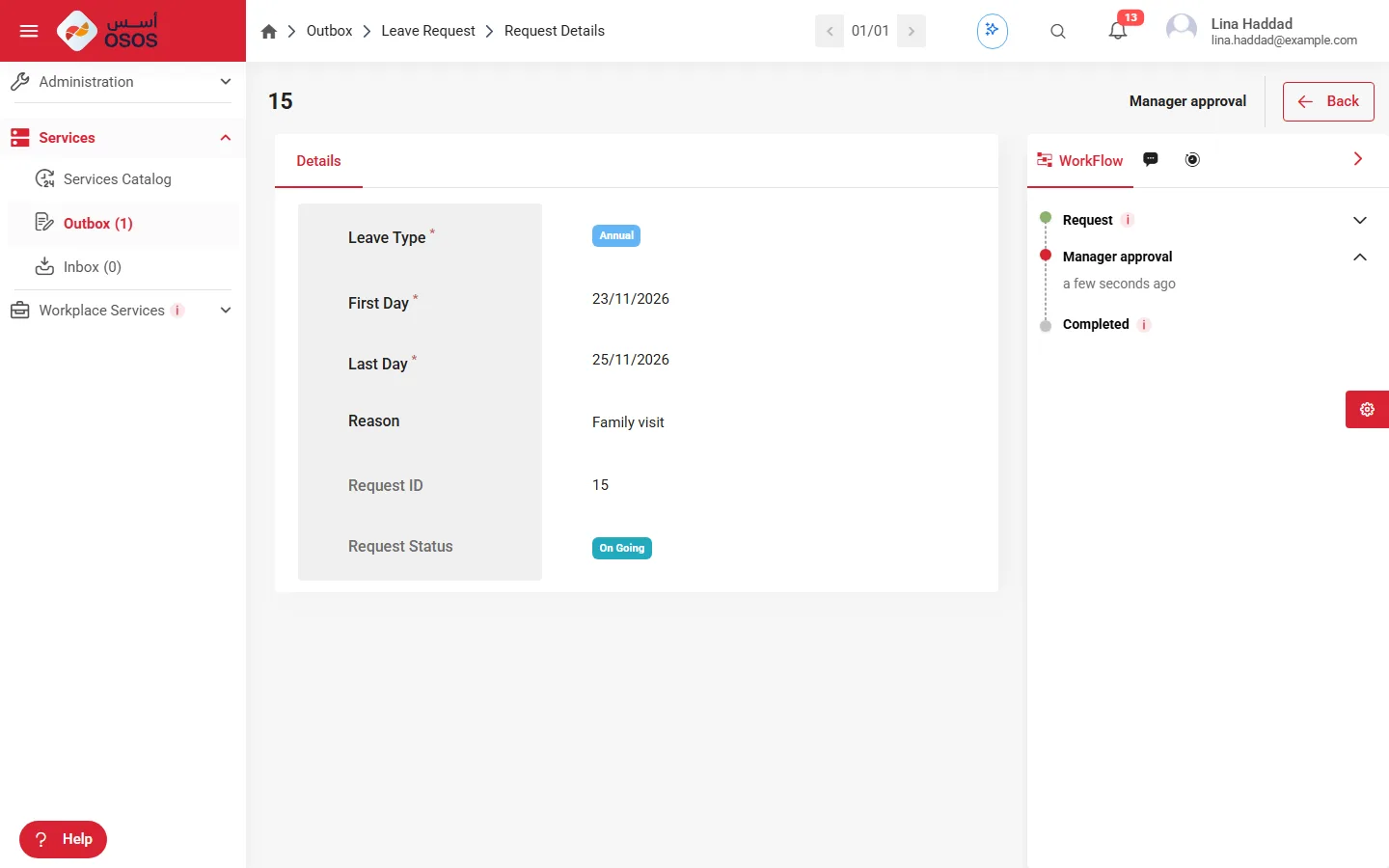 What to notice: the route shows where the request is waiting, so you never have to ask who has it.
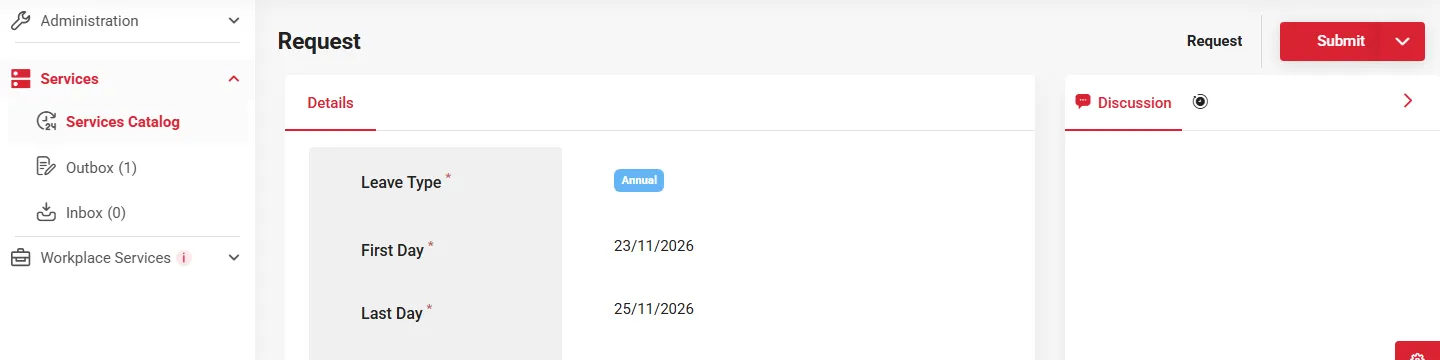 What to notice: the request exists, but it is still yours. Submit is the first step’s action; until you select it, the status stays Draft.
As Omar: decide
- In Omar’s window, reload the page. The bell shows a new notification. Open Services › Inbox (1) › Ongoing: your request is waiting for him, at the step Manager approval.
- Open the request and read it. Select Approve. A dialog titled Manager approval opens:
type
Enjoy your breakin its comment box, then select Approve in the dialog to confirm.
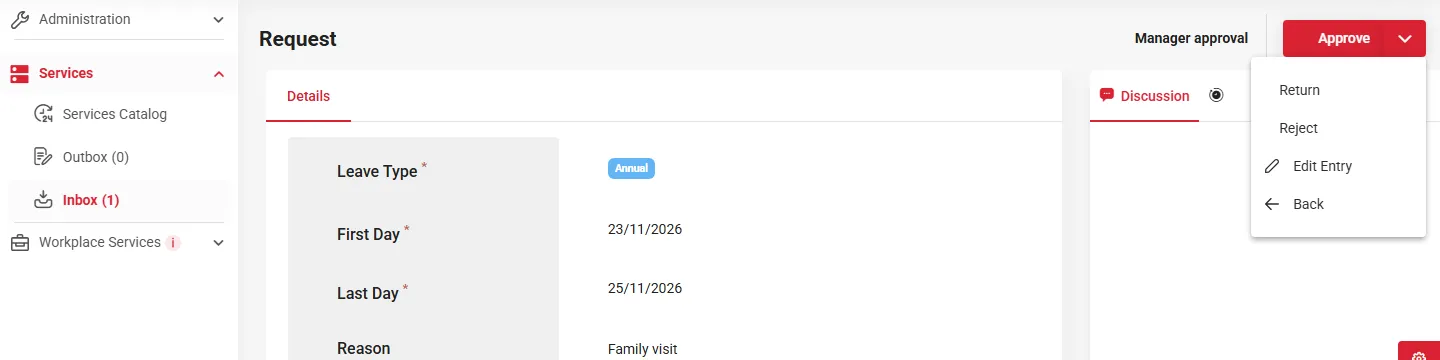 What to notice: the main action is the button itself; the step’s other actions, Return and Reject, hide behind the arrow next to it, with Edit Entry and Back.
As yourself: see the result
- In your own window, open Services › Outbox › Completed. Your request is there: the route has ended.
- Open it. The WorkFlow tab now shows every step in green, and no step action is offered any more. Select Discussion: Omar’s note is there, under the step where he wrote it.
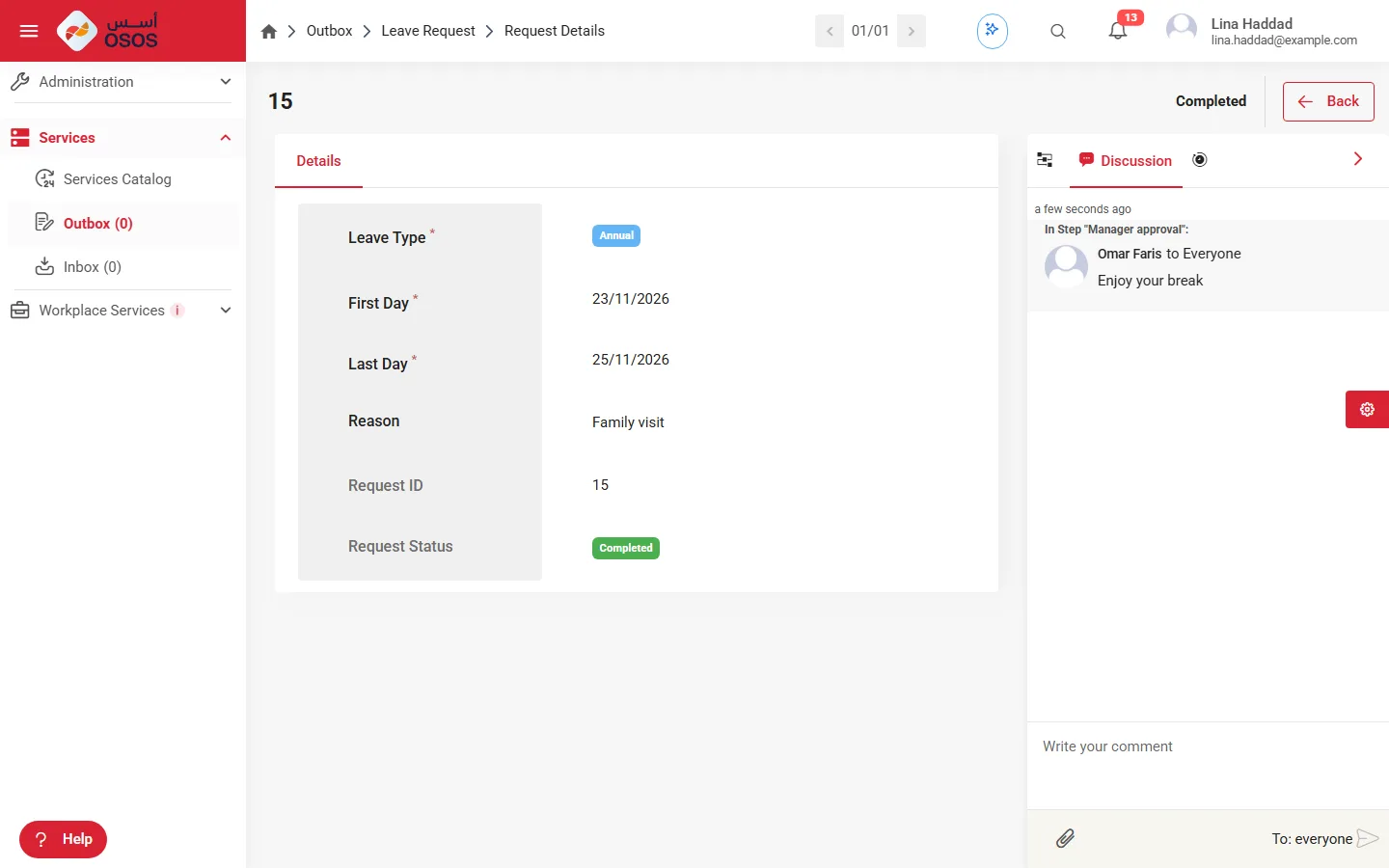 What to notice: an approver’s note is filed under the step where it was written, so you can tell which decision it belongs to.
10. In Omar’s window, open Services › Inbox › Completed. The request he acted on is
there too.
Check.
- Right after saving, your request showed Draft in your Outbox.
- After Submit, it showed On Going, and appeared in Omar’s Inbox.
- Omar approved it, with the comment Enjoy your break.
- The request is in Outbox › Completed for you and Inbox › Completed for Omar.
- On your completed request, the WorkFlow tab shows every step done and Discussion shows Omar’s note.
Pass condition. The request is listed in your Outbox › Completed and in Omar’s Inbox › Completed.
If something goes wrong
| What you see | What to do |
|---|---|
| No Leave Request in the Services Catalog | Check the spelling in the search box. If it is still missing, the demo data was not loaded: see M0-S1. |
| No Services in Omar’s sidebar | Omar’s account has only the lowest access level, which hides Services. See the troubleshooting in M0-S1. |
| No Apply on the card | Point at the card itself: Apply appears when the pointer is over it. |
| The date will not go in | Pick the day from the calendar that opens under the field; typed dates are not accepted. |
| The request is not in Omar’s Inbox | Your request is probably still Draft: open it from your Outbox and select Submit. Then reload Omar’s window. |
| No Submit button on your request | Open the request itself (not just the list row). The button appears at the top while the first step is yours. |
| Omar’s Approve stays greyed out in the dialog | The comment may be required: type one first. |
| You cannot find Completed | It is a tab at the top of the Outbox list, next to Ongoing. |
◇ Worked scenario (2 min) — When the request comes back
Section titled “◇ Worked scenario (2 min) — When the request comes back”Not every request goes straight through. Here is the other common path, step by step, with the reasoning.
Huda submits a leave request with the wrong last day. Her manager, Karim, opens it from his Inbox and, instead of Approve, selects the arrow next to it and chooses Return, with the comment Your last day falls on a public holiday, please check.
- Where does the request go? Back to Huda’s step. Why: Return sends the request back along its route, to the person who asked. It is different from Back, which only takes you to the previous screen.
- Where does Huda find it? In her Outbox › Ongoing, with the status Pending Your Action, and she gets a notification. Why: your own requests always stay in your Outbox. They never appear in your Inbox, even when they are waiting for you.
- How does she fix it? She opens it, selects Edit Entry, corrects the date and selects Save. Why: she can change the request because the current step is hers again.
- How does she send it back? With her step’s action button, here Submit (some services call it Resubmit), and a note saying what she changed. The status becomes On Going, and the request is back in Karim’s Inbox.
The reasoning to copy: wherever a request is, ask whose step it is. That tells you where it shows up, who can change it, and which buttons anyone sees.
✓ Practice (5 min) — Check your understanding
Section titled “✓ Practice (5 min) — Check your understanding”Yousef fills in an IT Support request, selects Save and Save Changes, and goes home. The next morning he complains that nobody from IT has looked at it.
What is the most likely explanation?
Check your answer
The correct answer is B. Open the explanation under each option to see why.
Where should Yousef look to confirm it, and what will he see?
Check your answer
The correct answer is A. Open the explanation under each option to see why.
Put the moments of a two-step request in order.
Check your answer
The correct order is D → B → C → A. Open the explanation under each item to see why it sits where it does.
On a request waiting for her approval, Lina selects Back. What happens?
Check your answer
The correct answer is B. Open the explanation under each option to see why.
↺ Recap (1 min) — What you can do now, and the end of Day 1
Section titled “↺ Recap (1 min) — What you can do now, and the end of Day 1”You can now take part in a workflow from both sides: submit a request and send it on, act on it as the step owner, and follow it from Outbox and Inbox to Completed. You know that saving is not sending, and that a request always shows up where its current step’s owner works.
That closes the using half of the course. You have found your way around, worked with records and taken part in a workflow, all in an application someone else built.
Next. From Module 6 you build your own application, Team Tasks, starting with the “things” it keeps records of: its entity and fields.