
M7-S1 — Build II: a view and a home page
Section titled “M7-S1 — Build II: a view and a home page”| Module | M7 — Build the screens |
| After this session you can | Give an entity a published list with a board, limited to a group, and a published home page that shows it. |
| Time | Facilitated: 36 min · On your own: 36 min |
| Before you start | M6-S1: Task Management and Tasks exist, with one test task. M4-S1: what a view offers its users. |
| Go deeper | Build the views · Build the home page · Data views and faces |
◆ Orientation (1 min) — From records to screens
Section titled “◆ Orientation (1 min) — From records to screens”Your tasks exist, but only you can see them, and only inside Administration. People never work there: they work through views and pages. In this session you build both.
In Module 4 you used a view: you switched it to a board, added a record through a draft, edited and archived. Every one of those buttons was a switch the builder turned on. Now you are the builder, and you turn them on for your team.
▤ Concept (5 min) — Views, pages and publishing
Section titled “▤ Concept (5 min) — Views, pages and publishing”A view, built from switches
Section titled “A view, built from switches”A view is how people see and work with the records of one entity. You build it in the view designer, mostly by turning switches on:
| Designer setting | What it gives people (as you saw in Module 4) |
|---|---|
| Type & source: Source view Entries, and Fields | Every record of the entity, and the fields the view may use at all. Every field list further down offers only the fields chosen here. (A builder can also show only the records matching a saved query.) |
| Appearance: Pin to sidebar | The view appears in the sidebar, under its module. |
| Entries list, then Displays › Table view and Kanban view | The list, with the displays people can switch between. A Kanban board needs a Category, the field whose values become columns, and a Main title, the field shown as each card’s heading. |
| Entries details | Opening a record shows its fields. |
| Creating new entries, Editing entries, Archive entries | The buttons to add, edit and archive records. Each one also needs an After Save: what happens once the person saves, for example Go to entries list. |
Who can open it
Section titled “Who can open it”Under Access Permission:
- Authenticated means people who are signed in. Pick groups in Select groups (or people in Select Users) to narrow it down; leave both empty to allow everyone who is signed in.
- Anonymous means anyone with the link, signed in or not. Use it only for information meant for the public, never for a team’s tasks.
For Team Tasks you choose Authenticated and the group Task Team. Right now that group contains only you; in Module 8 you add Omar to it, and he gets the view.
A page, built from widgets
Section titled “A page, built from widgets”A page puts several things on one screen, using widgets: a Text widget for a welcome message, a Link widget, a View widget that shows a list from a view in the Face you choose (Table or Kanban), and others. A page can be marked as a module’s Default Page, its main page. A default page must be open to everyone signed in, so you do not pick groups for it. Each widget still shows a person only what they are allowed to see. In the sidebar, selecting a module only opens the list of what is inside it; people then select the page by its name. While you design a page, a Preview pane beside it can show how it will look on a phone, where your space has one set up; previewing never saves or changes records.
Nothing is visible until you publish
Section titled “Nothing is visible until you publish”A view, and a page, are visible to nobody, not even the people you chose, until you select Publish on its card. An entity has no publish step (Module 6); screens do.
flowchart LR
  T["Entity: Tasks"] --> V["View: Team Tasks<br/>Table + Kanban by Status<br/>open to group Task Team"]
  V --> P["Page: Task Home<br/>Text widget + View widget<br/>default page"]
  V -. "Publish" .-> U["People in Task Team"]
  P -. "Publish" .-> U
What to notice: the page does not hold tasks itself; its View widget shows the Team Tasks view, so whoever cannot open the view sees no tasks on the page either.
▶ Guided demo (4 min) — Watch it done
Section titled “▶ Guided demo (4 min) — Watch it done”With a facilitator. The facilitator plays the video, or builds the view and the page live in the same order, before everyone starts the lab.
On your own. Watch the video once before you start. The lab below gives every step in writing, so you can also go straight to it without the video.
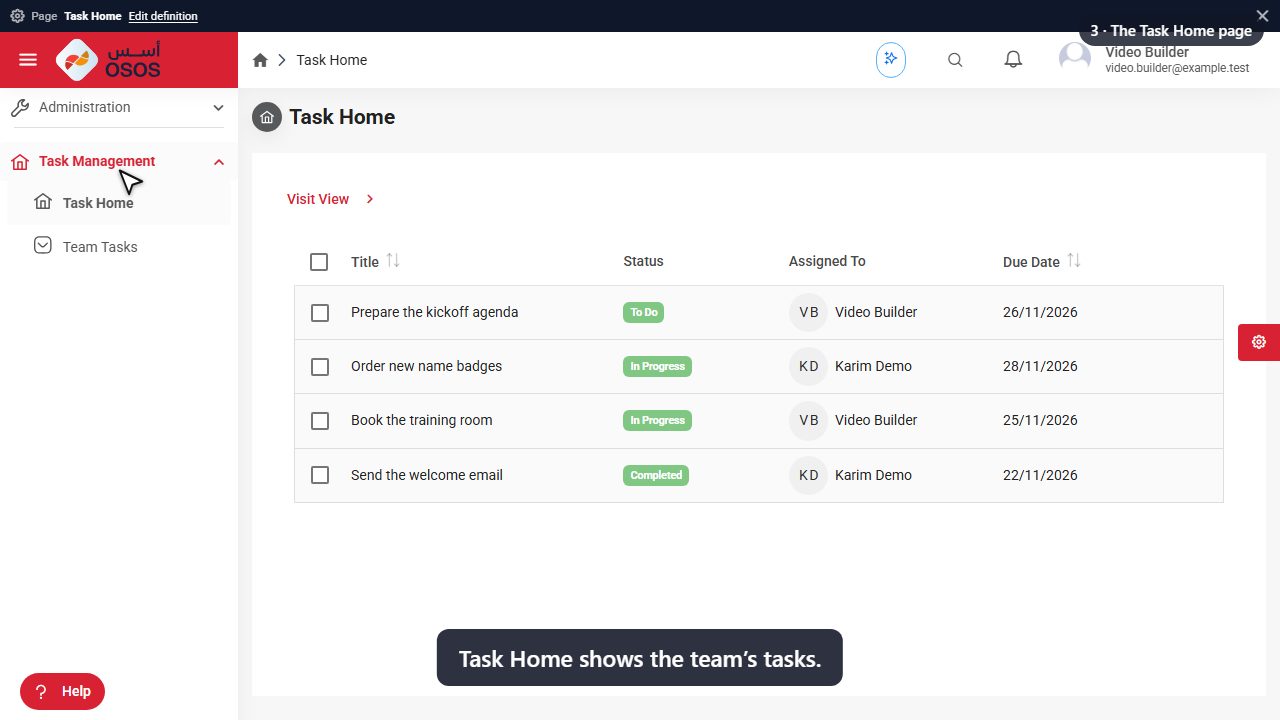
Tutorial · Part 2 of 3 · 3 min 6 s
The Team Tasks view and the Task Home page
What to notice: the view comes first and the page second. For the view: Source view set to Entries, Pin to sidebar, Authenticated plus a group, the table’s columns, Kanban view by Status, then Save and Save Changes, the view listed under Restricted, and Publish. For the page: Pin to Sidebar, Default Page, a View widget showing Team Tasks as a table, and Publish again. The video opens the view to a demo group, Demo Team, where you choose Task Team. It adds no Text widget and does not open Kanban columns: in the lab you tick the three statuses one by one, so that the phone can draw the board.
⛏ Lab (21 min) — Build Team Tasks and Task Home
Section titled “⛏ Lab (21 min) — Build Team Tasks and Task Home”Goal. Build and publish the Team Tasks view and the Task Home page. You work as yourself, on the web.
Build the view
- Open Administration › Applications › Modules, open Task Management, and on its Entities tab open the Tasks entity. Select the Views tab. It shows the filter buttons Authenticated (0), Anonymous (0) and Restricted (0).
- Select New View (while the list is empty there is also an Add View button; either works). The view designer opens on its Settings tab.
- Under View information, enter the Name Team Tasks in English and مهام الفريق in Arabic. The Icon is already the entity’s icon; pick another if you like.
- Under Type & source, set Source view to Entries. Then open Fields (Choose fields) and tick all five fields: Title, Description, Status, Assigned To and Due Date.
- Under Appearance, turn on Pin to sidebar. Leave Sharing (Sharing level Private) as it is.
- Under Access Permission, turn on Authenticated. Open Select groups: it is a tree with OU Groups and User Groups. Open User Groups, tick Task Team, and select an empty part of the section to close the list. The field now reads 1 Selected Records.
- Turn on Entries list. Under Displays, turn on Table view and choose the fields Title, Status, Assigned To and Due Date.
- Still under Displays, turn on Kanban view. Set Category to Status and Main title to Title. Open Kanban columns: it reads All columns by default. Under Or select specific columns, tick To Do, In Progress and Completed; the field then reads 3 Selected Records. The mobile app draws only the columns you ticked one by one, so with All columns the board would be empty on a phone.
- Turn on Entries details and choose all five fields.
- Turn on Creating new entries and choose all five fields. Turn on Editing entries and choose all five fields. Turn on Archive entries.
- For each of the three, set After Save to Go to entries list.
- Select Save, then confirm with Save Changes. The designer stays open.
- In the path at the top, select Tasks, and open the Views tab. Select Restricted (1): Team Tasks is listed there, not under Authenticated. Select Publish on its card, and confirm if asked. The button now reads Unpublish.
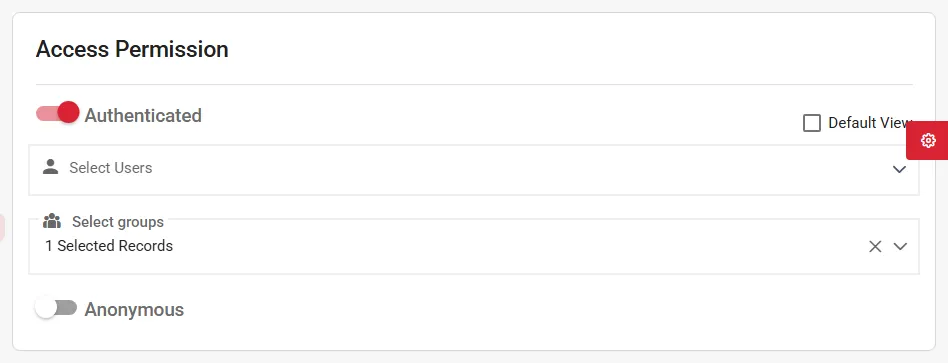 What to notice: Authenticated plus a group: only signed-in members of Task Team can open the view. The field counts the groups you ticked instead of naming them.
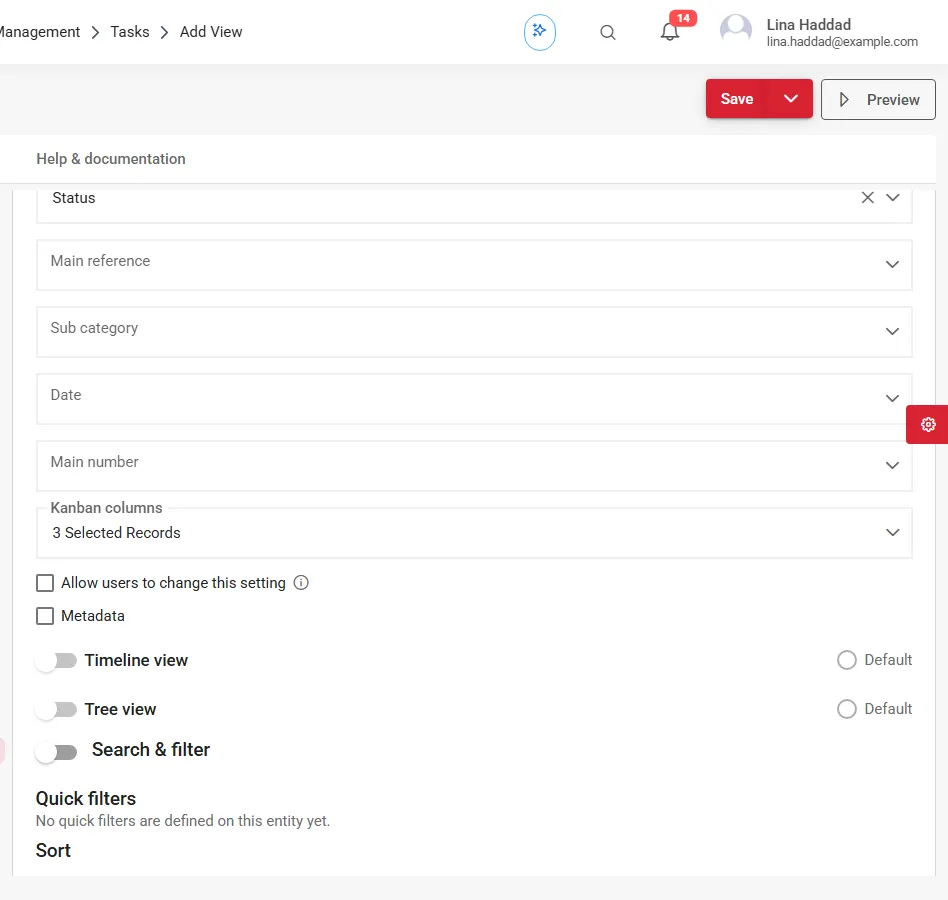 What to notice: the board’s columns come from the Category field, which is why Status had to be a category; the three ticked statuses are the columns the phone will draw.
Build the home page
- Go back to Task Management (Administration › Applications › Modules › Task Management) and select the Pages tab. A new module has no pages yet. Select Add Page (or New Page). The page designer opens, with the tabs Details and Content.
- Under Page Information, enter the Name Task Home in English and صفحة المهام in Arabic, and pick an Icon.
- Under Sidebar Configurations, turn on Pin to Sidebar.
- Under Access Permissions, turn on Authenticated and tick Default Page. Leave Select Users and Select groups empty.
- Open the Content tab. Drag a Text widget onto the page, type Welcome to Team Tasks. Your team’s tasks are below. and select Done.
- Drag a View widget onto the page. In its dialog, open Source and tick Team Tasks (under Task Management), set Face to Table, and keep Count of entries at 5. Select Done.
- Select Done at the top of the page designer to save the page (confirm with Save Changes if asked).
- On the Pages tab, select Publish on the Task Home card.
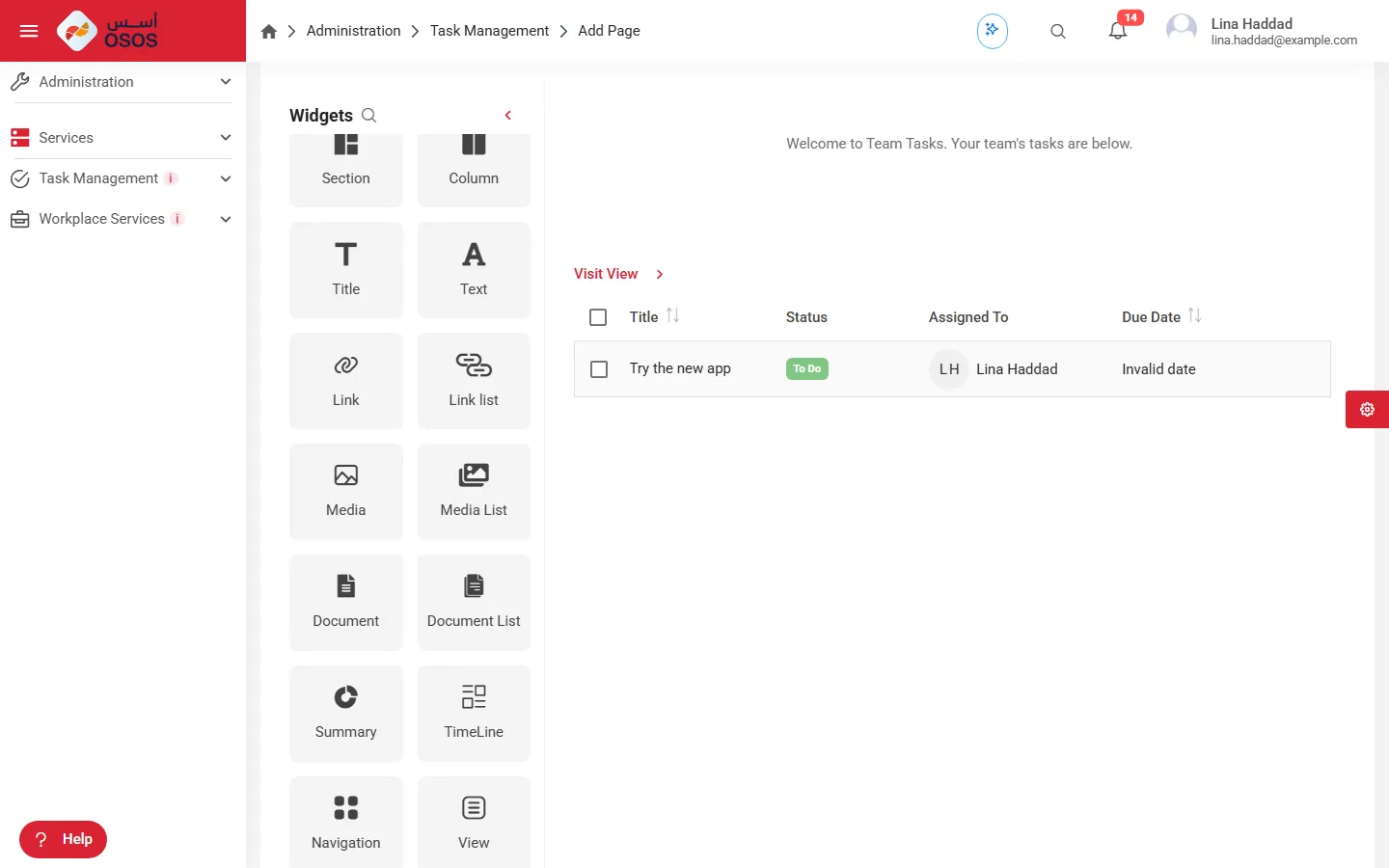 What to notice: the View widget does not copy tasks; it shows the Team Tasks view inside the page, in the face you chose.
Check it
- Reload the page. In the sidebar, select Task Management: it opens to show Task Home and Team Tasks. Select Task Home: the welcome text and your test task appear. Select Team Tasks, switch to Kanban view and drag Try the new app to In Progress.
Check.
- Team Tasks and Task Home are both published: their cards offer Unpublish.
- Task Management in the sidebar holds Task Home and Team Tasks.
- Task Home shows the welcome text and a list with your test task.
- Team Tasks offers Table view and Kanban view, with the columns To Do, In Progress and Completed.
- Moving Try the new app to In Progress on the board worked, and its Status now reads In Progress.
Pass condition. Task Home opens from the sidebar and shows your tasks, and on Team Tasks you can move a task between the three status columns.
If something goes wrong
| What you see | What to do |
|---|---|
| Save in the view designer stays greyed out | A required setting is missing: fields under Type & source › Fields, the Kanban Main title, or an After Save for one of the three switches in step 10. |
| A field list says No Results Found | Choose the fields under Type & source › Fields first (step 4); the other lists offer only those. |
| Team Tasks is not on the Views tab after saving | Select Restricted (1): a view open to chosen groups is listed there. |
| Team Tasks is not in the sidebar | Check that Pin to sidebar (under Appearance) is on and that you selected Publish on the card. Then reload. |
| The view opens with no tasks | Check Source view: it must be Entries. |
| No Kanban view in the display menu | Turn on Kanban view under Displays and set Category and Main title. Save, then reload. |
| The View widget’s Done does nothing | Choose a Face: Table or Kanban. |
| On the phone, the board shows only a Category Not Set column and no cards | Kanban columns is set to All columns. Open the view’s Displays, and under Or select specific columns tick the three statuses; save and publish again. |
| You cannot tick Default Page | You picked users or groups on the page. Clear Select Users and Select groups. |
| The page shows no tasks | The view is not published yet, or the View widget points at another view. |
| A task’s due date reads Invalid date | The task has no due date. Open it from Team Tasks, pick a Due Date and save. |
Model answer
Why each setting is there:
- Source view: Entries shows every task; a team board needs them all. The Fields chosen there are the only ones the rest of the designer offers.
- Authenticated + Task Team: only the group can open the view, and the page’s View widget inherits that.
- Kanban view, Category Status works because Status is a category (Module 6); Main title Title gives each card its heading.
- Creating, Editing, Archive: the Module 4 buttons, now switched on by you, each with what happens after saving.
- Publish makes both visible; Default Page marks Task Home as the module’s main page.
Omar cannot see Team Tasks yet, because he is not in Task Team. That is deliberate: you fix it in Module 8.
✓ Practice (4 min) — Check your understanding
Section titled “✓ Practice (4 min) — Check your understanding”You built and saved a view, chose the right group under Access Permission, and the group’s members still cannot find it. What is the most likely cause?
Check your answer
The correct answer is B. Open the explanation under each option to see why.
A builder wants a board with one column per Priority (Low, Medium, High). What must be true of the Priority field?
Check your answer
The correct answer is C. Open the explanation under each option to see why.
Adding a View widget to a page shows its list to everyone who can open the page, even people who cannot open the view itself.
Check your answer
The correct answer is B (False). Open the explanation under each option to see why.
↺ Recap (1 min) — What you can do now
Section titled “↺ Recap (1 min) — What you can do now”You built the screens of an application: a view with a table and a Kanban board, limited to a group, and a home page with two widgets, marked as the module’s default page and published. You can explain why each switch is there, because each one gives users a button you used yourself in Module 4.
Next. Your application works, for you. In Module 8 you add a new colleague to the organization and open Team Tasks to Omar, then check it by signing in as him.