
M4-S1 — Work with records through a view
Section titled “M4-S1 — Work with records through a view”| Module | M4 — Work with records |
| After this session you can | Find, add, change, archive and export records in a list someone else built. |
| Time | Facilitated: 33 min · On your own: 33 min |
| Before you start | M3-S1: you can open Asset Register and use two windows (yourself and Omar). |
| Go deeper | Create and edit records · Search, filter, sort and group · Archive and restore · Export a list |
◆ Orientation (1 min) — Most work is records
Section titled “◆ Orientation (1 min) — Most work is records”Most of what people do in Osos every day is work with records: find the right one, add a new one, change it, take an old one out of use. You always do this through a view, a list that the person who built the application set up for you.
In this session you use Asset Register, the view of office equipment in Workplace Services. After it you can do everyday record work in any application published to you. In Module 7 you will build a view like this one yourself, so notice what it offers you: each button here is a switch the builder turned on.
▤ Concept (7 min) — Displays, finding, the life of a record, and exporting
Section titled “▤ Concept (7 min) — Displays, finding, the life of a record, and exporting”The view decides what you can do
Section titled “The view decides what you can do”The view decides which records you see, which fields the list and the form show, and whether you may add, edit, archive or export at all. If a button described here is missing for you, the view does not offer it. That is not a fault.
One list, several displays
Section titled “One list, several displays”A view can show the same records in more than one display (the faces of Module 2). You switch with the display menu in the bar above the list, which shows the name of the current display, for example Table view. Your search and filters stay as they are.
- Table view: one row per record, one column per field. Good for comparing and for selecting many records.
- Kanban view: one card per record, in a column for each value of a field such as Status. Dragging a card to another column changes that field and saves it. Cards with no value sit in a column called Category not set.
Finding records: search, filter, saved query
Section titled “Finding records: search, filter, saved query”- Search: type words into the search box and press Enter. Search looks through all the record’s searchable fields and matches whole words.
- Filter: for exact conditions. Select the filter icon next to the search box and fill in the Condition row that is already there: a Field (chosen from a tree, under Entry Fields), an Operator (Equal, Not equal, Is empty, Is filled, In or Not in), the Source of the value, usually Fixed, and the Value. Then select Apply. A value can also come from a pointer, a word that stands for “whoever or whatever is current”, such as @me for the person looking at the list: one filter then shows each person their own records. With several conditions, choose All conditions are met or Some conditions are met.
- Save Query: a filter you save is called a query. It keeps the conditions, not the records, so each time you open it you see what matches today. Your saved queries appear in the sidebar under the view’s name.
- The Status menu next to the search box has two tick boxes, Active and Archived. At first only Active is ticked; tick Archived to see archived records too, and untick Active to see only those. It can also hold quick filters the builder prepared for you.
The life of a record
Section titled “The life of a record”stateDiagram-v2 [*] --> Draft: Save as Draft [*] --> Active: Save Draft --> Active: finish it, then Save Active --> Archived: Archive Archived --> Active: an administrator restores it Active --> Obsolete: the form changed too much
What to notice: a draft is a private, unfinished record. Archiving is reversible, but only an administrator restores.
| State | What it means |
|---|---|
| Draft | Started but not saved as a real record. Only you can see it. Nothing runs for it: no automation, and it cannot be picked in other records. At least one field must have a value; required fields are checked only when you finish it. |
| Active | A normal record. Everyone the view allows can see and use it. |
| Archived | Taken out of everyday use, but kept. It drops out of the normal list and can be restored. |
| Obsolete | The application’s form changed so much that the record no longer fits. It is hidden from normal lists until it is upgraded. |
Archive, or delete for good?
Section titled “Archive, or delete for good?”| Archive | Permanently delete | |
|---|---|---|
| Who | Anyone the view allows to archive | Administrators only, in Administration |
| Can it be undone? | Yes: an administrator restores it with Restore Archived Records | No |
Prefer archiving for anything you might need again. In the portal’s views there is no restore button: to get an archived record back, send its link to your administrator.
Export what you see
Section titled “Export what you see”Export Entries, in the menu of the arrow next to the add button (top right, for example next to Add Asset), downloads the records as you see them: your search and filters applied, the table’s columns in your order, as Excel (XLSX) or CSV. If you ticked some records, only those are exported. Export Entries is available on the web only. You always export only what you are allowed to see.
▶ Guided demo (1 min) — Watch it done
Section titled “▶ Guided demo (1 min) — Watch it done”With a facilitator. The facilitator plays the video, or takes one record through its life live in the same order, before everyone starts the lab.
On your own. Watch the video once before you start. The lab below gives every step in writing, so you can also go straight to it without the video.
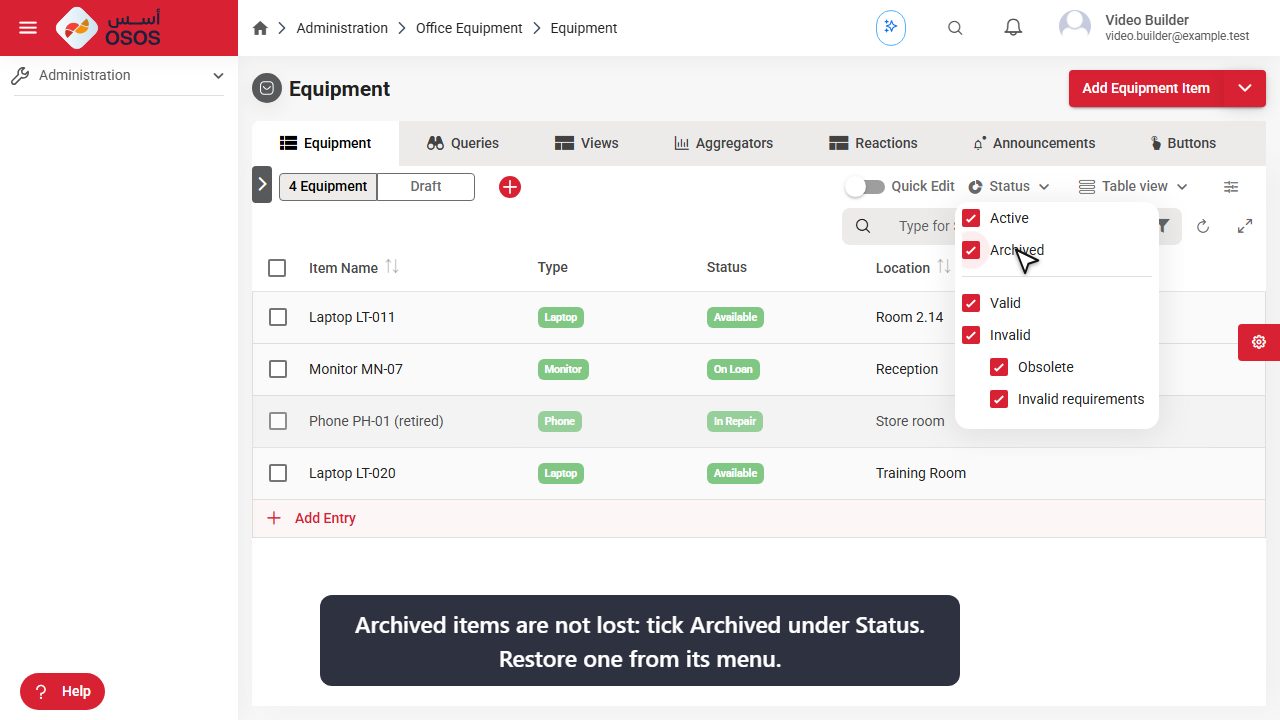
How-to · 58 s
A record from draft to archive
What to notice: the life of one record: Save as Draft under the arrow next to Save, the Draft switch above the list, the draft finished and saved as a record, Archive from the record’s menu, and Archived under Status. The video works in a demo list, Office Equipment, on the builder’s screen in Administration, which is why its caption mentions restoring a record from its menu; a portal view such as Asset Register has no restore button, so in the lab you only find the archived record. The board, the search and the saved query are in the lab, not in the video.
⛏ Lab (16 min) — A day’s record work in Asset Register
Section titled “⛏ Lab (16 min) — A day’s record work in Asset Register”Goal. Do the everyday record tasks once each, in the order they usually come.
Before you start. You are signed in as yourself, with Omar in a private window. In your own window, open Workplace Services › Asset Register.
Change how the list looks
- Open the display menu above the list (it reads Table view) and select Kanban view. The assets appear as cards in three columns: Available, On Loan and In Repair.
- Drag the card Monitor MN-07 from Available to In Repair. Open the card: its Status is now In Repair. Go back to the list and switch to Table view again.
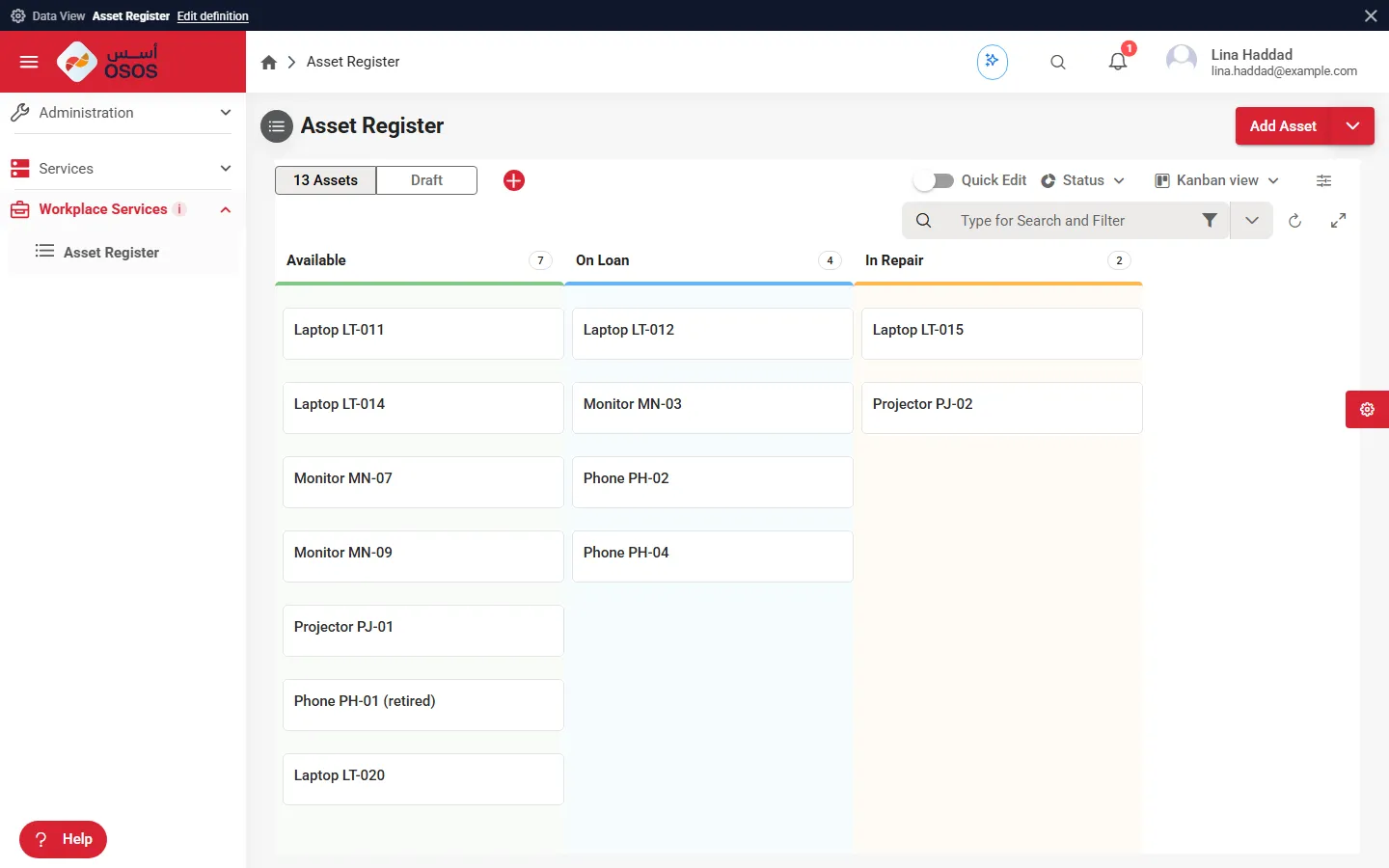 What to notice: the columns are the values of the Status field. Moving a card between columns changes that field.
Find records
- Type
laptopin the search box and press Enter. Only the laptops remain. Clear the search box. - Select the filter icon next to the search box. The Condition row is already there. In Field, open Entry Fields and select Status (you can type in Choose field to find it). Set Operator to Equal, Source to Fixed and Value to Available. Select Apply. A chip in the search box shows the active filter.
- In the Filter panel, select Save Query. Name it Available assets and select Save. In the sidebar, Available assets now appears under Asset Register.
- Remove the filter chip, so the full list is back.
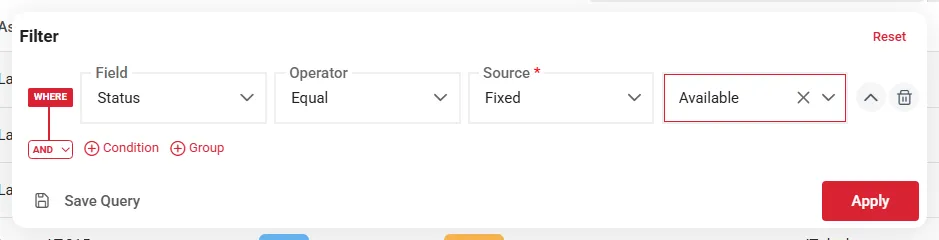 What to notice: a condition always has four parts: field, operator, source and value. Save Query keeps the conditions, not the records.
Add a record, starting as a draft
- Select Add Asset (the add button is named after the kind of record). The form New Asset opens. Type only the Asset Name Laptop LT-020. Open the arrow next to Save and select Save as Draft.
- In Omar’s window, open Asset Register. There is no Laptop LT-020: your draft is visible only to you.
- Back in your own window, look at the switch above the list: it shows the number of records (for example 12 Assets) and Draft. Select Draft. Open Laptop LT-020 (select Edit Asset if it opens read-only), set Asset Type to Laptop and Status to Available, and select Save. Select the number of records (now 13 Assets) to go back: it is an active record.
- In Omar’s window, reload the list. Laptop LT-020 is there now.
Change a record
- In your own window, open Laptop LT-020, select Edit Asset, set Location to Training Room and select Save.
Take a record out of use, and find it again
- Open Phone PH-01 (retired). Open the arrow next to Edit Asset (it offers Archive and Back), select Archive and confirm. It leaves the list.
- Open the Status menu next to the search box. Untick Active and tick Archived. Phone PH-01 (retired) is listed. Then tick Active and untick Archived to go back.
Export what you see
- Open the arrow next to Add Asset (top right) and select Export Entries. In the Export entries dialog, choose Excel (XLSX) (the other choice is CSV) and select Export. The file downloads; open it: its columns are the table’s.
Check.
- Monitor MN-07 shows Status In Repair.
- Available assets is in the sidebar under Asset Register, and opening it shows only available assets.
- Omar did not see Laptop LT-020 while it was a draft, and did see it after you saved it.
- Laptop LT-020 shows Location Training Room.
- Phone PH-01 (retired) is listed with only Archived ticked in the Status menu, and not with only Active.
- You can say who can bring Phone PH-01 (retired) back, and how.
Pass condition. Every box is ticked: one record moved on the board, one saved query, one record created through a draft and edited, one archived, and one Excel file downloaded.
If something goes wrong
| What you see | What to do |
|---|---|
| No Kanban view in the display menu | Check that you opened Asset Register, not your saved query from another view. |
| The card snaps back to its column | The move is not allowed for that card. Try a card from Available. |
| Save as Draft is missing | It hides behind the arrow next to Save. Look for the small arrow on the button itself. |
| The draft does not save | A draft needs at least one value. Type the Asset Name first. |
| Omar can see the draft | Check that Omar’s window is a private window. If it is a normal tab, you are both signed in as yourself. |
| You cannot find Draft | It is in the switch above the list, next to the number of records (for example 12 Assets). |
| Archived shows nothing new | Untick Active in the Status menu: with both ticked, archived records are mixed into the list. |
| Export Entries is missing | It is behind the arrow next to Add Asset, not next to the search box (the arrow there is Saved Query). On the phone there is no Export Entries: it is web only. |
Model answer
How the finished state looks, and why:
- Monitor MN-07 is In Repair, because dragging a card is an edit of the field the board is split by.
- Available assets stores conditions, so Laptop LT-020 appears in it too.
- Omar saw Laptop LT-020 only after step 9: drafts are private and have no effect on anything until they are saved.
- Phone PH-01 (retired) is archived. You cannot restore it from the view: an administrator restores it in Administration with Restore Archived Records. Permanent deletion is a separate administrator action that cannot be undone.
◇ Worked scenario (2 min) — Choosing the right way to find something
Section titled “◇ Worked scenario (2 min) — Choosing the right way to find something”Lina manages the office equipment. In one morning she needs four different things from Asset Register. For each one, here is the tool she picks, and why.
- “The laptop whose tag ends in 014.” She types
LT-014in the search box. Why: she knows a word that appears in the record, and search looks through all searchable fields at once. - “Every asset that is in repair and has no holder.” She opens the Filter panel and adds two conditions, Status Equal In Repair and Holder Is empty, with All conditions are met. Why: these are exact conditions on two fields, which search cannot express.
- “The same list, every Monday.” She selects Save Query and names it In repair, unassigned. Why: a saved query keeps the conditions, so every Monday it shows that Monday’s records, from the sidebar, in one click.
- “The old phone she archived last month.” She opens the Status menu, unticks Active and ticks Archived. Why: archived records are not in the normal list at all, so neither search nor a filter on the active list would find it.
The reasoning to copy: a word you remember: search; exact conditions: filter; the same conditions again and again: saved query; out of everyday use: Archived, in the Status menu.
✓ Practice (5 min) — Check your understanding
Section titled “✓ Practice (5 min) — Check your understanding”On a Kanban board split by Status, you drag a card from Open to Closed. What happens?
Check your answer
The correct answer is B. Open the explanation under each option to see why.
You saved the filter Status = Available as a query last week. Today three more assets became available. What does the saved query show?
Check your answer
The correct answer is B. Open the explanation under each option to see why.
A reaction that sends a notification “when a record is created” runs as soon as you save a draft.
Check your answer
The correct answer is B (False). Open the explanation under each option to see why.
A colleague archived a supplier record by mistake and needs it back. What should they do?
Check your answer
The correct answer is C. Open the explanation under each option to see why.
↺ Recap (1 min) — What you can do now
Section titled “↺ Recap (1 min) — What you can do now”You can now do everyday record work in any view: switch displays and move cards, search, filter and save a query, add a record through a draft, edit it, archive it, find it among archived records, and export what you see. You also know what a view decides for you: every button you used was a choice the builder made.
Next. In Module 5 you work with a different kind of record: a request, which does not just sit in a list but travels from person to person along a workflow.