
M2-S1 — The platform in one picture: the concept map
Section titled “M2-S1 — The platform in one picture: the concept map”| Module | M2 — The platform in one picture |
| After this session you can | Name the platform’s core pieces, say what each one is, and trace a request through them. |
| Time | Facilitated: 32 min · On your own: 29 min |
| Before you start | M1-S1: the five questions. Keep the concept card open; it summarises this session on one page. |
| Go deeper | Core concepts |
◆ Orientation (1 min) — Fifteen words you will use every day
Section titled “◆ Orientation (1 min) — Fifteen words you will use every day”In Module 1 you broke the leave request into five answers. Every one of those answers has a name in Osos. Learn these names once, and every later module, every later course and the whole documentation will read easily.
There are about fifteen of them, in five groups. You do not need to remember every detail today: each one is used, and explained further, in the module that needs it. Today the goal is the picture: what each piece is and how the pieces connect.
▤ Concept (7 min) — The pieces, group by group
Section titled “▤ Concept (7 min) — The pieces, group by group”Where everything lives: space and module
Section titled “Where everything lives: space and module”A space is a separate workspace inside your organization, with its own records, applications and web address. Many organizations have one space; some have several, for example one per department. You only see the spaces you belong to. Your practice space is one of them. The organization as a whole, with all its spaces, is called the tenant, and the web address that leads to a space is its domain.
A module is one application, or one area of work, such as Workplace Services or Asset Management. It groups everything that belongs together and gives it a place in the sidebar. When you build Team Tasks in Module 6, the first thing you create is its module.
Data: entity, field, entry
Section titled “Data: entity, field, entry”An entity is one kind of thing your organization keeps records of: a leave request, an asset, a task. Think of it as a table.
A field is one piece of information that every record of that entity has, such as a first day, a status or the person a task is assigned to. Each field has a field type, which decides what kind of value it holds: text, a number, a date, a choice from a list, a person. Think of fields as the table’s columns.
An entry is one record of an entity: one leave request, one laptop, one task. Think of it as one row. The screens often say record; entry and record mean the same thing. Each entry keeps its own comments, on the Discussion tab beside it.
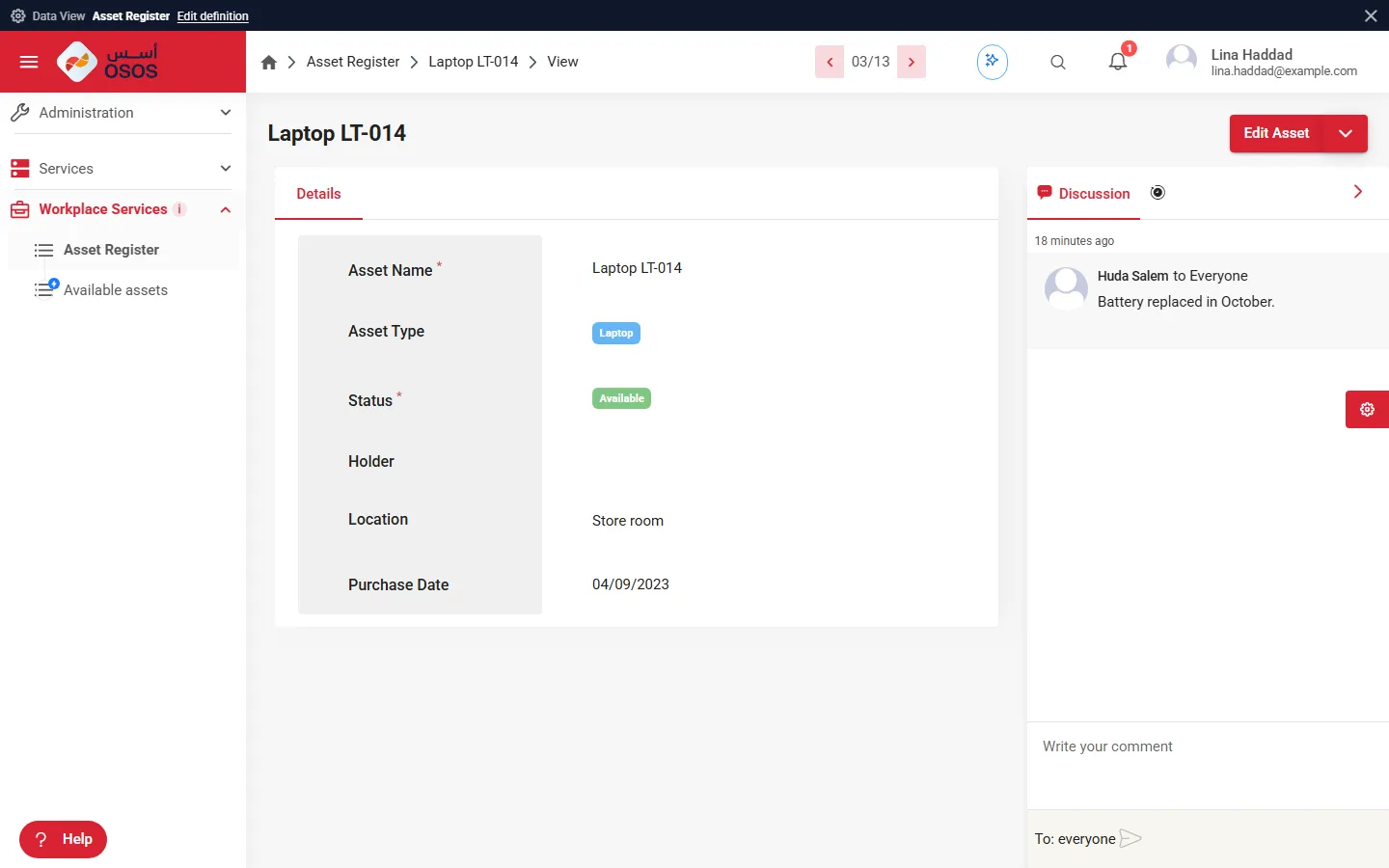 What to notice: one entry (this laptop) shows every field of its entity on Details, and keeps its own comments beside it on Discussion.
Screens: view, page, and what else exists
Section titled “Screens: view, page, and what else exists”A view is a screen that lists and opens the entries of one entity: a list with its columns, filters and buttons, and a form for one entry. The builder decides what each view shows and allows. One entity can have several views for different people, for example My Tasks for employees and Manage Tasks for managers.
A view can show its entries in more than one way, called faces (the screens say Displays): a table, a board of cards in columns (Kanban), a calendar and others.
A page is a screen that is not tied to one entity: a home page built from blocks called widgets, such as a welcome text, links and a list taken from a view.
A few more screens exist that this course only names: a dashboard shows counts and charts, calculated by statistic queries; a counter is a live number, for example in the top bar; a report is a formatted document produced from entries, which you open on the web; and a template lays out a generated file, such as a Word or PDF document filled in from an entry.
Work: service, request, workflow
Section titled “Work: service, request, workflow”A service is something people can ask for from the portal: leave, a laptop, a support ticket. Services are listed in the Services Catalog.
A request is one submission of a service. When you submit a leave request, you create one request, which is stored as an entry of the service’s entity.
A workflow is the route a request (or any entry) takes: the steps it moves through, who owns each step, and the actions they can take, such as approve, return or reject. A two-step workflow, “the employee submits, the manager approves”, is the one you will take part in during Module 5.
Automation: reaction and notification
Section titled “Automation: reaction and notification”A reaction is an automatic job that runs when something happens to an entry: when this happens (an entry is created, a request is approved), if it matches a condition, do this (send a notification, update another record). Nobody has to press a button.
A notification is a message to a person: under the bell in the portal, in the mobile app, or by email. Reactions send many of them; the platform sends some by itself, for example when a request reaches your step.
People and access: user, group, role, permission
Section titled “People and access: user, group, role, permission”A user is someone who can sign in.
A group is a set of users who get the same thing at once, such as the Task Team. It is the usual way to give access, and a workflow step can belong to a group.
A role is a position someone holds, such as Team Member or HR Manager, held in a unit of the organization chart (an org unit, such as a department). Each role has a group behind it, so access given to a role reaches everyone who holds it.
A permission decides who may see or do what. Every permission answers three questions: who (a user, group or role), to what (a module, an entity, or one view, page or service) and how much (the access level). Two people opening the same screen can see different things, and that is normal.
The whole picture
Section titled “The whole picture”flowchart LR P["A user"] -->|submits| S["Service"] S -->|creates| R["Request = an entry"] R -->|of| EN["Entity, with fields"] EN -->|lives in| M["Module, in a space"] R --> W["Workflow: steps and owners"] R --> X["Reactions: automatic jobs"] X --> N["Notifications"] R --> V["Views and pages"] A["Permissions: users, groups, roles"] -.->|decide who sees| V A -.-> S
What to notice: everything points at the same entries. The service creates them, the workflow moves them, reactions act on them, and views and pages show them, all within what permissions allow.
| Module 1 question | Answered in Osos by |
|---|---|
| Need | The module (the application as a whole) |
| Data | Entities, fields and entries |
| People | Users, groups and roles; the workflow’s steps and owners |
| Automation | Reactions and notifications |
| Reporting | Views, pages, dashboards and reports |
▶ Guided demo (2 min) — Find each piece on screen
Section titled “▶ Guided demo (2 min) — Find each piece on screen”With a facilitator. The facilitator opens Workplace Services in the practice space and points at each piece in turn, while you follow on your own screen.
On your own. Follow the same steps in your own practice space; each step says what you should see.
- In the sidebar, select Workplace Services to open it. This is a module: one application, with its own place in the sidebar.
- Under it, select Asset Register. This is a view of the Assets entity: a list of entries, here shown as a table.
- Select any row to open it. This is an entry: one asset, with its fields on the Details tab, and its comments on the Discussion tab of the side panel.
- In the sidebar, open Services › Services Catalog and look for Leave Request. This is a service. You will submit it in Module 5; submitting it creates a request.
Workflows, reactions and permissions have no single screen of their own: you see their effects. In Module 5 you will watch a workflow move your request; in Module 9 you will build a reaction; in Module 8 you will give a colleague access.
◇ Worked scenario (2 min) — Trace one leave request through the map
Section titled “◇ Worked scenario (2 min) — Trace one leave request through the map”Sara wants three days of leave. Follow her request through the pieces, and notice which piece is responsible at each moment.
- Sara opens the Services Catalog and selects Leave Request. That is a service. She can see it because a permission includes her (here, everyone in All Staff).
- She fills in the form and sends it. She has created a request, stored as one entry of the Leave Requests entity, inside the Workplace Services module, in her space. The form’s boxes are the entity’s fields.
- The request goes to her manager. The workflow has moved it to its second step, which her manager owns. The manager receives a notification.
- The manager approves it, and Sara is told at once. The approval is a workflow action; a reaction that runs “when a request is approved” sends Sara a notification.
- HR opens a list of this month’s leave. That list is a view on the same entity. If HR wanted the list on their home screen, a page with a widget would show it.
The reasoning to copy: for any moment in a process, ask “which piece is responsible for this?” If you can answer, you understand how the system works.
✳ Discussion (13 min) — Where do these pieces live today?
Section titled “✳ Discussion (13 min) — Where do these pieces live today?”With a facilitator. In threes, take the process one of you mapped in Module 1. For three pieces (the entity, the workflow and the permission), say where each one lives in your organization today: in which spreadsheet, whose email, which shared folder, and who controls it (6 min). Each group then names the piece that is hardest to see today, and why (3 min).
On your own. Take the process you mapped in Module 1 and write one line for each prompt:
- The entity today. Where are the records kept now: a spreadsheet, a paper file, an email thread? Who can change them?
- The workflow today. How does a request move from one person to the next? How would you find out where it is right now?
- The permission today. Who can see the records, and how was that decided?
Then compare with the model answer.
Model answer
For the IT equipment loan from Module 1:
- Entity today: a shared spreadsheet, one row per loan. Anyone with the file can change any row, so nobody trusts the returned column.
- Workflow today: the employee emails the IT mailbox; a technician replies and hands the item over. To find where a request is, you search the mailbox: the route exists only in people’s heads.
- Permission today: whoever has the link to the spreadsheet sees everything, including other teams’ loans. Nobody decided it; it is simply how the file was shared.
The pattern to notice: today the three pieces are hidden inside files and inboxes. On the platform each one becomes visible and deliberate: an entity with typed fields, a workflow with named steps, and permissions someone chose.
✓ Practice (6 min) — Check your understanding
Section titled “✓ Practice (6 min) — Check your understanding”In a Team Tasks application, “Prepare the monthly budget, assigned to Omar, due Thursday” is one…
Check your answer
The correct answer is C. Open the explanation under each option to see why.
Put these in order from the largest container to the smallest.
Check your answer
The correct order is B → C → D → A. Open the explanation under each item to see why it sits where it does.
A manager approves a leave request and it moves on to HR. Which piece decided that it goes to HR next?
Check your answer
The correct answer is B. Open the explanation under each option to see why.
Two colleagues open the same view and see different records. Which pieces could explain this? Select all that apply.
Check your answer
The correct answers are A and B. Open the explanation under each option to see why.
Which sentence describes a reaction?
Check your answer
The correct answer is C. Open the explanation under each option to see why.
↺ Recap (1 min) — Your map
Section titled “↺ Recap (1 min) — Your map”You can now name the core pieces and connect them: a space holds modules; a module holds entities, each with fields, each filled in as entries. Views and pages show entries. A service creates a request, a workflow routes it, reactions and notifications run around it, and permissions, given to users, groups and roles, decide who sees what.
Next. In Module 3 you find these pieces in the portal itself: the sidebar, the Services group, the bell and your settings, on the web and then on your phone.