
M0-S1 — Start here: how this course works and your practice space
Section titled “M0-S1 — Start here: how this course works and your practice space”| Module | M0 — Start here (the first session of Day 1) |
| After this session you can | Sign in to your practice space as yourself and as a colleague at the same time, and confirm the space is ready for the labs. |
| Time | Facilitated: 17 min · On your own: 17 min |
| Before you start | A computer with a modern browser (Chrome, Edge, Firefox or Safari). The web address of your practice space and two sets of sign-in details, sent to you when you enrolled. |
| Go deeper | Signing in and choosing a space |
◆ Orientation (3 min) — What this course is, and what you will be able to do
Section titled “◆ Orientation (3 min) — What this course is, and what you will be able to do”This is the first course of the Osos certification program, and everyone takes it, whatever they do later: people who will only use applications, future analysts, future app builders and future administrators.
Osos is a no-code / low-code platform: a tool for building complete information systems, on the web and on the phone, by putting ready-made pieces together instead of writing a program. In this course you learn what those pieces are, you work inside an application someone else built, and then you build a small one yourself.
By the end of the course you will have built Team Tasks, a small application where a manager creates a task, the person it is assigned to is told about it straight away, and the whole team follows its progress on a board, on the web and on the phone.
The course is one story in eleven modules. Each module adds one skill and the next module uses it:
| Module | After it you can |
|---|---|
| M1 | Describe a business process through five questions, and say where a platform like this speeds it up. |
| M2 | Name the main pieces of the platform and say how a request travels through them. |
| M3 | Find your way around the web portal and the mobile app. |
| M4 | Find, add, change and archive records in a list someone built for you. |
| M5 | Submit a request, approve it as a colleague, and follow it to the end. |
| M6 | Create an application with one kind of record and its fields. |
| M7 | Give that application a list and a home page, and publish them. |
| M8 | Add a new team member and open your application to a colleague. |
| M9 | Make the application tell people about new work, by itself. |
| M10 | Run the whole application end to end, on the web and on the phone. |
You can take the course with a facilitator (two days of four hours, in a group) or on your own, at your own pace. Every activity works both ways. Where the group would talk something through, you will find an On your own version with a model answer you can compare with.
▤ Concept (2 min) — Your practice space and the two people you will be
Section titled “▤ Concept (2 min) — Your practice space and the two people you will be”You work in a practice space of your own: a separate workspace with its own records and web address.
- Nobody else works in your space. Build and delete freely.
- It comes ready, with a published application, Workplace Services (Modules 3 to 5), and the people and groups the labs need.
Many labs need two people: one acts, the other checks. You play both, with two accounts (each account is a user, someone who can sign in):
| Account | Who it is in this course | What it can do |
|---|---|---|
| Your own account | You. The screenshots show it as Lina Haddad. | Everything: use applications, build them and administer the space. |
| Your test colleague | Omar Faris, a colleague in your team. | What an employee needs to use applications and requests. He has nothing to manage people or access. |
In the course, Lina means you and Omar the colleague.
Two people in one browser
Section titled “Two people in one browser”Use your normal browser window for yourself and a private window for Omar (in Chrome and Edge: Ctrl+Shift+N; in Firefox: Ctrl+Shift+P; in Safari: File › New Private Window). A private window keeps its own sign-in, so the two accounts never mix. When you close the private window, Omar is signed out.
⛏ Lab (7 min) — Check your practice space
Section titled “⛏ Lab (7 min) — Check your practice space”Goal. Sign in as both people and confirm the space holds what the labs need.
- Open the web address of your practice space in your browser. If you are not signed in, the sign-in page opens.
- Enter your Username/ Email and Password, and select Sign in. On a first sign-in, a welcome page opens: select START USING (the button carries your organization’s name). A short product tour starts; select Skip to close it.
- In the sidebar on the left, find Administration and Workplace Services. Open Administration: it holds Applications, Organization and Access Management, among others.
- Open a private window, open the same address, and sign in as Omar. The welcome page appears again (it is shown once per browser): pass it the same way. Look at Omar’s sidebar.
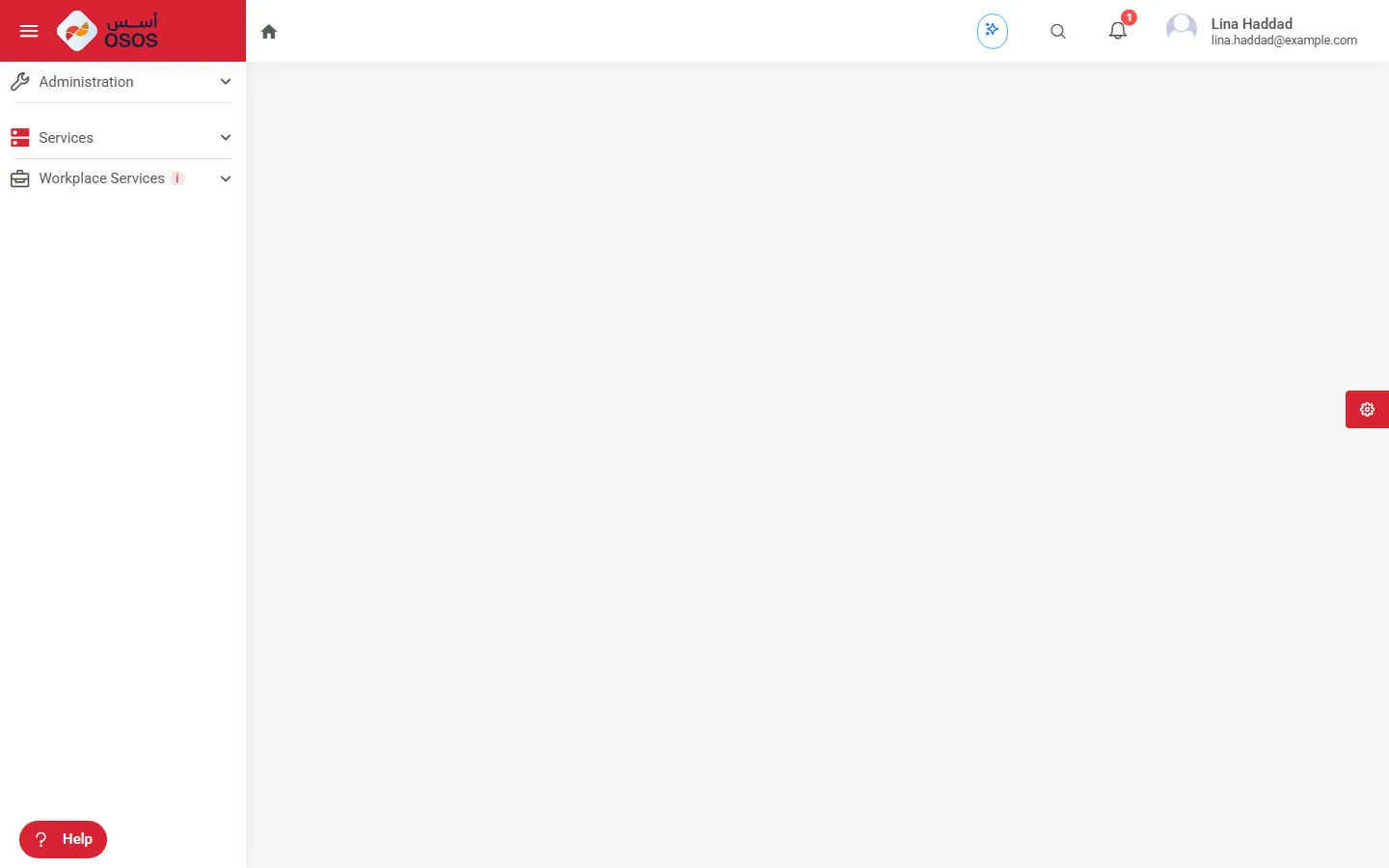 What to notice: your Administration menu is long because your account administers the space. Omar’s sidebar also shows Administration, but it holds only Applications.
Check.
- You are signed in as yourself, and your Administration holds Organization and Access Management.
- Your sidebar shows Workplace Services.
- You are signed in as Omar in a private window, at the same time.
- Omar’s sidebar shows Services, and his Administration holds only Applications.
Pass condition. All four boxes are ticked. If any box stays empty, your space is not ready: do not start Module 3 until it is fixed.
If something goes wrong
| What you see | What to do |
|---|---|
| The sign-in page refuses your details | Check for a typing mistake and that Caps Lock is off. Then use Forgot password? on the sign-in page, or ask whoever sent you the details. |
| You are asked for a code after your password | Your space asks for a second step. Enter the code you were sent, then select Verify. |
| Signing in as Omar signs you out as yourself | You used a normal window. Close it, open a private window and sign in as Omar there. |
| The sidebar is empty after you sign in | Pass the welcome page with START USING (followed by your organization’s name). A new browser or private window shows it once again. |
| No Organization in your own Administration | Your account is not set up as the space’s administrator. Send your enrolment contact this sentence: “My ACP practice account needs the system Admin level.” |
| No Services in Omar’s sidebar | Omar’s account has only the lowest base level. Send your enrolment contact this sentence: “The ACP colleague account needs the system View level.” |
| No Workplace Services | The demo application was not loaded into your space. Ask your enrolment contact to load the ACP demo data. |
✓ Practice (4 min) — Ready to start?
Section titled “✓ Practice (4 min) — Ready to start?”You want to see a screen as Omar while staying signed in as yourself. What do you do?
Check your answer
The correct answer is B. Open the explanation under each option to see why.
Building and deleting things in your practice space can affect other learners’ spaces.
Check your answer
The correct answer is B (False). Open the explanation under each option to see why.
Signed in as Omar, you see Administration, but it holds only Applications. Yours also holds Organization and Access Management. What does that tell you?
Check your answer
The correct answer is C. Open the explanation under each option to see why.
↺ Recap (1 min) — Ready to start
Section titled “↺ Recap (1 min) — Ready to start”You can now sign in as yourself and as Omar at the same time, and you know your practice space is ready. In Module 1 you step away from the screen and learn to look at a piece of work the way the platform does. You come back to these two accounts in Module 3.