
M3-S1 — Find your way in the web portal
Section titled “M3-S1 — Find your way in the web portal”| Module | M3 — Find your way, on the web and on the phone |
| After this session you can | Find anything in the web portal, read your notifications, and set the portal up the way you like it. |
| Time | Facilitated: 21 min · On your own: 21 min |
| Before you start | M0-S1: signed in as yourself, and as Omar in a private window. M2-S1: module, view, service. |
| Go deeper | Portal layout and navigation · Receiving notifications |
◆ Orientation (1 min) — Where things are
Section titled “◆ Orientation (1 min) — Where things are”In Module 2 you learned the names of the pieces. Now you find them. The web portal is where most people spend their working day: it shows the applications published to you, the requests you send and receive, and your notifications.
After this session you will be able to open any application published to you, tell at a glance whether something is waiting for you, and set the screen up the way you like it.
▤ Concept (5 min) — Three areas, and why your sidebar is yours
Section titled “▤ Concept (5 min) — Three areas, and why your sidebar is yours”The three areas
Section titled “The three areas”The portal has three areas:
- The top bar, across the top. From left to right (right to left in Arabic): the menu button that hides or shows the sidebar; your organization’s logo, which takes you back to your home page; the path showing where you are; search; the bell with your notifications; and your picture, which opens your profile menu.
- The sidebar, on the left (on the right in Arabic). From top to bottom: Administration (what it holds depends on your access: an administrator sees many items, many colleagues only Applications, and people with the lowest access none at all), the space list (only if you belong to more than one space), the Services group, and then your applications.
- The content area, in the middle, showing whatever you select.
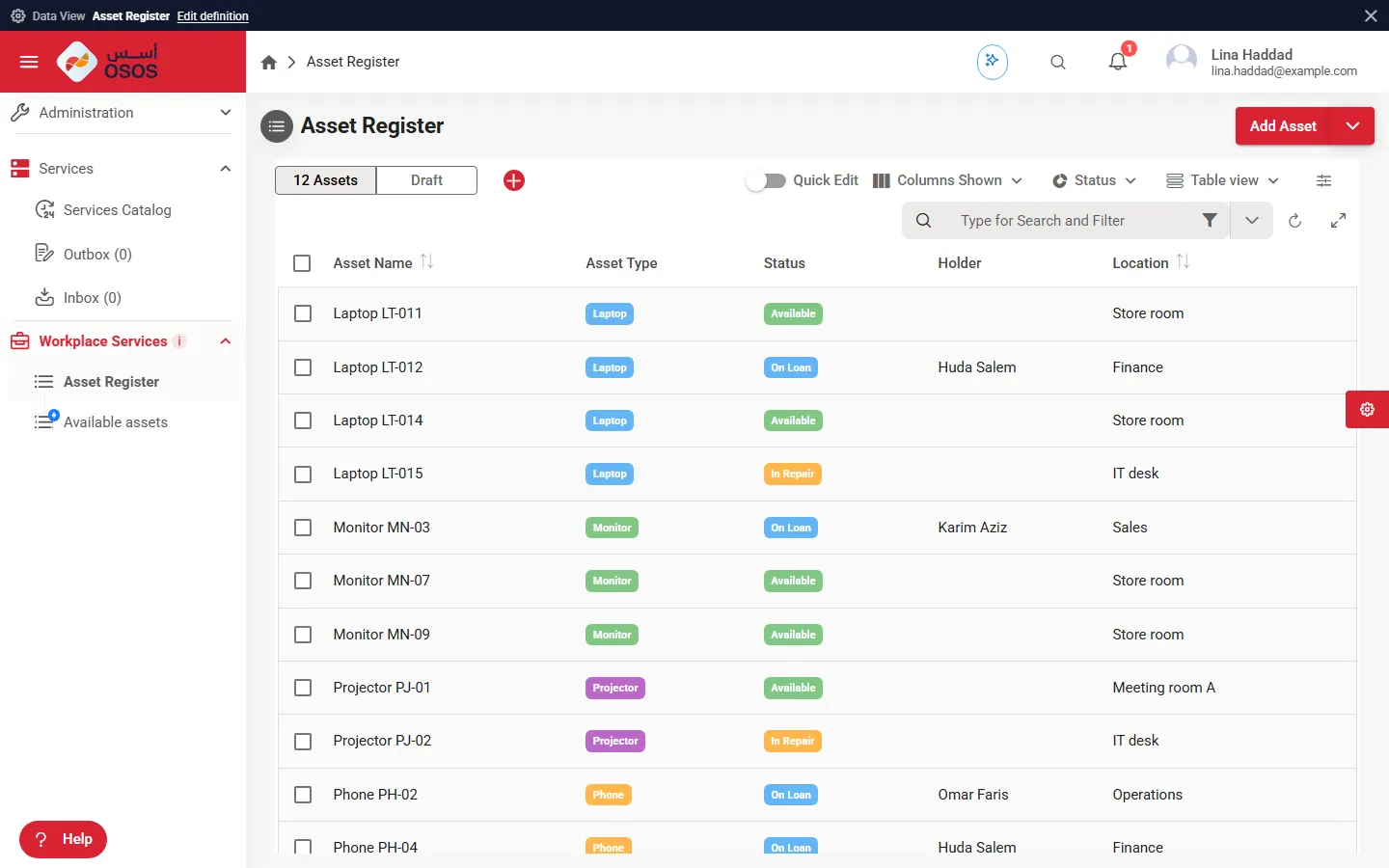 What to notice: the three areas. In the sidebar, the application name (Workplace Services) only groups what is inside it; the list (Asset Register) is what opens.
The Services group
Section titled “The Services group”The Services group is where requests live. You will use it in Module 5. People with the lowest access level do not see it at all (Module 8 explains why).
| Item | What it holds |
|---|---|
| Services Catalog | The services you are allowed to submit. The page it opens is titled Service Catalog. |
| Outbox | Requests you submitted. The number beside it, for example Outbox (0), counts the ones still in progress. |
| Inbox | Other people’s requests waiting for your action, with a count, for example Inbox (1). |
| Watching | Requests you follow without acting on them. It appears only if you were named as a watcher of a service. |
Why your sidebar is yours
Section titled “Why your sidebar is yours”The sidebar lists only what you are allowed to open. Two colleagues can have quite different sidebars, and that is normal: it follows from the permissions you met in Module 2. Something is missing from your sidebar when it has not been published yet, when it is limited to people or groups you are not in, or when it belongs to another space. If you need it, ask your administrator. In Module 8 you will be that administrator, and fix exactly this.
The bell and the profile menu
Section titled “The bell and the profile menu”The bell shows how many notifications you have not read (up to 99+). Select it to open the Notifications panel; select a notification to open what it is about. Select All Notifications for the full list. While the portal is open, new notifications arrive by themselves, with a short pop-up.
Your picture opens the profile menu: User Preferences (your profile and security settings), Delegations, Unmask, Help, Start Tour (shown only to administrators, where a tour exists) and Sign Out.
Your display settings: Save or Apply
Section titled “Your display settings: Save or Apply”The gear button at the edge of the screen opens Quick Settings. Under Display Settings you choose the Theme, the text Scale, the Mode (Light or Dark) and how the Sidebar behaves. Under Regional Setting you choose your Language, Time Zone and date and time formats. Choosing Arabic turns the layout right to left.
Then you decide how long the choice should last:
| You select | The choice lasts | Use it when |
|---|---|---|
| Save | On your account, on every browser and device you sign in on | You want it from now on. |
| Apply (in the menu next to Save) | In this browser only, until you close it | You want to try something, or you are on a shared computer. |
Cancel closes the panel and undoes your changes; Reset puts everything back to the default.
▶ Guided demo (1 min) — Watch it done
Section titled “▶ Guided demo (1 min) — Watch it done”With a facilitator. The facilitator plays the video, or tours the portal live in the same order, before everyone starts the lab.
On your own. Watch the video once before you start. The lab below gives every step in writing, so you can also go straight to it without the video.
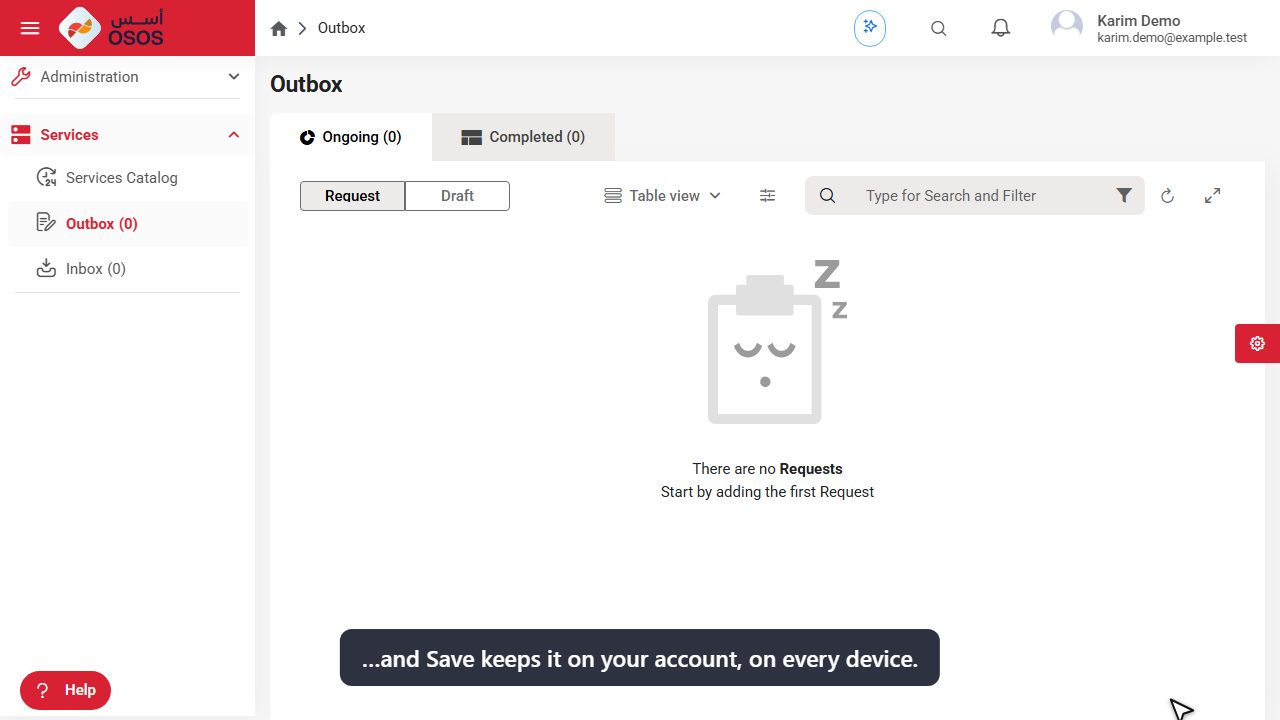
How-to · 44 s
Find your way, and make it yours
What to notice: the order of the tour: the sidebar with its Services group, the bell, your profile menu, then the gear at the edge for Quick Settings. Save keeps a setting on your account, on every device; Apply, under the arrow next to Save, lasts for this browser session only. The video is recorded with another account, Karim, and opens no application; it only points at Apply. In the lab you open Asset Register, and you use Apply to switch the language.
⛏ Lab (9 min) — Tour the portal and make it yours
Section titled “⛏ Lab (9 min) — Tour the portal and make it yours”Goal. Find each part of the portal, and change a setting in a way that lasts.
Before you start. You are signed in as yourself in a normal window, and as Omar in a private window.
- As yourself, select the logo in the top bar. Your home page opens.
- In the sidebar, select Workplace Services. It opens to show what is inside it. Select Asset Register. The list of assets opens, and the top bar shows where you are.
- In the sidebar, open Services. Note which items you see: Services Catalog, Outbox (0) and Inbox (0); the numbers count requests in progress. Watching is not there, because nobody named you a watcher.
- Select the bell. The Notifications panel opens. Select All Notifications to see the full list, then go back.
- Select your picture and read the profile menu. Because your own account administers the space, you may see Start Tour. Close the menu without choosing anything.
- Select the gear at the edge of the screen. In Quick Settings, under Display Settings, select + next to Scale once. The text grows. Select Save.
- Switch to Omar’s private window and reload the page. His text has not changed: your settings belong to your account, not to the computer.
- Back in your own window, open Quick Settings again. Under Regional Setting, set Language to Arabic, open the menu next to Save (حفظ once the panel is in Arabic) and select Apply (تطبيق). The page reloads in Arabic, right to left, with the sidebar on the right. Look at the Services group: in Arabic it reads دليل الخدمات, الصادر and الوارد. Then open the gear again (now on the left edge), set the language (لغة) back to English, and select Apply again.
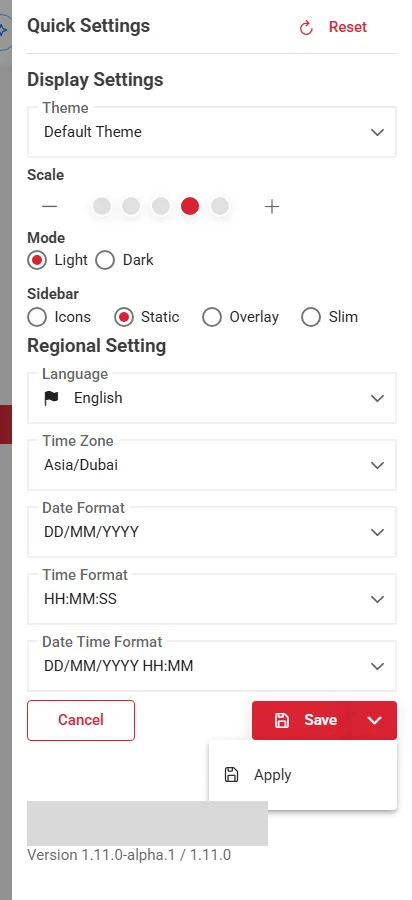 What to notice: Save and Apply are not the same button. Apply hides in the menu next to Save, and lasts only for this browser session.
Check.
- You opened Asset Register from the sidebar.
- You can name the three Services items you see, and why Watching is missing.
- Your text is larger, and still larger after you reload the page.
- Omar’s text size did not change.
- You saw the portal in Arabic and returned it to English.
Pass condition. Your larger text survives a page reload (you used Save), and Omar’s window is unchanged.
If something goes wrong
| What you see | What to do |
|---|---|
| The sidebar has disappeared | Select the menu button at the top left (top right in Arabic). If you set the Sidebar to Overlay or Slim, it opens only when you point at it. |
| Your larger text went back to normal after a reload | You selected Apply, not Save. Repeat step 6 and select Save itself. |
| You cannot find the gear in Arabic | The layout is mirrored: the gear is now on the opposite edge of the screen. |
| Workplace Services opens nothing | That is expected: an application’s name only groups what is inside it. Select Asset Register under it. |
Model answer
What you should have found: three Services items (Services Catalog, Outbox (0), Inbox (0)); no Watching, because you are nobody’s watcher yet; a profile menu ending in Sign Out; and, after step 7, two windows with different text sizes, because Save stores the choice on your account. Step 8 used Apply, so if you had closed the browser while it was in Arabic, it would have come back in English the next time.
✓ Practice (4 min) — Check your understanding
Section titled “✓ Practice (4 min) — Check your understanding”You are working at a colleague’s computer for an hour and want larger text, without changing your account’s settings. What do you select in Quick Settings?
Check your answer
The correct answer is B. Open the explanation under each option to see why.
A colleague’s sidebar shows an application called Budgets. Yours does not. What is the most likely reason?
Check your answer
The correct answer is B. Open the explanation under each option to see why.
Which of these do you find in the Services group of the sidebar? Select all that apply.
Check your answer
The correct answers are A, B and D. Open the explanation under each option to see why.
↺ Recap (1 min) — What you can do now
Section titled “↺ Recap (1 min) — What you can do now”You can now find your way around the web portal: the top bar, the sidebar and the content area; the Services group; the bell; the profile menu. You know your sidebar shows what you may open, and you can choose between Save (your account, everywhere) and Apply (this browser, for now).
Next. In M3-S2 you open the same portal on your phone, and learn what works where.