
M3-S2 — The same portal in your pocket: the mobile app
Section titled “M3-S2 — The same portal in your pocket: the mobile app”| Module | M3 — Find your way, on the web and on the phone |
| After this session you can | Sign in to the mobile app, find your work in it, and say which tasks need the web portal. |
| Time | Facilitated: 17 min · On your own: 17 min |
| Before you start | M3-S1. A smartphone (iPhone or Android) with an internet connection, and your practice space’s web address. No phone? Read the lab with its screenshots now, and do it on a borrowed phone before Module 10, which needs one. |
| Go deeper | Web vs Mobile · Notifications on the mobile app |
◆ Orientation (1 min) — One application, two channels
Section titled “◆ Orientation (1 min) — One application, two channels”Applications in Osos are built once and appear in two places: the web portal you have just explored, and the mobile app on iPhone and Android. They show the same space, the same records and the same requests. A change you make on the phone is there when you open the web portal, and the other way round.
The phone is for work on the move: submitting and approving requests, finding and updating records, scanning codes, and getting alerts. After this session you will have the app on your phone, signed in to your practice space, and you will know when to reach for the computer instead.
▤ Concept (4 min) — How the app is laid out, and what works where
Section titled “▤ Concept (4 min) — How the app is laid out, and what works where”Connecting the app to your organization
Section titled “Connecting the app to your organization”The first time you open the app, it asks you to Choose language, and then shows Login, where you sign in with the same username and password as on the web. Do not use Continue as Guest: as a guest you see only what is open to the public.
The app can serve more than one organization. Depending on how your organization set it up, it may also ask once for your organization’s address, which it calls a Hub URL. It is usually the same address you use for the web portal. Many organizations fix that address in their app, and then you never see this question.
The bottom bar
Section titled “The bottom bar”Instead of a sidebar on the left, the app has a bar at the bottom of the screen:
| Button | What it opens |
|---|---|
| Home | Your home page. |
| Go To | Your applications and lists, as in the web sidebar (and Administration, if you have it). |
| Services | The services you can submit. |
| Notifications | Your notifications, the same ones as under the bell on the web. |
| More | Further options, such as your profile, the app’s settings and Logout. |
The bar shows on these five main screens. When you open a list, it opens as a page of its own, with a back arrow at the top and without the bar. To add a record there, use the round + button at the bottom of the list.
Your profile and security settings are under More › Profile (tabs Profile, Security and Logins); your language, theme and date formats are under More › Settings, and they are saved to your account, so they apply on the web too.
What works where
Section titled “What works where”Almost everything you do as an end user works on both: finding and opening records, adding and editing them, drafts, filters and saved queries, submitting, approving and following requests, comments and notifications. A few things belong to one channel:
| Only on the phone | Only on the web |
|---|---|
| Pop-up alerts even when the app is closed | Reports, and saving a page as PDF |
| Unlocking with your face or fingerprint | Export Entries to Excel or CSV |
| Scanning a QR code or barcode with the camera | Editing a record together with colleagues at the same time |
| Filling in a map field with your current location | Building applications and almost all administration |
The rule of thumb: use the phone for doing and deciding on the move; use the web for building, administering, reports and exports. The web vs mobile job aid has the full list on one page; keep it for Module 10.
⛏ Lab (7 min) — Put your practice space on your phone
Section titled “⛏ Lab (7 min) — Put your practice space on your phone”Goal. Have the app on your phone, signed in to your practice space, and find a list and your notifications in it.
Before you start. Your phone, and the web address of your practice space. You sign in as yourself.
- Install the Osos app from the App Store (iPhone) or Google Play (Android). The message you received when you enrolled names the app to look for.
- Open the app. On Choose language, choose English and select Continue. If the app asks for a Hub URL, type the web address of your practice space and continue.
- On Login, sign in with your Username/ Email and Password.
- The phone may ask whether the app may send notifications. Allow it if you want alerts to pop up while the app is closed; the rest of the lab works either way.
- Look at the bottom bar: Home, Go To, Services, Notifications, More. Tap Go To, then Workplace Services, then Asset Register. The same assets you saw on the web appear. Use the back arrow at the top to return.
- Tap Notifications in the bottom bar. You see the same notifications as under the bell on the web.
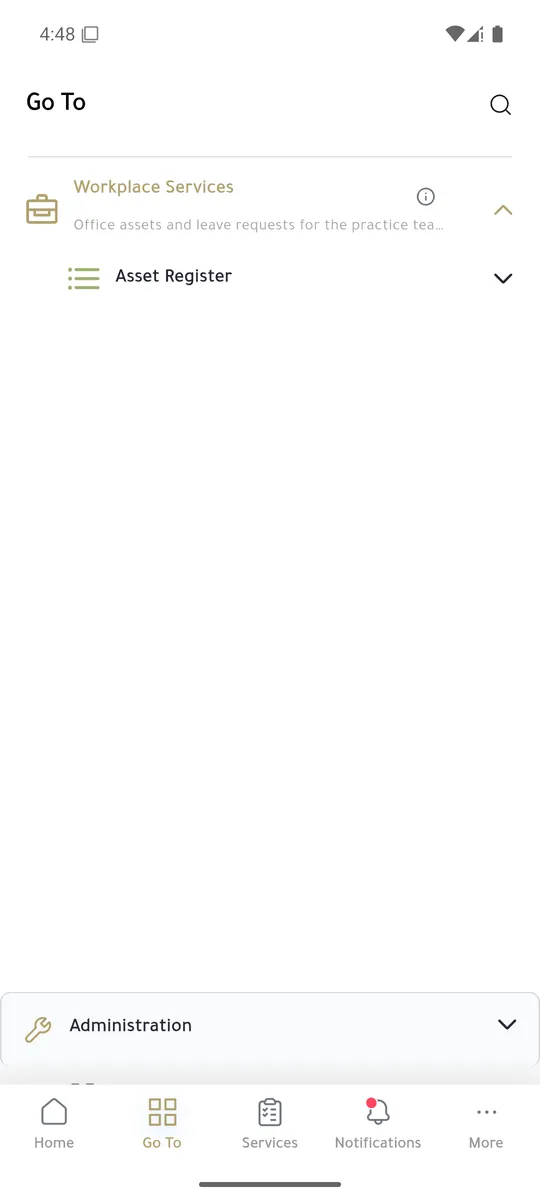 What to notice: the bottom bar replaces the web sidebar and top bar. Go To holds your applications; Notifications replaces the bell.
Check.
- The app is connected to your practice space and you are signed in as yourself.
- You opened Asset Register from Go To.
- You opened Notifications from the bottom bar.
- You know whether pop-up alerts are on for the app, and where to change it in the phone’s settings.
Pass condition. Asset Register opens on your phone and shows the same assets as on the web.
If something goes wrong
| What you see | What to do |
|---|---|
| The app asks for a Hub URL and does not accept it | Check the address for typing mistakes. Type it exactly as it appears in your browser, without anything after the domain name. |
| You signed in with Continue as Guest | Sign out (More › Logout), then sign in on Login with your own details. |
| The app says You don’t have access to this space! | You chose another space. Pick your practice space from the list the app offers. |
| No pop-up alerts | You refused notifications. Turn them on for the app in your phone’s settings; notifications still appear in the app either way. |
| The bottom bar has disappeared | You are inside a list. Use the back arrow at the top to return to the main screens. |
| You have no phone today | Read the steps and screenshots, and do this lab on a borrowed phone before Module 10. |
✓ Practice (4 min) — Check your understanding
Section titled “✓ Practice (4 min) — Check your understanding”A manager is at a site visit and gets a request to approve. Can she do it on her phone?
Check your answer
The correct answer is A. Open the explanation under each option to see why.
Which of these need the web portal? Select all that apply.
Check your answer
The correct answers are A and C. Open the explanation under each option to see why.
In the app, where do you find the applications that appear in the web portal’s sidebar?
Check your answer
The correct answer is C. Open the explanation under each option to see why.
↺ Recap (1 min) — What you can do now
Section titled “↺ Recap (1 min) — What you can do now”You now have your practice space on two channels. You can open the same lists on the web and on the phone, and you know the rule of thumb: the phone for doing and deciding on the move, the web for building, administering, reports and exports.
Next. In Module 4 you work with the records inside a list: find them, show them as a board, add one, keep a draft, change it and archive it. You do it on the web, and everything you learn applies on the phone as well.