
M8-S1 — Give a colleague access
Section titled “M8-S1 — Give a colleague access”| Module | M8 — Open the app to your team |
| After this session you can | Add a team member, give them their groups and role, open your application to a colleague, and prove it works by signing in as them. |
| Time | Facilitated: 41 min · On your own: 38 min |
| Before you start | M7-S1: Team Tasks is published for the group Task Team. Yourself and Omar signed in, in two windows. |
| Go deeper | Managing users · Managing groups · Managing roles · Permissions and access |
◆ Orientation (1 min) — “I can’t see it”
Section titled “◆ Orientation (1 min) — “I can’t see it””The most common message an application’s owner receives is: “I can’t see it.” Your Team Tasks view is published, but only for Task Team, and only you are in that group. Omar cannot see it, and a new colleague, Sara, does not even have an account yet.
In this session you do the administrator’s side of the job, in the order administrators do it: create the person, place them in their groups and their role, then open the application to them, and finally check by signing in as them, which is the only check that cannot be wrong.
▤ Concept (5 min) — Where a person’s access comes from
Section titled “▤ Concept (5 min) — Where a person’s access comes from”A user, and what a user record does not give
Section titled “A user, and what a user record does not give”A user is someone who can sign in. You add one in Administration › Organization › Users. When you save a new user, the platform creates their sign-in account and emails them a link to set their own password. You never see or set their password.
A user record on its own lets someone sign in, but not much more. What they can see and do comes from three things:
- a base level on the platform: every person needs one. Restricted is the lowest: the person can sign in and use the views and pages opened to them, but sees no Services menu, so cannot submit or approve requests. Anyone who submits or approves requests needs at least View, which also shows a short Administration menu. A base level is usually given once to a group everyone belongs to (in your practice space, All Staff gives Restricted; Omar also has View of his own, because he approves leave requests);
- the groups they are in;
- the roles they hold in the org chart.
Groups: the usual way to give access
Section titled “Groups: the usual way to give access”A group lets you treat a team as one. You give access to the group once, and everyone in it gets it. When someone joins or leaves the team, you change only the membership. That is why Team Tasks is open to the group Task Team rather than to named people: opening it to Omar means adding Omar to the group.
Roles and the org chart
Section titled “Roles and the org chart”A role is a position, such as Team Member or HR Manager. Roles are held inside the org chart, the structure of your organization’s units (org units, such as departments). You give someone a role with an assignment: the role, the person, the unit, and whether it is their Main role or an Additional one. Assignments are kept as records of their own (the Assignment entity), so you add one like any other record. Workflows use them to find “the requester’s manager”, and every role has a group behind it, so access can be given to a role as well.
How much access, and how it adds up
Section titled “How much access, and how it adds up”Every permission says who gets access (a user, group or role), to what (a module, an entity, or one view, page or service) and how much. The level names you will meet are Restricted (the base level: nothing on its own, but it lets the access given elsewhere take effect), View, Developer, Edit and Admin. The administrator course, ACSA, teaches what each level allows; for opening a view, you do not need them.
Two rules are enough at this level:
- Access adds up. A person has everything given to them directly plus everything given to each group and role they belong to.
- Taking access away means removing what gives it. One grant never cancels another: there is no “deny”, and a lower level set somewhere else does not cancel a higher one. To take Omar out of Team Tasks again, you would remove him from Task Team.
flowchart LR
  O["Omar (user)<br/>own base level: View"] -->|member of| AS["All Staff<br/>base level: Restricted"]
  O -->|member of| TT["Task Team"]
  O -->|holds role| R["Team Member<br/>in Operations"]
  TT -->|may open| V["Team Tasks view"]
  V --> P["Task Home page widget"]
What to notice: Omar gets Team Tasks only through Task Team. His base level lets him use the portal and its Services; it gives him no application. Remove him from the group, and the view and the list on the page both disappear for him.
Checking: the screen, then the person
Section titled “Checking: the screen, then the person”Two ways to check, and you use both:
- Administration › Access Management › User Permissions: choose the person and read what they can reach. For each permission, Assignment Type says how they got it (for example Indirect (Group)) and Acquired Through names the group or role.
- Sign in as them (here, Omar’s private window) and look. This is the proof: it shows exactly what the person sees.
▶ Guided demo (1 min) — Watch it done
Section titled “▶ Guided demo (1 min) — Watch it done”With a facilitator. The facilitator plays the video, or adds a user live in the same order, before everyone starts the lab.
On your own. Watch the video once before you start. The lab below gives every step in writing, so you can also go straight to it without the video.
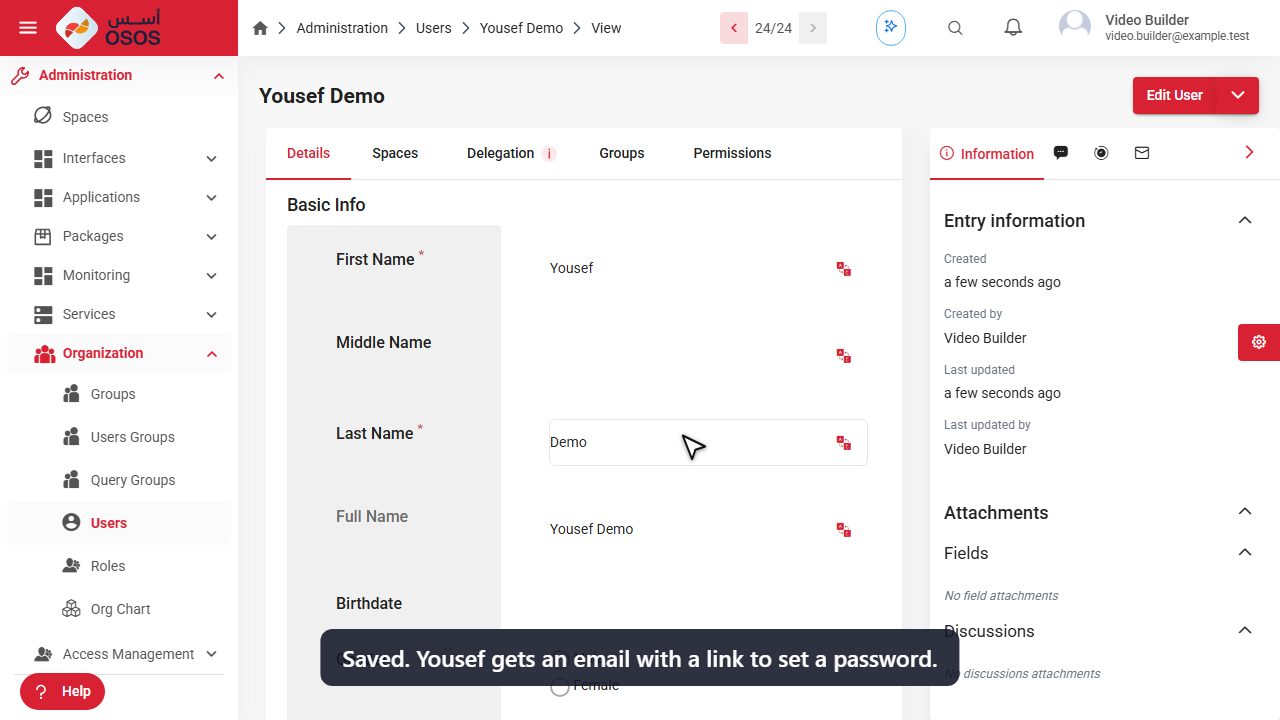
How-to · 40 s
Add a user
What to notice: the click-path Administration › Organization › Users › Add User; Full Name filling in from the two names; User Type left on Normal; a username and an email address that are both unique; Organization Account set to Yes; and no password field, because the new person gets a link to set their own. The video adds a different person, Yousef, and stops at Save. In the lab you add Sara Nasser, then give her groups and her role, and open Team Tasks to Omar, which the video does not show.
⛏ Lab (16 min) — Add Sara, and open Team Tasks to Omar
Section titled “⛏ Lab (16 min) — Add Sara, and open Team Tasks to Omar”Goal. Add a new team member properly, then open Team Tasks to Omar and prove it. You and Omar are signed in, in two windows.
Add Sara, the new team member
- Open Administration › Organization › Users and select Add User. The form New User opens.
- Under Basic Info, enter the First Name Sara and the Last Name Nasser. Leave Full Name empty: it is made from the two names when you save.
- Leave User Type on Normal (the other choice, Application, is for accounts used by other systems).
- Under Account Information, enter the Username sara.nasser and the Email Address sara.nasser@example.com, and set Organization Account to Yes (needed for a role).
- Select Save. Sara’s record has the tabs Details, Spaces, Delegation, Groups, Permissions and Information; if it does not open by itself, open Sara Nasser from the Users list. (Her set-password email goes nowhere: it is a practice address.)
- On Sara’s record, open the Groups tab, a list titled Assignment Users Groups. Select +: the dialog Add Assignment Users Groups Entry opens with User already set to Sara. In Group, choose All Staff, select DONE, then Save Changes.
- Select + again and add Task Team the same way. Each group needs its own dialog.
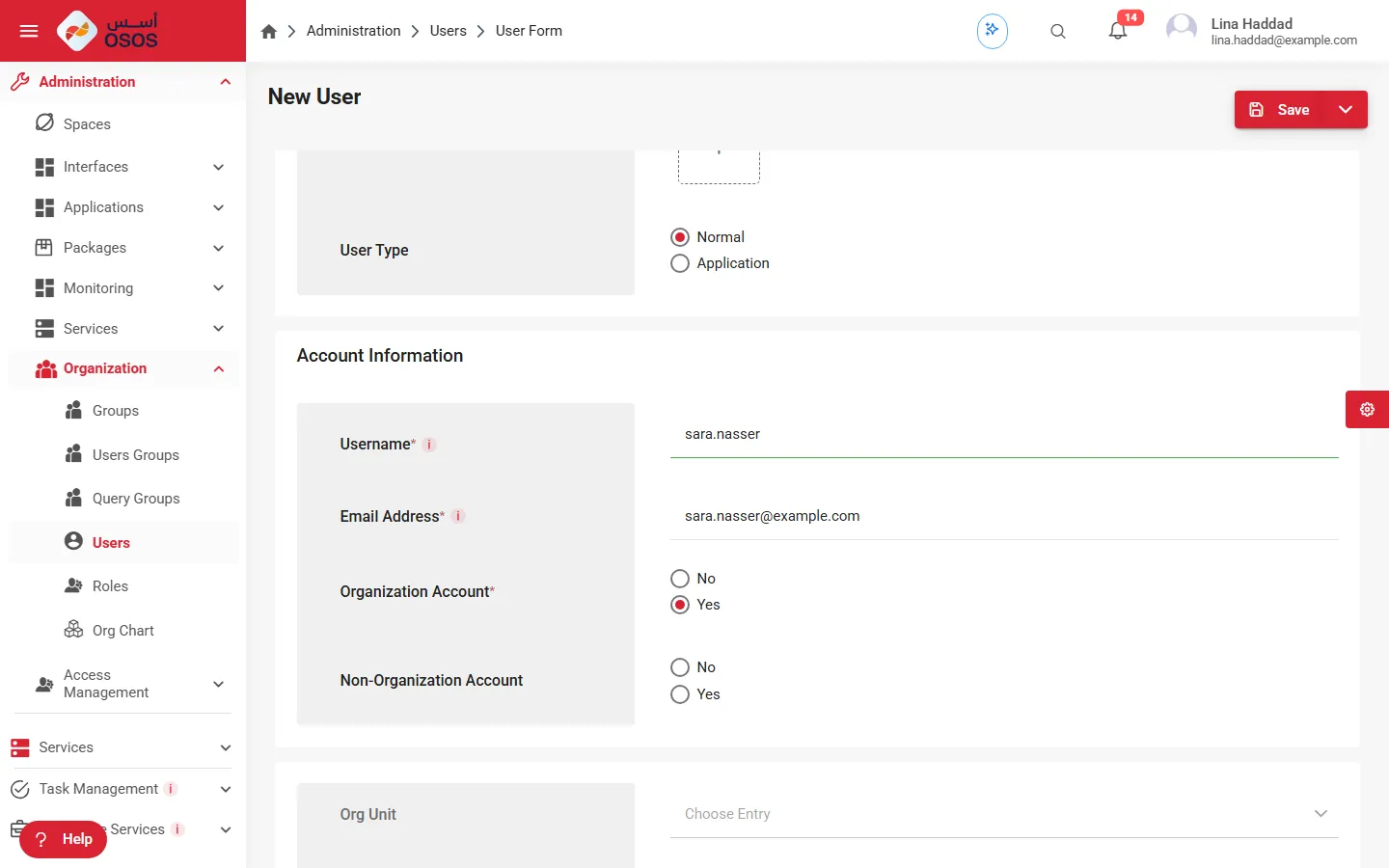 What to notice: there is no password field. Saving sends the new person a link to set their own.
Give Sara her role
- Open Administration › Applications › Data Entities and open Assignment. Select Add Assignment.
- Set the Role to Team Member, the Assign Level to Main, the Assign Type to Original, the User to Sara Nasser and the Org Unit to Operations. Leave Is Manager off. Select Save.
Open Team Tasks to Omar, and prove it
- In Omar’s window, reload. In the sidebar, open Task Management and select Task Home (it is open to everyone signed in). He has no Team Tasks under Task Management. The page shows the welcome text, but where the list should be it says You don’t have access, Please contact with the administrator.
- In your own window, open Administration › Organization › Groups › Users Groups and open Task Team. Its Users tab lists Assignments Users Groups. Select +; Group is already Task Team. In User, choose Omar Faris, select DONE, then Save Changes.
- Open Administration › Access Management › User Permissions, choose Omar Faris in Select User, and select SEARCH. On the End User Permissions tab, the row Task Management → Tasks → Team Tasks shows the actions the view allows (View List, Create, Details, Edit, Archive), the assignment type Indirect (Group) and, under Acquired Through, Task Team.
- In Omar’s window, reload. Team Tasks is in his sidebar under Task Management; Task Home now shows the tasks in its list.
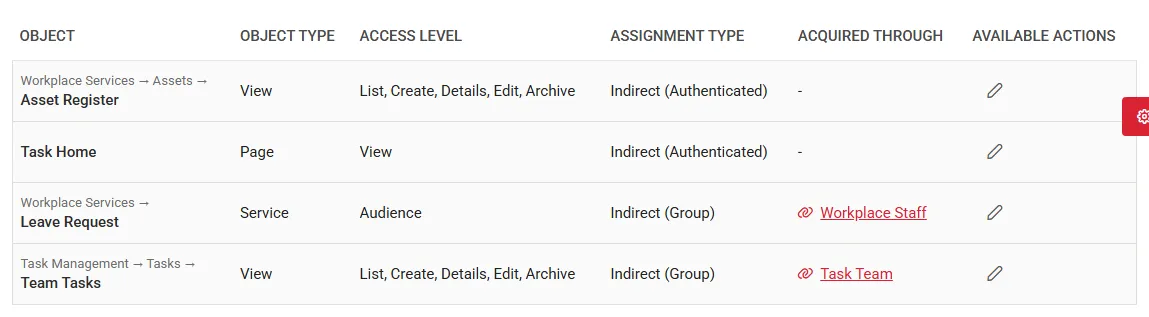 What to notice: Acquired Through tells you where the access comes from, which is also where you would remove it.
Check.
- Sara Nasser is in the Users list.
- Sara is a member of All Staff and of Task Team.
- Sara holds the role Team Member in Operations as her Main assignment.
- Before step 11, Omar could not open Team Tasks.
- User Permissions for Omar shows Team Tasks, acquired through Task Team.
- After a reload, Omar opens Team Tasks and sees the tasks.
Pass condition. Signed in as Omar, you open Team Tasks from the sidebar and see the tasks, and User Permissions names Task Team as the source.
If something goes wrong
| What you see | What to do |
|---|---|
| No Organization menu under Administration | Your account needs the system Admin level. See the M0-S1 Lab. |
| Saving Sara fails with a red message | The username or the email address is already used. Check the Users list for an earlier attempt. |
| The group dialog closes but the group is not listed | You selected DONE but not Save Changes. Add it again and confirm. |
| You cannot find the assignments in the Org Chart | They are not there. Open Administration › Applications › Data Entities › Assignment (step 8). |
| Sara cannot be chosen in the assignment | Organization Account is not Yes on her record. Edit her and set it. |
| The assignment is refused for the role | Read the message: the role may allow only one holder. In your practice space, Team Member can be held by many people in many units; if it is still refused, ask whoever set up your space to check the role. |
| A task on Task Home shows Invalid date | That task has no due date. Open it from Team Tasks, pick a Due Date and save. |
| Omar still cannot see Team Tasks after step 11 | Reload Omar’s window. If it is still missing, check in User Permissions that he has a base level, and that Team Tasks is published. |
Model answer
Why it worked, piece by piece:
- Sara signs in once she sets her password. All Staff gives her the base level; Task Team gives her Team Tasks; her assignment places her in Operations as a Team Member.
- Omar saw Task Home even before step 11, because the page is open to everyone signed in; but its list said he had no access, because the list comes from Team Tasks, which only Task Team may open.
- One membership change (Omar into Task Team) opened both the view and the page’s list. To undo it, you would remove him from the group: there is no separate “deny” to set.
✳ Discussion (13 min) — Three access requests: what would you do?
Section titled “✳ Discussion (13 min) — Three access requests: what would you do?”Three messages arrive in the same week. For each, decide what you would change, and why.
- “A contractor, Rami, will help the team for two weeks and needs Team Tasks.”
- “Everyone in the Operations unit should see the Task Home page.”
- “I’m the Operations manager. Give me access to everything in the platform, so I never have to ask again.”
With a facilitator. In threes, agree on a decision for each request, and the one sentence you would reply to the person who asked (6 min). Groups then compare decisions; where they differ, the group decides which reasoning is safer (3 min).
On your own. Write your decision for each request in one or two lines, with the reason. Then compare with the model answer.
Model answer
- Rami: create his user, add him to All Staff for the base level and to Task Team for the view, and note the end date. When his two weeks end, remove him from Task Team (or deactivate his account): access comes from the membership, so that is what you remove. Do not give him access directly as a person; that is hard to find and review later.
- Operations and Task Home: nothing to change. Task Home is a default page, open to everyone signed in. What they will see on it depends on Team Tasks: if the whole unit should also see the tasks, that is a separate decision about the view, for example opening it to the unit’s group instead of adding people one by one.
- “Everything”: do not do it. Access should match the job, no more. Ask what the manager actually needs to do, and give that, usually through a group or their role. Deciding who gets high system levels is an administrator’s policy question, covered in the ACSA course.
✓ Practice (4 min) — Check your understanding
Section titled “✓ Practice (4 min) — Check your understanding”Karim joined the support team today. The administrator created his user, and Karim can sign in, but he sees almost nothing, not even the Support Tickets view that the group Support can open.
What could be missing? Select all that apply.
Check your answer
The correct answers are A and B. Open the explanation under each option to see why.
After the fix, how does the administrator prove that Karim really sees Support Tickets?
Check your answer
The correct answer is B. Open the explanation under each option to see why.
Omar moves to another team and should no longer see Team Tasks. What do you do?
Check your answer
The correct answer is B. Open the explanation under each option to see why.
↺ Recap (1 min) — What you can do now
Section titled “↺ Recap (1 min) — What you can do now”You can now add a team member properly (user, base level, team group, role in the org chart) and open an application to a colleague through a group. Above all, you check your work the reliable way: on User Permissions, then by signing in as the person.
Next. Omar can see the tasks, but nobody tells him when a new one is his. In Module 9 you make the application do that by itself.