
M3-S1 — Seven notifications along the route
Section titled “M3-S1 — Seven notifications along the route”| Module | M3 — Keep everyone informed |
| After this session you can | Tell the right person, automatically, each time a ticket reaches them or a decision is taken. |
| Time | Facilitated: 51 min · On your own: 51 min |
| Before you start | M2-S2: the workflow is complete and valid. From ACP: M9-S1, your first reaction. |
| Go deeper | Add the notifications · Choose the event · Notify people |
◆ Orientation (1 min) — Every hand-over tells the next person
Section titled “◆ Orientation (1 min) — Every hand-over tells the next person”A workflow moves a ticket, but it does not tell anyone. Without notifications, the desk would have to keep refreshing its Inbox and customers would never know their ticket was received. In this session every hand-over sends a message to whoever must act or wants to know. You already built one reaction in ACP; here you build seven, and you choose a different event for each kind of moment.
▤ Concept (4 min) — Workflow events and recipients
Section titled “▤ Concept (4 min) — Workflow events and recipients”What you already know
Section titled “What you already know”A reaction is an event, an optional filter, and one action (ACP M9-S1). In ACP the event was On Entry Created and the recipient came from the Assigned To field. A ticket’s life, though, is a series of workflow moves, and those need workflow events.
Three workflow events
Section titled “Three workflow events”| Event | Runs when… | Use it to… |
|---|---|---|
| On Workflow Step Reached | the ticket arrives at the step you choose | tell the person who must act next |
| On Workflow Step Exited | the ticket leaves the step, by the action you choose | send a message that depends on the decision taken |
| On Workflow Action Executed | someone takes the action you choose | react to the decision itself (you use it in Module 9) |
Reached answers “it’s your turn”. Exited with a chosen action answers “this decision was taken”. Look at Help Desk: the ticket can leave it by four actions. A message that should go out only when the desk sends the solution, not when it closes the ticket, must use On Workflow Step Exited with Help Desk (Send Solution).
A move is not an update. When a ticket moves from one step to another, On Entry Updated does not run. A reaction meant to follow the workflow must use a workflow event.
Who receives it
Section titled “Who receives it”Under Recipients you choose a Source, a Type and a Value:
| Recipients | Means | Here |
|---|---|---|
| Group · Fixed · Technical Support Office | every member of a group | the desk |
| User · Field · Assigned to | the person written in a User field | the representative |
| User · Field · Created by | whoever created the ticket | the customer |
Created by is a detail every record keeps; you did not build it. It is how a ticket finds its customer without a customer field.
One reaction, one action
Section titled “One reaction, one action”A reaction does exactly one thing. When the desk sends the solution, two people must be told, with two different messages: the representative (Solution has been reviewed) and the customer (Your request has been resolved). That is two reactions on the same event.
The ticket number in the title
Section titled “The ticket number in the title”As in ACP, a placeholder in double braces becomes a row under Custom Variables. All seven
titles read Ticket Number {{id}}, with id mapped (Type Field) to Ticket number.
⛏ Lab (39 min) — Build the seven notifications
Section titled “⛏ Lab (39 min) — Build the seven notifications”With a facilitator. The facilitator plays the video, or builds it live in the same order, before the lab starts.
On your own. Watch the video once before you start. The lab below gives every step in writing, so you can also go straight to it without the video.
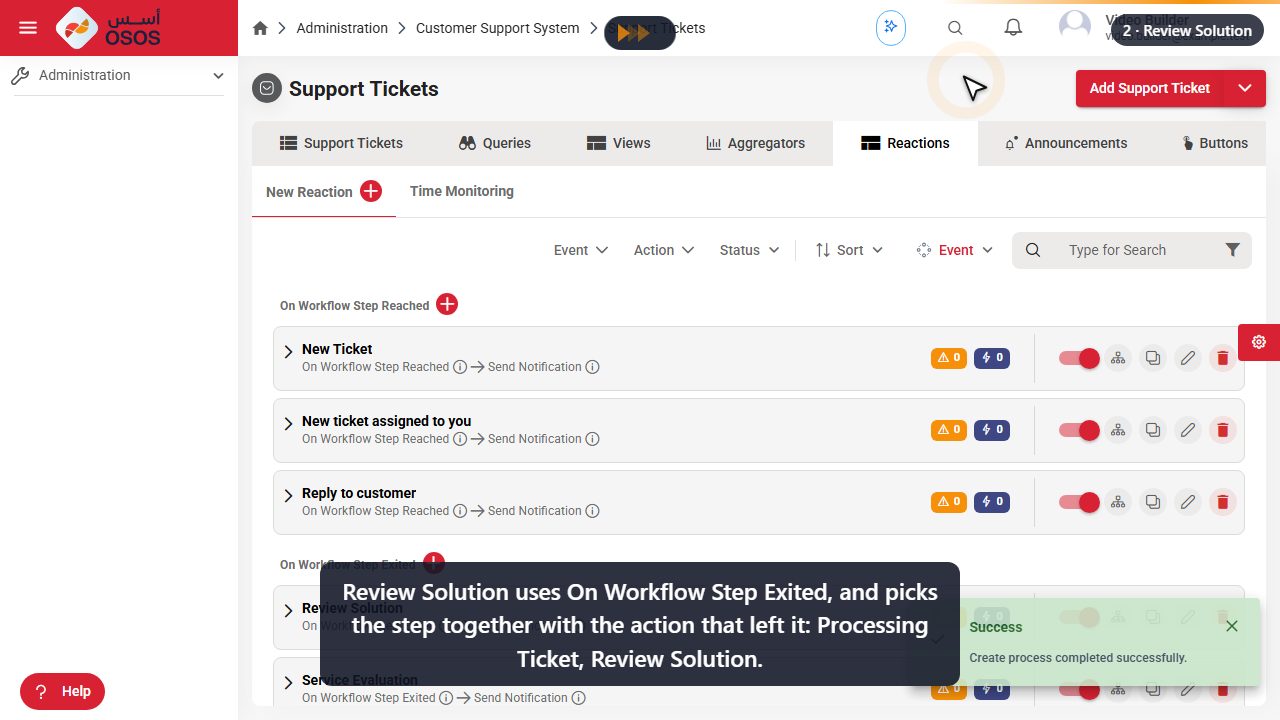
Tutorial · Part 4 of 8 · 2 min 8 s
Seven notifications
What to notice: One notification per hand-over. The first, New Ticket, uses the event On Workflow Step Reached at Help Desk, sends an in-app notification, maps id to Ticket number under Custom Variables and goes to the Technical Support Office group. Review Solution is the one that uses On Workflow Step Exited, picking the step together with the action that left it.
Goal. Add the seven notification reactions to Support Tickets.
Before you start. Signed in as yourself.
The first reaction, step by step
- Open Support Tickets (Administration › Applications › Modules › Customer Support System) and select the Reactions tab. Stay on the New Reaction sub-tab.
- Select + (or Add Reaction while the list is empty). The New Reaction dialog opens.
- Enter the Name New Ticket. Under Event, choose On Workflow Step Reached, and in Choose Step pick Help Desk. Leave Filter empty and the other event settings as they are.
- Under Action, set Action Type to Send Notification and Channel Type to In
App. Enter the Title
Ticket Number {{id}}and the Content New ticket arrived. - In the id row under Custom Variables, set Type to Field and Map to Ticket number.
- Under Recipients, set Source Group, Type Fixed, Value Technical Support Office. Select Save.
Screenshot pending The New Reaction dialog for New Ticket: event On Workflow Step Reached at Help Desk, Send Notification In App, recipients the Technical Support Office group What to notice: the step is chosen under the event, and the recipient is a group, so every desk agent is told.
The other six
Build each from the table, the same way. To save typing, open New Ticket’s menu and select Duplicate: the copy keeps the title and its variable; change the Name, the event and step, the Content and the Recipients. For On Workflow Step Exited, pick the step together with the action, shown as Step (Action).
| # | Name | Event · Choose Step | Content | Recipients |
|---|---|---|---|---|
| 2 | Reply to customer | On Workflow Step Reached · Processing Ticket | Your request has been received | User · Field · Created by |
| 3 | New ticket assigned to you | On Workflow Step Reached · Processing Ticket | Ticket assigned to you | User · Field · Assigned to |
| 4 | Review Solution | On Workflow Step Exited · Processing Ticket (Review Solution) | Please review the solution | Group · Fixed · Technical Support Office |
| 5 | The solution has been reviewed | On Workflow Step Exited · Help Desk (Send Solution) | Solution has been reviewed | User · Field · Assigned to |
| 6 | Ticket Resolved | On Workflow Step Exited · Help Desk (Send Solution) | Your request has been resolved, please review it | User · Field · Created by |
| 7 | Service Evaluation | On Workflow Step Exited · Service Evaluation (Done) | Service evaluation is done, click to see it | Group · Fixed · Technical Support Office |
- Build reaction 2.
- Build reaction 3.
- Build reaction 4.
- Build reaction 5.
- Build reaction 6.
- Build reaction 7.
Screenshot pending The Reactions tab listing the seven reactions with their events and Send Notification actions What to notice: each row shows its event and action at a glance. Reactions 5 and 6 share an event but differ in recipient and message.
Check.
- The Reactions tab lists seven reactions, all Send Notification, In App.
- Reactions 1 to 3 use On Workflow Step Reached; reactions 4 to 7 use On Workflow Step Exited with an action.
- Every title is
Ticket Number {{id}}, with id mapped to Ticket number. - The recipients match the table: two to the group, two to Assigned to, two to Created by, plus New Ticket to the group.
Pass condition. Seven active reactions match the table. You see them arrive in Module 5, when you walk a ticket through the route as each person.
If something goes wrong
| What you see | What to do |
|---|---|
| Choose Step offers no actions in brackets | You chose On Workflow Step Reached. Exited events list Step (Action) pairs. |
| Created by is not offered under Value | It sits with the record’s details, not with your fields; open the field tree’s details section. |
{{id}} shows literally in the title later | The id variable has no mapping. Open the reaction and set Type Field, Map to Ticket number. |
| You cannot save a reaction | You need Developer access on the entity, and every required action setting filled. |
| A duplicated reaction still has the old step | Duplicate copies everything; change the event and step before saving. |
Model answer
Why these events: reactions 1 to 3 tell someone it is their turn, so they use Reached. Reactions 4 to 7 depend on which decision was taken: the representative sending a solution back, the desk sending it to the customer (not closing the ticket), the customer finishing the rating. They use Exited with that action, so they stay silent on the other routes out of the same step. Reactions 5 and 6 are two reactions on one event because a reaction has one action and the two messages go to different people.
◇ Worked scenario (1 min) — Reached, exited, or neither?
Section titled “◇ Worked scenario (1 min) — Reached, exited, or neither?”The support manager asks for four more messages. Decide the event before reading on.
“Tell me when a ticket is waiting for my approval.” It is the manager’s turn: On Workflow Step Reached, Manager Approval, recipient Support Manager.
“Tell the desk when I reject a solution, but not when I approve.” It depends on the decision: On Workflow Step Exited, Manager Approval (Reject). A Reached reaction on Help Desk would fire after approvals too, and the existing New Ticket already fires there.
“Tell the customer when the desk closes the ticket.” On Workflow Step Exited, Help Desk (Close Ticket), recipient Created by.
“Tell the representative whenever the ticket’s status changes.” Tempting: On Entry Updated, watching Ticket status. It works for edits made in a form, but a status set by a workflow move does not count as an update. Ask what moment the manager really means: usually it is a step, and a step needs a workflow event.
✓ Practice (5 min) — Check your understanding
Section titled “✓ Practice (5 min) — Check your understanding”A builder makes a reaction on On Entry Updated to tell the customer when their ticket is approved by the manager. Approvals happen, but no message ever arrives. Why?
Check your answer
The correct answer is B. Open the explanation under each option to see why.
The customer should be told when the desk sends the solution, but not when the desk closes a duplicate ticket. Which event fits?
Check your answer
The correct answer is C. Open the explanation under each option to see why.
One reaction can send the representative and the customer two different messages, as long as both recipients are listed under Recipients.
Check your answer
The correct answer is B (False). Open the explanation under each option to see why.
A customer must be notified, but the ticket has no field naming the customer. Which recipients setting reaches them?
Check your answer
The correct answer is A. Open the explanation under each option to see why.
↺ Recap (1 min) — What you can do now
Section titled “↺ Recap (1 min) — What you can do now”You built seven reactions that keep everyone informed, chose Reached for “it’s your turn” and Exited with an action for “this decision was taken”, and sent messages to a group, to a person in a field and to the ticket’s creator. After Module 3 you can make a process tell each person, automatically, what they need to know.
Next. Customers and the desk still have no screen to work in. In Module 4 you save the queries, build the two views, and add the chart and the monthly report.